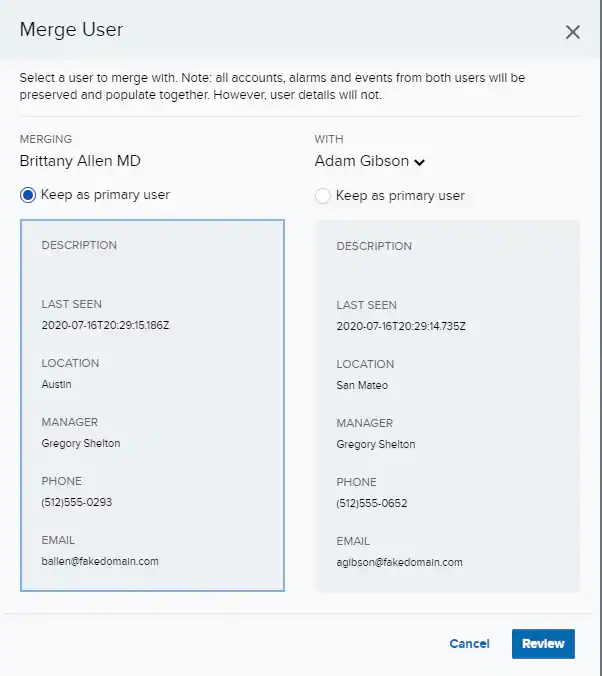
If there are user entities in your user list who all represent the same user in your environment, you have the option of manually merging the entities together. The resulting single user entity retains associations with all user accounts connected to any of the former user entities, and after the merge will behave in every way as one single user entity.When two users are merged, all of the user accounts, activity, and associated and from each user entity are unified under a single merged user entity. User details (like “Description”, “Location”, and “Phone”) are merged using the Primary User principle. During the merge process, User Behavior Analytics (UBA) will look for user details in your primary user entity first, and populate the newly merged user entity with those details. If the primary user has a blank detail field, UBA will use data from the secondary user to populate that field in the merged user.
Important: Any data from the secondary user that is not included in the resulting merged user entity will be deleted after the merge process is complete.
The one exception to this rule is a user’s email address. If both of your user entities have email addresses, instead of keeping the primary and discarding the secondary, the resulting merged user will retain both emails in a comma-separated list. Similarly, every email associated with a user entity is preserved through the merge process.
Note: While secondary user entities are deleted as part of the merge process, if you search for a user who has been merged and deleted, your search will automatically return the user entity into which your searched user was merged.
To merge two users
Go to Environment > Users.
Next to the user-name of one of the two users you wish to merge, click the icon.
Select Full Details.
Click Actions, and then click Merge User.The merge users dialog box opens.
Note: You can also access this dialog by click the icon on the User List view.
Use the search bar on the right to search for the other user you wish to merge, and select it from the list.
Use the radio buttons to identify one of two entities as the primary.
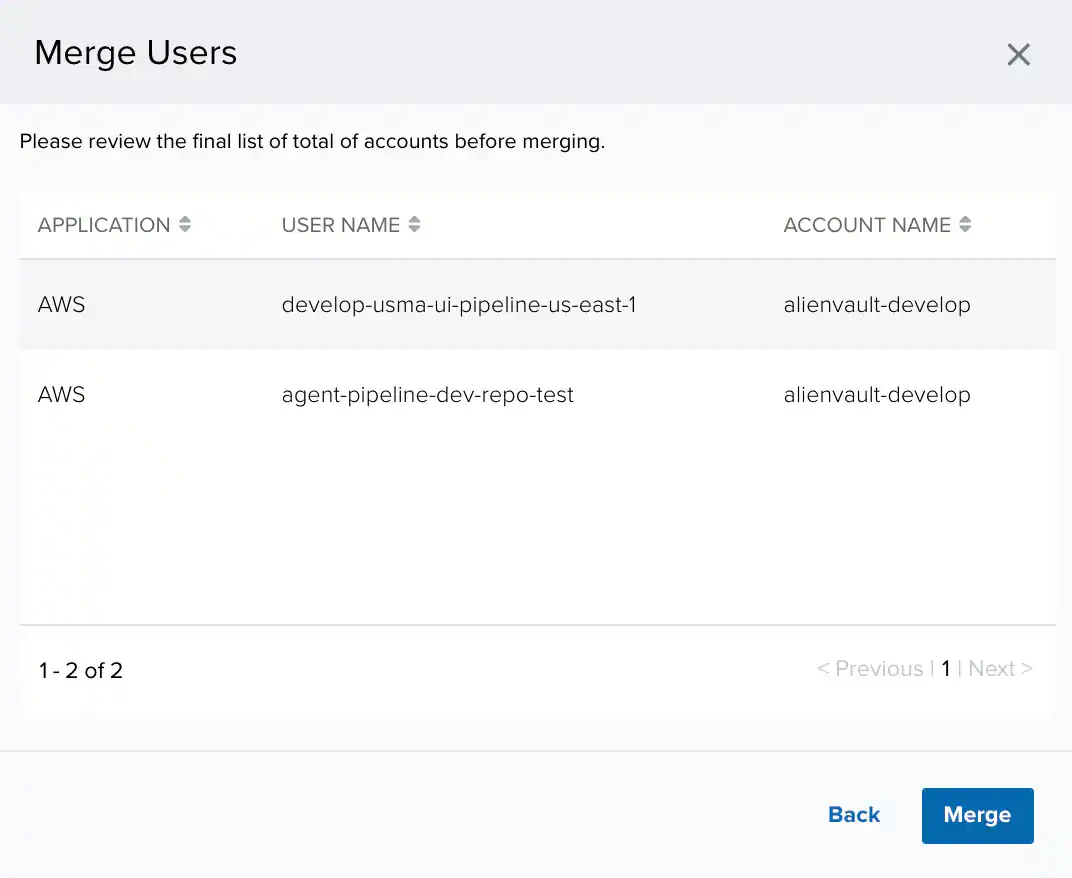
Click Review.The review window opens. This is where you can preview all of the user accounts that will be united under your new merged user entity.
If all of the accounts are correct, click Merge.
When the merge process completes, you will see a new Full User Details page displaying the details of your newly merged user.


 icon.
icon.