To add a USM Appliance deployment connection to a USM Central instance, you must initiate a connection from the USM Appliance web UI. The connection request from a USM Appliance deployment requires a token that you generate in the USM Central instance.
Version 5.4.3 or later is required to add a USM Appliance deployment connection. Port 443 must be open between a USM Appliance and a USM Central instance.
-
In USM Central, go to Settings > Deployments.
-
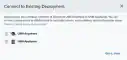
Click Connect to Existing Deployment.
The Connect to Existing Deployment dialog box opens.
-
Click the
 icon next to USM Appliance.
-
Enter a name for the deployment that you want to connect.
-
Click Generate Token.
-
Click the
 icon to copy the token to your clipboard.
-
Paste the token into a secured file and send it to the user that is responsible for the USM Appliance deployment.
-
Click Got it, close.
To initiate a connection to USM Central from USM Appliance
-
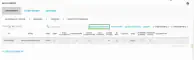
In the USM Appliance web UI, go to Configuration > Deployment > Components > Servers.
-
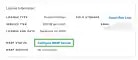
Click the Connect to USM Central link.
-
Enter the token generated from USM Central.
-
Click Connect.
The system sends a request to the USM Central.
Upon acceptance, your USM Appliance deployment is automatically connected.
To view other related training videos, click here.
Disconnect a Connection
USM Appliance and USM Central enable you the option of disconnecting a connection.
To disconnect a connection from the USM Central web UI
-
Go to Settings > Deployments.
-
Click the
 icon.
The Disconnect Deployment dialog box opens.
icon.
The Disconnect Deployment dialog box opens.
-
Choose one of these options:
- Yes, disconnect deployment and purge all data: Use this option to disconnect the deployment and purge all historical data.
- Yes, disconnect deployment BUT DO NOT purge all data: Use this option to disconnect the deployment. Alarms remain and your USM Anywhere shows them in the alarm list. The alarms are available if you connect the deployment again.
- No, do not disconnect: Use this option to exit this dialog box without disconnecting the deployment.
To disconnect a connection from the USM Appliance web UI
-
In the USM Appliance web UI, go to Configuration > Deployment > Components > Servers.
-
Click Disable Connection.
The Connection to USM Central dialog box opens.
A dialog box opens.
-
Click Yes, Disconnect.