

- Go to Settings > Notifications.
- In the left navigation panel, click Amazon SNS.
- Select the AWS Region name.
-
Enter the Access key and Secret key. See Create an AWS Access Key for more information.

- Click Save Credentials.
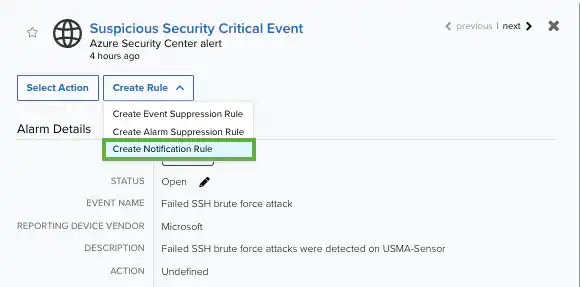
- Go to Activity > Alarms or Activity > Events.
- Click the alarm or event to open the details.
-
Click Create Rule and select Create Notification Rule.
-
There are suggested property values to create a matching condition. However, if you want to add new property values, click Add Condition.
Note: If the field is related to the name of a country, you should use the country code defined by the ISO 3166.Note: The Sources or Destinations field needs to match the universally unique identifier (UUID) of the event or alarm. You can also use the Source Name or Destination Name field.Note: If you need to add a property value that maps with a property key, you need to know the mapping of the field. See Determining the Mapping of a Field for more information.
-
(OPTIONAL) Click Add Group to group your conditions.
Note: See Operators in the Orchestration Rules for more information.
- In the Occurrences text box, enter the number of event occurrences that you want to produce a match on the conditional expression to trigger the rule. You can enter the number of occurrences or use the arrows to scroll the value up or down. You can enter a number between 1 and 100.
-
Click Next.
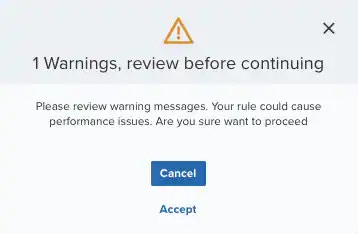
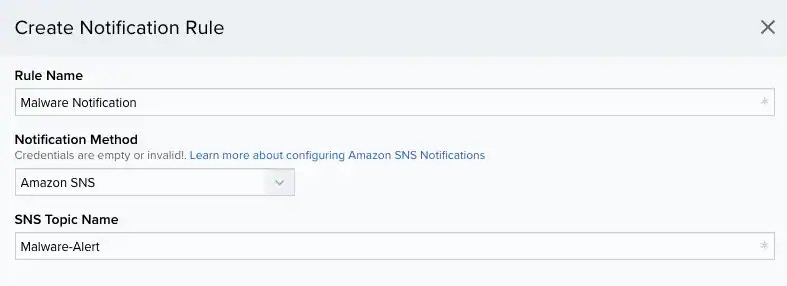
- Enter a Rule Name.
- (OPTIONAL) Enter a Description to identify this rule.
- For Notification Method, select the Amazon SNS option.
- Enter the SNS Topic Name you have created in the AWS console. See Set Up an Amazon SNS Topic for more information.
-
In the Length text box, specify the timespan that you want to use to identify a match for multiple occurrences. Enter the number in the text box, and then use the drop-down menu to select a value of seconds, minutes, or hours.
This duration identifies the amount of time that transpires from the beginning to the end of the occurrence. If the number of occurrences is not met within this period, the rule is not a match.
Note: Your defined length and occurrences function together to specify the number of occurrences within a time period that will produce a match for the rule. For example, you can define a rule to trigger an for an attempt when a failed occurs three times within a five-minute window.
- Click Save. The created rule displays the list of rules. You can see it from Settings > Rules > Orchestration Rules. See Orchestration Rules for more information.