To view information about these actions in USM Anywhere
- In USM Anywhere, go to Data Sources > BlueApps.
- Click the Available Apps tab.
- Search for the BlueApp, and then click the tile.
-
From here, you can click one of the following tabs to display more information.
- Actions:Displays information regarding the supported BlueApps actions.
- History:Displays information about the executed actions.
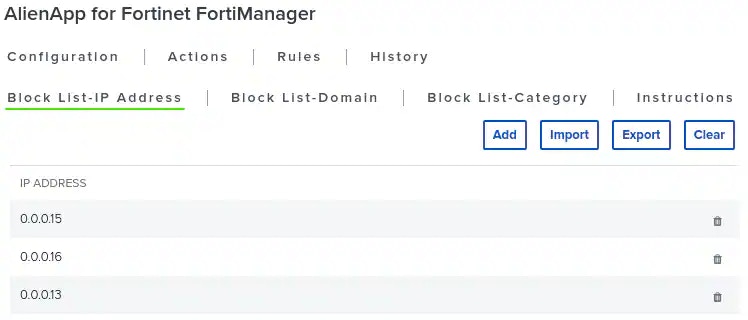
- Block List-IP Address: Displays the IP addresses in the external block list and enables you to modify them.
- Block List-Domain: Displays the domains in the external block list and enables you to modify them.
- Block List-Category: Displays the categories in the external block list and enables you to modify them.
Launch Actions from USM Anywhere
When you review the information in the Alarm Details, Event Details, or Vulnerability Details, you can easily launch an action to send a request to your connected FortiManager instance to add source or destination IP information from the event to existing FortiManager ADOMs. If you want to apply an action to similar events that occur in the future, you can also create orchestration rules directly from an action applied to an alarm, event, or vulnerability. To launch a FortiManager response action for an alarm, event, or vulnerability- Go to Activity > Alarms, Activity > Events, or Environment > Vulnerabilities.
- Click the alarm, event, or vulnerability to open the details.
- Click Select Action.
- In the Select Action dialog box, select Run FortiManager Action.
- Select the app action and fill out the fields that are populated below.
- Click Run. After USM Anywhere initiates the action for an alarm or event, it displays a confirmation dialog box. If you want to create a rule to apply the action to similar items that occur in the future, click Create rule for similar alarms or Create rule for similar events and define the new rule. If not, click OK.
External Block List
The external block lists for IP addresses, domains, and categories, are all contained in the BlueApp for Fortinet FortiManager page (Data Sources > AlienApps > Fortinet FortiManager). For each tab, you can see the list of all the items on the block list, and you can remove individual items by clicking the icon next to the item. Each tab also contains three buttons above the list:- Add: Opens a dialog box to add an IP address, domain, or category to the list.
- Import: Opens a dialog box to import a text file to import a list of IP addresses, domains, or categories to the list. This enables you to take your copied block list from another sensor and apply it to the current sensor.
- Export: Exports the entire IP address, domain, or category list as a downloadable .txt file. This enables you to copy your block list to another sensor.
- Clear: Clears the entire IP address, domain, or category list.