

USM Anywhere offers a REST API framework that enables you to customize elements of data in your environment. The APIs return JSON responses and any errors in those returns use HTTP response codes. To access the API, you will need to create a client ID and secret code in the USM Anywhere interface, and use that information to create a token. USM Anywhere uses OAuth 2.0 to authenticate against the REST APIs.
To open the API Clients page
-
In the USM Anywhere web UI secondary menu, click the

-
Select API Clients tab.
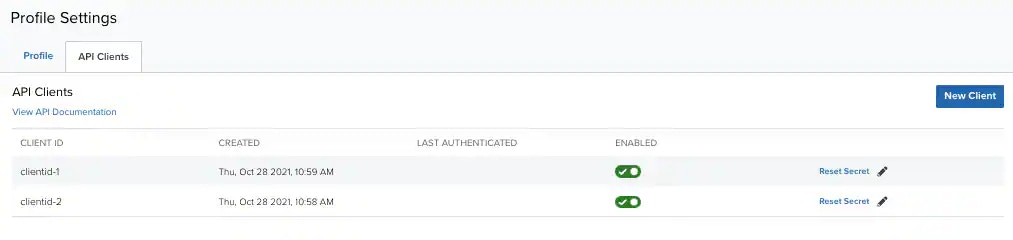
- Click New Client to create a new client. See the LevelBlue APIs for more information.
-
In the USM Anywhere web UI secondary menu, click the
- Select API Clients.
-
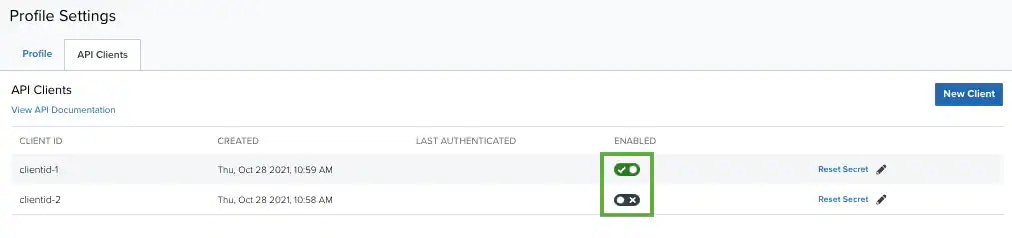
Locate the API client that you want to enable and click the


-
In the USM Anywhere web UI secondary menu, click the
- Select API Clients.
-
Locate the API client that you want to modify and click the

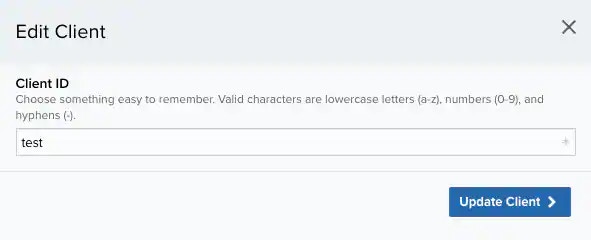
- Make changes to the client ID, as needed.
- Click Update Client.