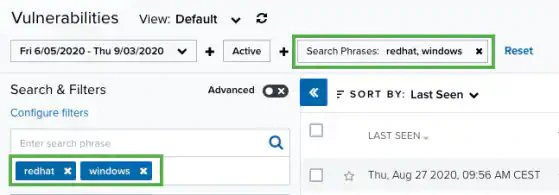
USM Anywhere includes the option of searching items of interest on the page. There are several filters displayed by default. You can either filter your search or enter what you are looking for in the search field.
The following table lists the filters you see on the page.
Filters Displayed by Default in the Main Vulnerabilities Page
The following table shows the icons displayed with each filter box.
Icons Next to the Filter Title
| Icon | Meaning |
|---|---|
  | Sort the filters alphabetically. |
  | Sort the filters by number of items that matches them. |
 icon next to the filter. Or clear all filters by clicking Reset.
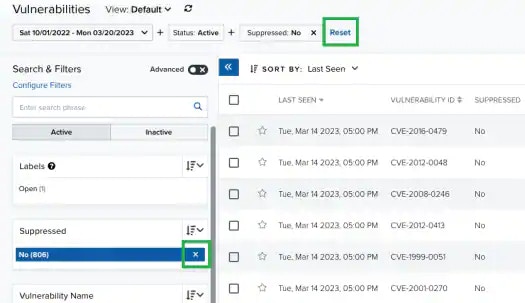
Note: When applying filters, the search uses the logical AND operator if the used filters are different. However, when the filter is of the same type, the search uses the logical OR operator.
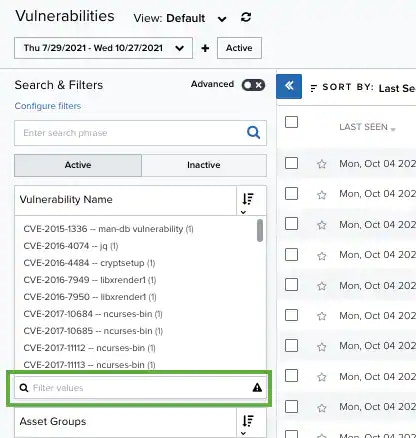
 icon appears to the right of the Filter Values search field. Click this icon to download a CSV containing up to 1024 results.
- Go to Environment > Vulnerabilities.
-
Enter your query in the search field.
If you want to search for an exact phrase having two or more words, you need to put quotation marks around the words in the phrase. This includes email addresses (for example, “bob@mycompany.com”).
Note: Wildcard characters are considered as literal characters.
-
Click the
 icon.
icon.