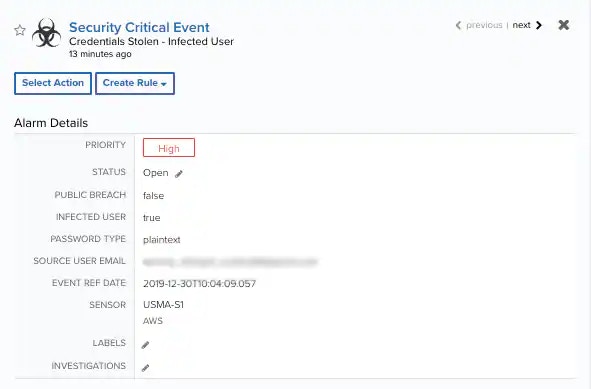
The BlueApp for SpyCloud Dark Web Monitoring leverages the SpyCloud APIs to retrieve breach records. See the SpyCloud API documentation for more information about the attributes (data fields) it stores in these breach records.
- Credentials Stolen — Public Breach
- Credentials Stolen — Private Breach
- Credentials Stolen — Infected User
To view Dark Web Monitoring events
To view Dark Web Monitoring events
- Go to Activity > Events to open the Events page.
-
If the Search & Filters panel is not displayed, click the
 icon to expand it.
USM Anywhere includes several filters displayed by default.
icon to expand it.
USM Anywhere includes several filters displayed by default.
-
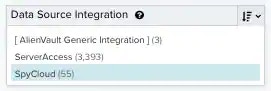
(Optional.) Scroll down to the Data Source filter and select SpyCloud to display only the Dark Web Monitoring events on the page.
If this filter is not displayed, click the Configure filters link, which is in the upper left corner of the page, to configure filters for the page. See Managing Filters for more information about configuring filters for pages.
-
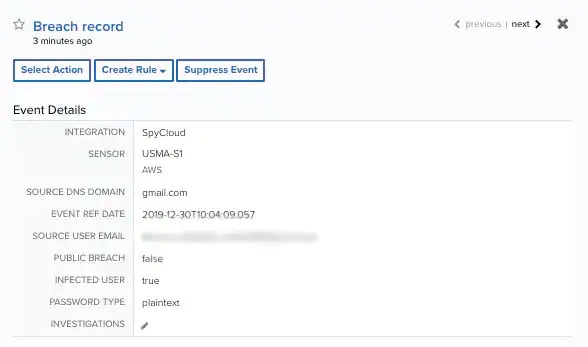
Select an event in the list to view detailed information.
To view Dark Web Monitoring alarms
To view Dark Web Monitoring alarms
- Go to Activity > Alarms to open the Alarms page.
-
If the Search & Filters panel is not displayed, click the icon to expand it.
USM Anywhere includes several filters displayed by default.
-
Enter SpyCloud as a search phrase and click the
 icon.
icon.
-
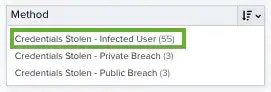
(Optional.) Scroll down to the Method filter and select a type to view only those alarms.
If this filter is not displayed, click the Configure filters link, which is in the upper left corner of the page, to configure filters for the page. See Managing Filters for more information about configuring filters for pages.
-
Select an alarm in the list to view detailed information and recommendations.