Viewing ServiceNow Incidents Created by USM Anywhere
In USM Anywhere, you can view a list of incidents created by an action applied directly to an , , or , as well as any from actions that were triggered by an orchestration rule. From the list, you can open the incident in your ServiceNow account to view additional information about the incident or make updates to the incident, such as assigning the item to a team member or changing its priority. To access the ServiceNow incidents- In USM Anywhere, go to Data Sources > BlueApps > Available Apps.
- Search for ServiceNow, and then click the tile.
-
In the BlueApp for Service Now page, click the tab for the incidents type that you want to display. The available incident types depend on the ServiceNow products that are active for the ServiceNow user account configured for the BlueApp:
- Select Service Desk Incidents to view incidents created in the IT Service Management product.
-
If your account has the ServiceNow Security Incident Response (SIR) product enabled, click the Security Incidents tab to view the security incidents created in that product.
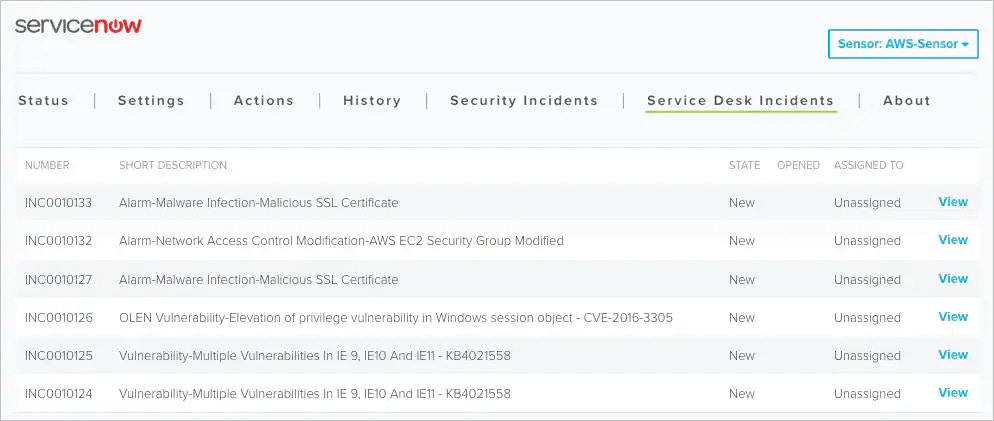 The displayed list includes all ServiceNow incidents generated by USM Anywhere, with the most recently opened items at the top. You can view the current status and assignment for the incident as reported by your ServiceNow instance.
-
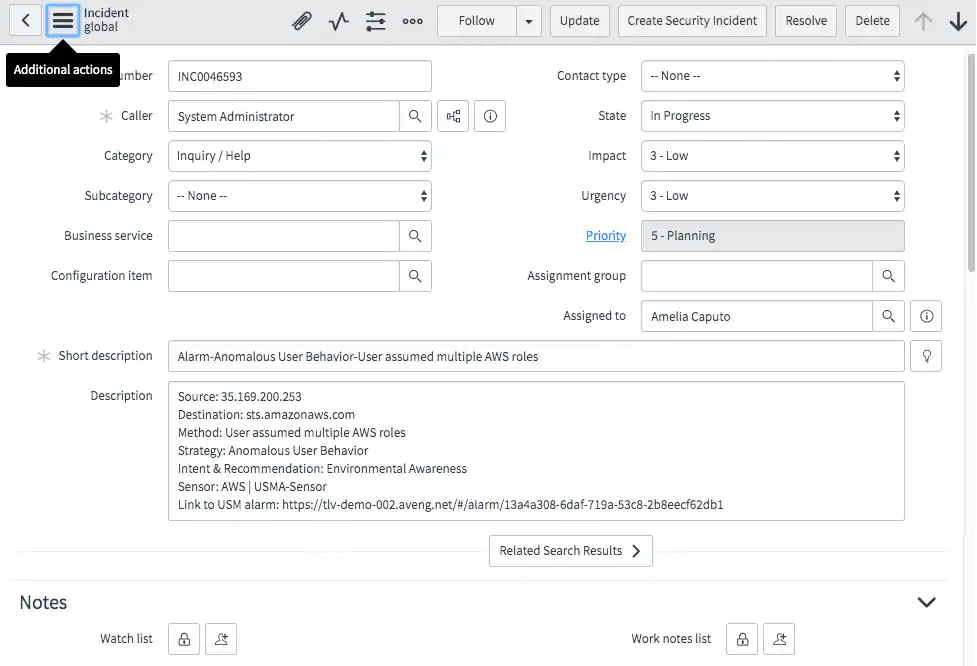
Click View to open the incident in the ServiceNow interface.
In ServiceNow, you can assign the issue, change its status, access the source of the incident in USM Anywhere from the link included in the ServiceNow incident, or perform any of the functions supported for your account.
Filtering the Labeled Alarms and Vulnerabilities
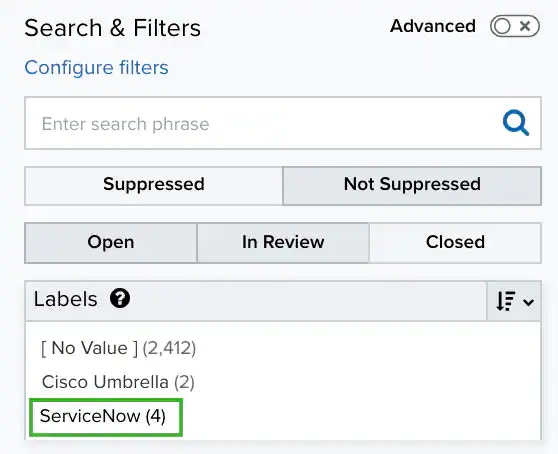
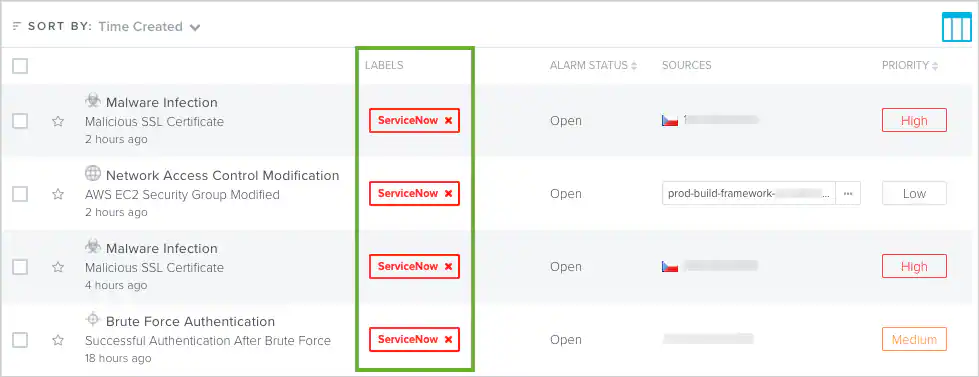
USM Anywhere uses labels as a mechanism to classify alarms and vulnerabilities. These labels make it easy to filter items by label so that you can locate them easily and track their status. When the BlueApp for ServiceNow executes a response action for an alarm or vulnerability, it automatically applies the ServiceNow label to it. You can use this label as a filter so that a page displays data for only those items related to an BlueApp for ServiceNow response action. To view ServiceNow action alarms or vulnerabilities- Go to the Alarms (Activity > Alarms) or Vulnerabilities (Environment > Vulnerabilities) page.
-
If the Search & Filters panel is not displayed, click
 to expand it.
USM Anywhere includes several filters displayed by default.
to expand it.
USM Anywhere includes several filters displayed by default.
-
Locate the Labels filter and select ServiceNow.
If the Labels filter is not displayed, click Configure Filters at the bottom of the Search & Filters pane to configure filters for the page. See Managing Filters for more information about configuring filters for the page display. In the displayed list, you can scroll the list to the right and view the Labels column.