

Creating Change Request from Events/Alarms
To create change requests from an event or alarm- In USM Anywhere, go to the Alarms (Activity > Alarms) or Events (Activity > Events) page.
- Click the alarm or event to open the details.
- Click Select Action.
- In the Select Action dialog box, select the ServiceNow tile.
- [OPTIONAL] If you have more than one USM Anywhere Sensor configured for the BlueApp for ServiceNow, use the Select Sensor option to set the sensor you want to use for the action.
- Select the Create a Change Request option from the App Action dropdown. Additional fields appear below with event/alarm details automatically populated.
-
Modify the rest of the fields accordingly.
Configuration items, like the Source Address and Destination Address, are handled by the backend. If the fields are empty, you can select one or more configurations from the provided list.
-
You can also modify the default values in the Category, Priority, Urgency, and Assign To fields.
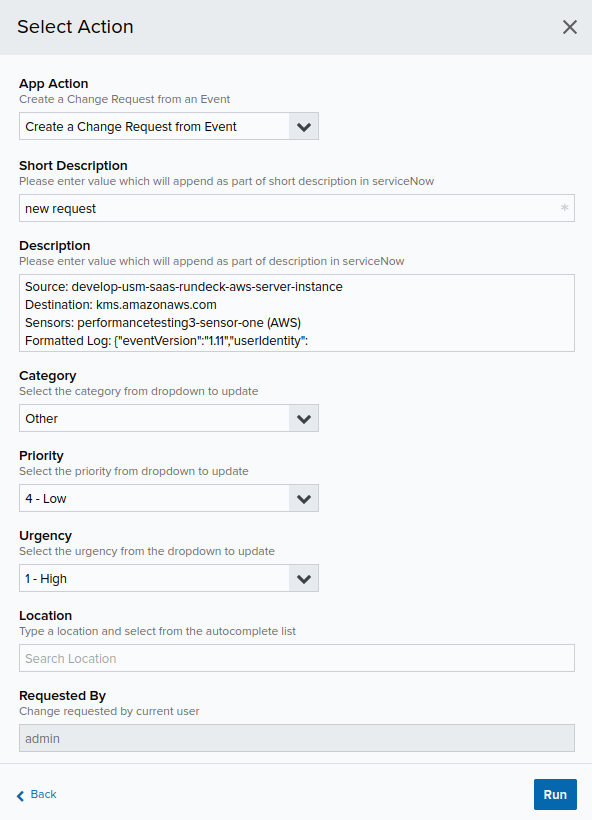
- Once done, click Run.
Updating Change Requests from Events/Alarms
To update a change request from an event or alarm- In USM Anywhere, go to the Alarms (Activity > Alarms) or Events (Activity > Events) page.
- Click the alarm or event to open the details.
- Click Select Action.
- In the Select Action dialog box, select the ServiceNow tile.
- [OPTIONAL] If you have more than one USM Anywhere Sensor configured for the BlueApp for ServiceNow, use the Select Sensor option to set the sensor you want to use for the action.
- Select the Update a Change Request option from the App Action dropdown.
- Select the Change Request Number from the dropdown. Additional fields appear below.
- Modify the rest of the fields accordingly.
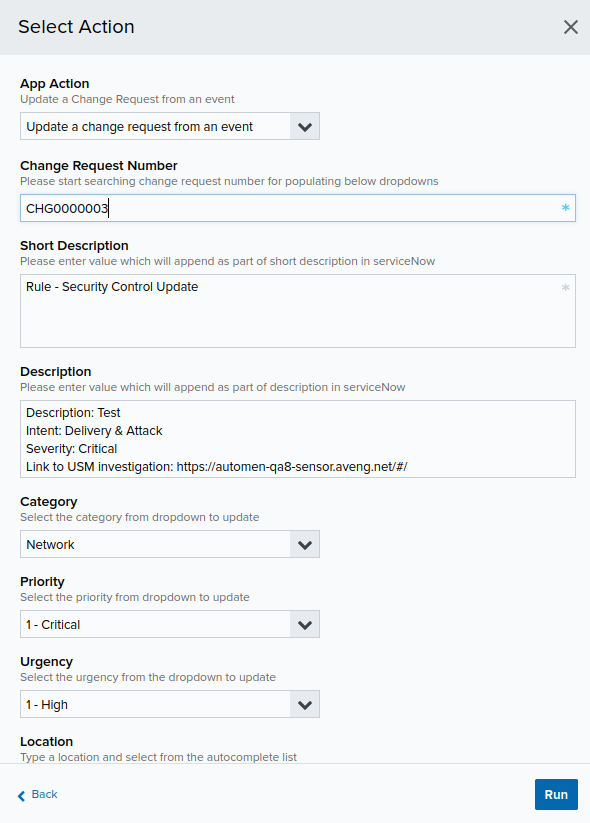
- Once done, click Run.
Creating Change Requests from Rule
To create a change request from a rule- Go to Data Sources > Blue Apps > Available Apps.
- Search for ServiceNow, and then click the tile.
- In the BlueApp for ServiceNow page, click the Rules tab.
- Click Response Action Rule.
- In the Create Response Action Rule page, select the Create Change Request from Rule option from the App Action dropdown.
- Enter a Short Description, and then select the checkboxes of the fields to be included when the rule is triggered.
- [OPTIONAL] Enter Additional Comments.
- Modify or select the default values in the Category, Priority, Urgency, and Assign To fields.
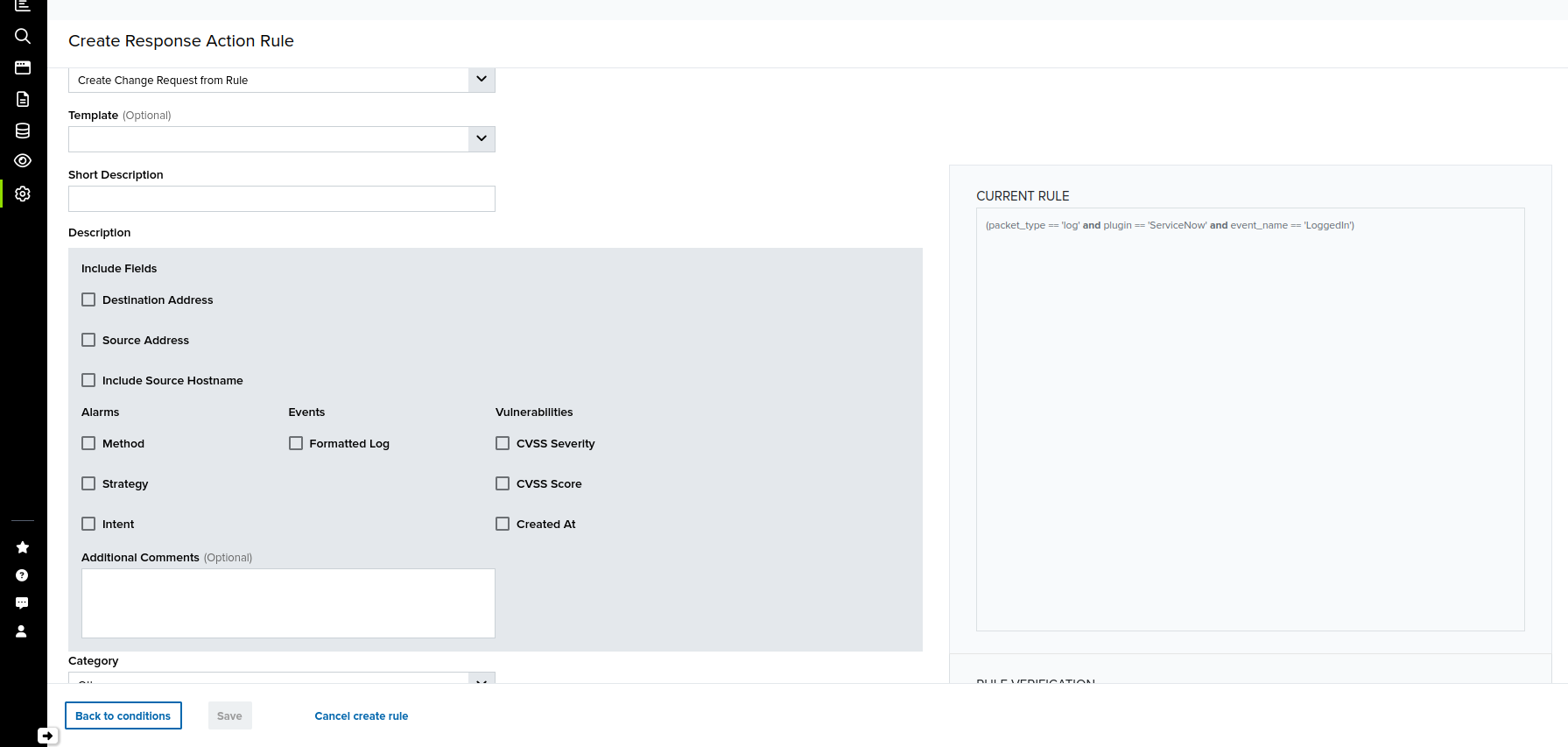
- Once done, click Save.
Updating Change Requests from Rule
To update a change request from a rule- Go to Data Sources > Blue Apps > Available Apps.
- Search for ServiceNow, and then click the tile.
- In the BlueApp for ServiceNow page, click the Rules tab.
- Click Response Action Rule.
- In the Create Response Action Rule page, select the Update Change Request from Rule option from the App Action dropdown.
- Search for the Change Request Details from the dropdown. Additional fields appear below.
- Modify the rest of the fields accordingly.
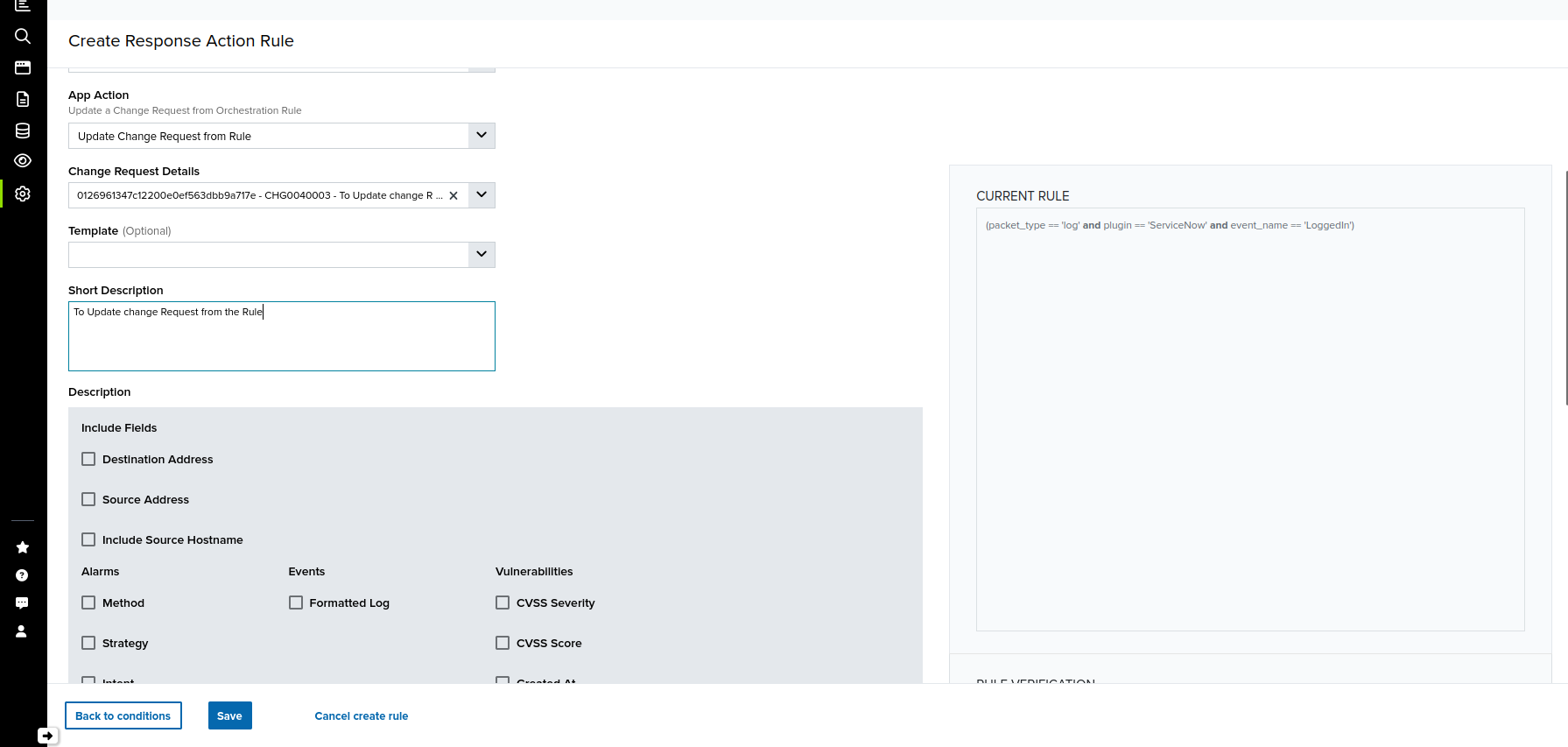
- Once done, click Save.
Creating New Incidents from Events/Alarms
To create a new incident from an event/alarm- In USM Anywhere, go to the Alarms (Activity > Alarms) or Events (Activity > Events) page.
- Click the alarm or event to open the details.
- Click Select Action.
- In the Select Action dialog box, select the ServiceNow tile.
- [OPTIONAL] If you have more than one USM Anywhere Sensor configured for the BlueApp for ServiceNow, use the Select Sensor option to set the sensor you want to use for the action.
- Select the Create a new incident option from the App Action dropdown. Additional fields appear below.
- Select the Incident Type.
- Depending on your selection, other fields like Short Description and Description are automatically populated based on the alarm/event details. You may modify these fields accordingly.
- Modify the default values in the Category, Priority, Urgency, and Assign To fields accordingly.
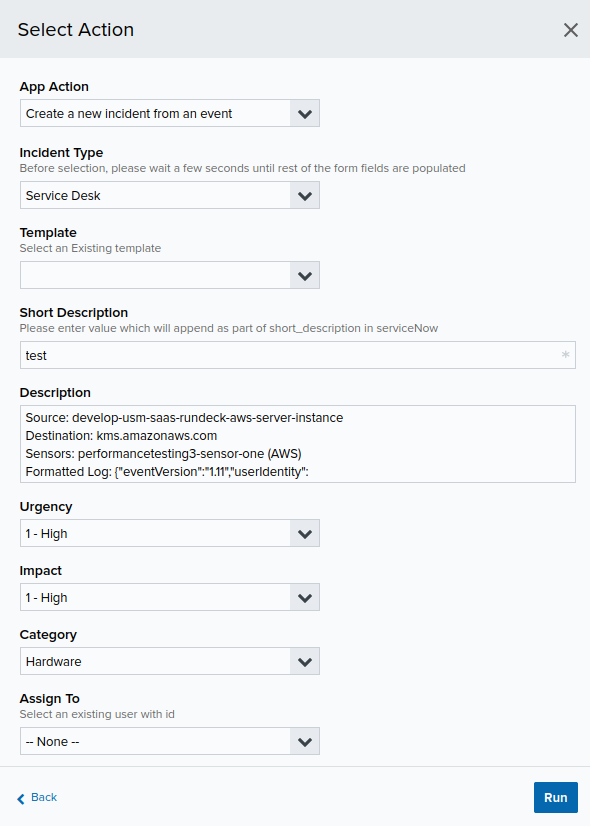
- Once done, click Run.
Updating Incidents from Events/Alarms
To update an incident from an event/alarm- In USM Anywhere, go to the Alarms (Activity > Alarms) or Events (Activity > Events) page.
- Click the alarm or event to open the details.
- Click Select Action.
- In the Select Action dialog box, select the ServiceNow tile.
- [OPTIONAL] If you have more than one USM Anywhere Sensor configured for the BlueApp for ServiceNow, use the Select Sensor option to set the sensor you want to use for the action.
- Select the Update an incident option from the App Action dropdown.
- Select the Incident Type, and then search for the Incident Number from the dropdown. Additional fields appear below.
- Modify the rest of the fields accordingly.
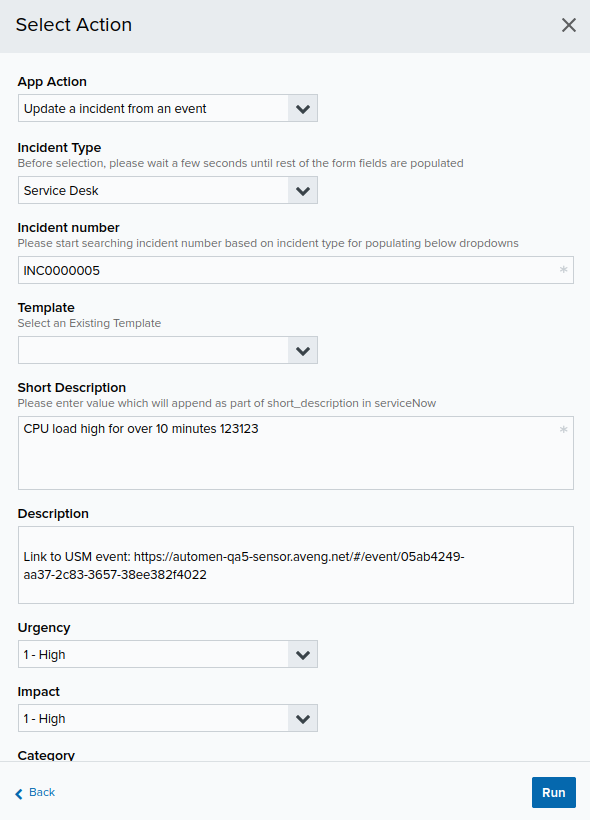
- Once done, click Run.
Creating New Incidents from Rule
To create a new incident from a rule- Go to Data Sources > Blue Apps > Available Apps.
- Search for ServiceNow, and then click the tile.
- In the BlueApp for ServiceNow page, click the Rules tab.
- Click Response Action Rule.
- In the Create Response Action Rule page, select the Create a new incident from Rule option from the App Action dropdown.
- Select the Incident Type.
- Enter a Short Description, and then select the checkboxes of the fields to be included when the rule is triggered.
- [OPTIONAL] Enter Additional Comments.
- Modify or select the default values in the Category, Priority, Urgency, and Assign To fields.
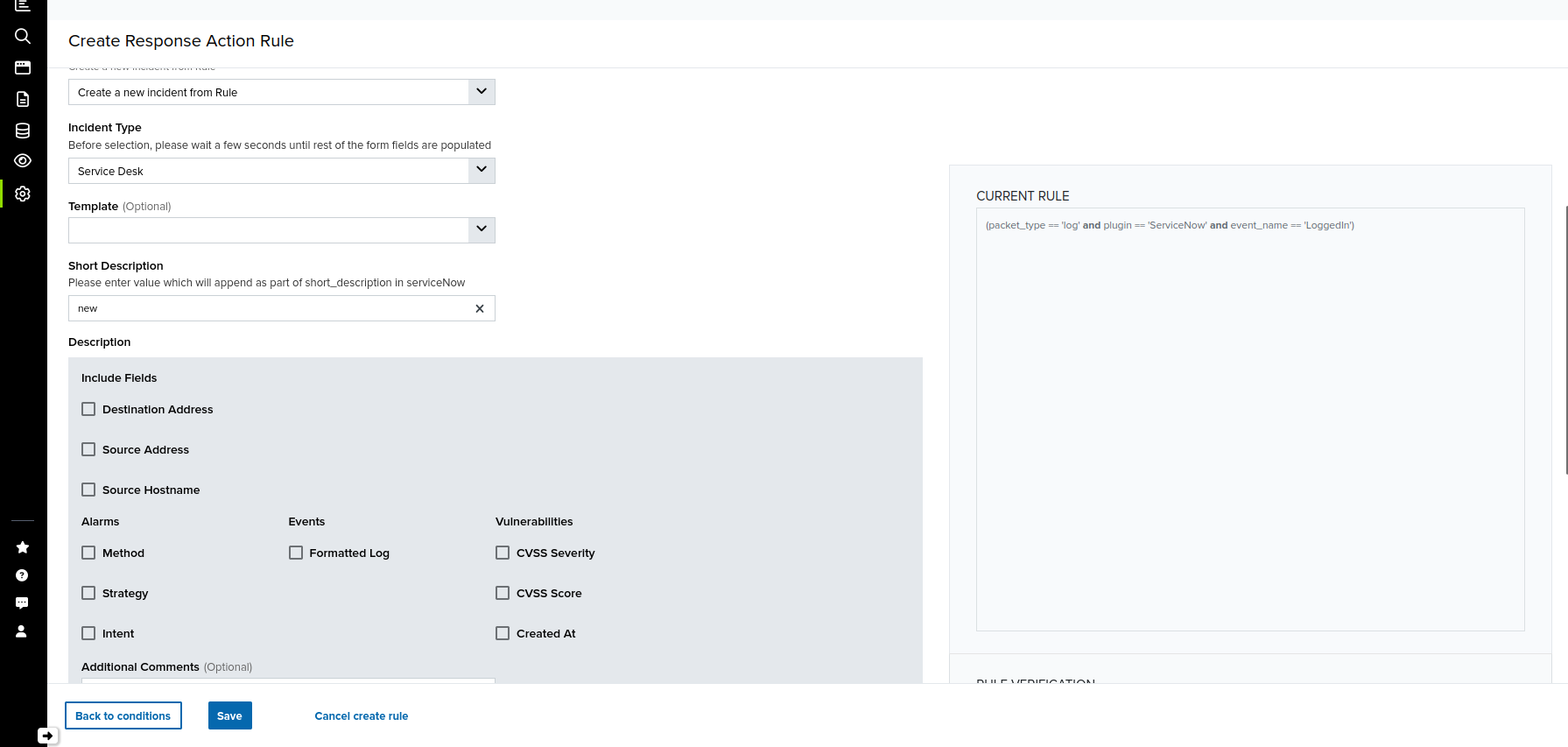
- Once done, click Save.
Updating Incidents from Rule
- Go to Data Sources > Blue Apps > Available Apps.
- Search for ServiceNow, and then click the tile.
- In the BlueApp for ServiceNow page, click the Rules tab.
- Click Response Action Rule.
- In the Create Response Action Rule page, select the Update an incident from Rule option from the App Action dropdown.
- Select the Incident Number.
- The Short Description field appears and automatically populated. Modify the description, if necessary.
- Select the checkboxes of the fields to be included when the rule is triggered.
- [OPTIONAL] Enter Additional Comments.
- Modify or select the default values in the Category, Priority, Urgency, and Assign To fields.
- Once done, click Save.
Creating Change Requests from Investigations
To create a change request from an investigation- Go to the Investigations page.
- Click on an investigation from the list to show the investigation details and perform a response action.
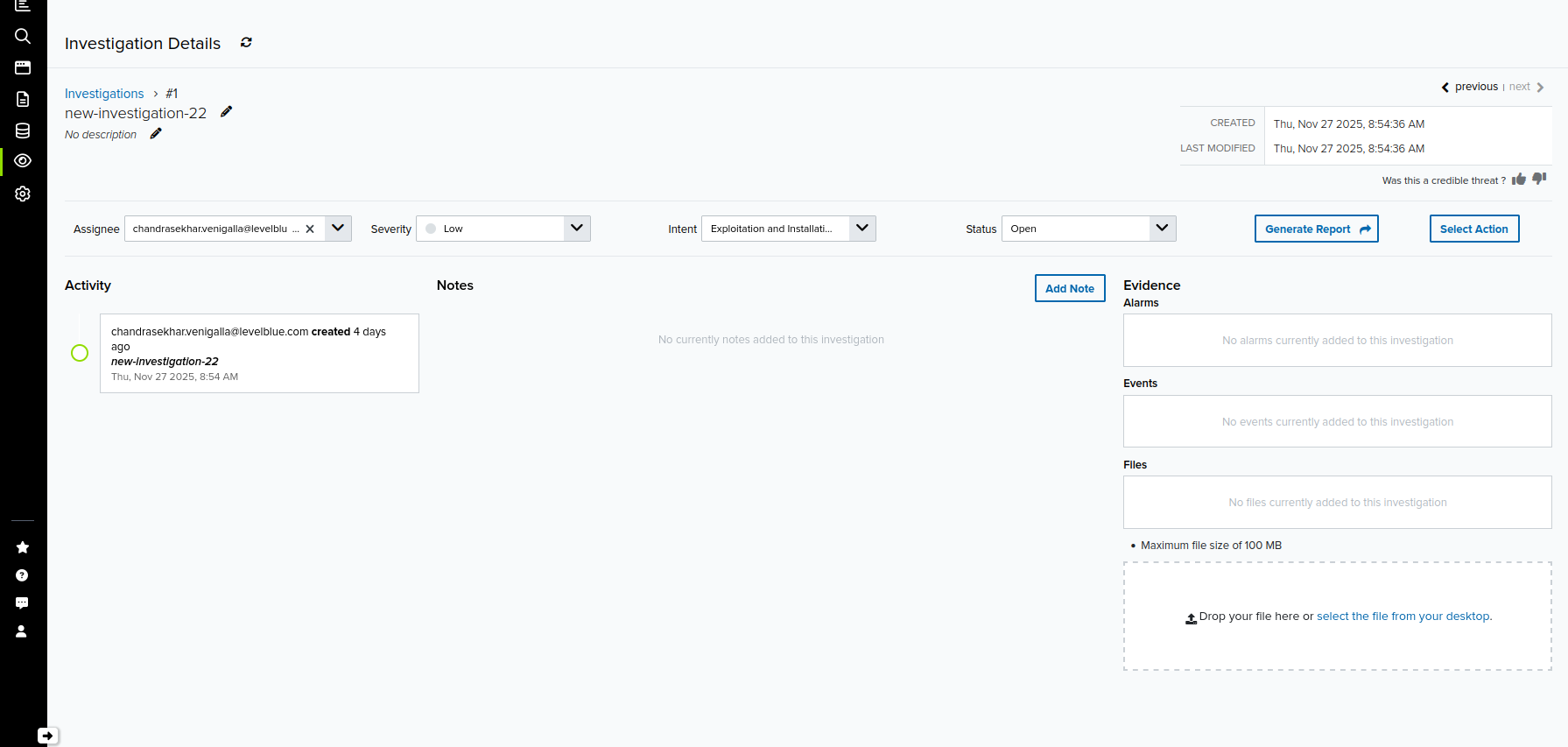
- Click Select Action.
- In the Select Action dialog box, click on the ServiceNow tile.
- [OPTIONAL] If you have more than one USM Anywhere Sensor configured for the BlueApp for ServiceNow, use the Select Sensor option to set the sensor you want to use for the action.
- Select the Create Change Request from Investigation option from the App Action dropdown. Additional fields appear below with details from the selected investigation.
- Enter or modify the Short Description and Description fields, if necessary.
- You may also modify the default values in the Category, Priority, Urgency, and Assign To fields.
- Select the Configuration Items to be included in the change request.
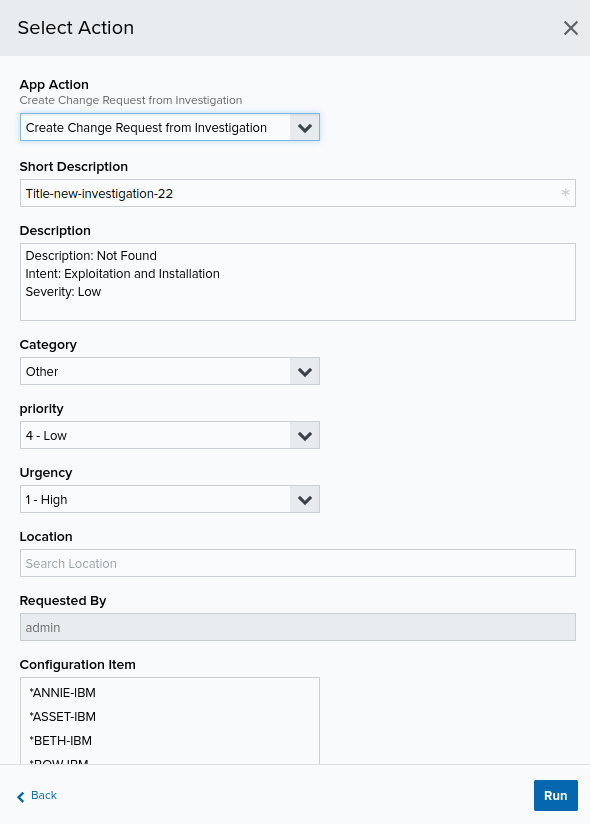
- Once done, click Run.
Updating Change Requests from Investigations
To update a change request from an investigation- Go to the Investigations page.
- Click on the investigation from the list to show the investigation details and perform a response action.
- Click Select Action.
- In the Select Action dialog box, click on the ServiceNow tile.
- [OPTIONAL] If you have more than one USM Anywhere Sensor configured for the BlueApp for ServiceNow, use the Select Sensor option to set the sensor you want to use for the action.
- Select the Update Change Request from Investigation option from the App Action dropdown.
- Select the Change Request Details. Additional fields appear below with details from the selected investigation.
- Modify the rest of the fields accordingly.
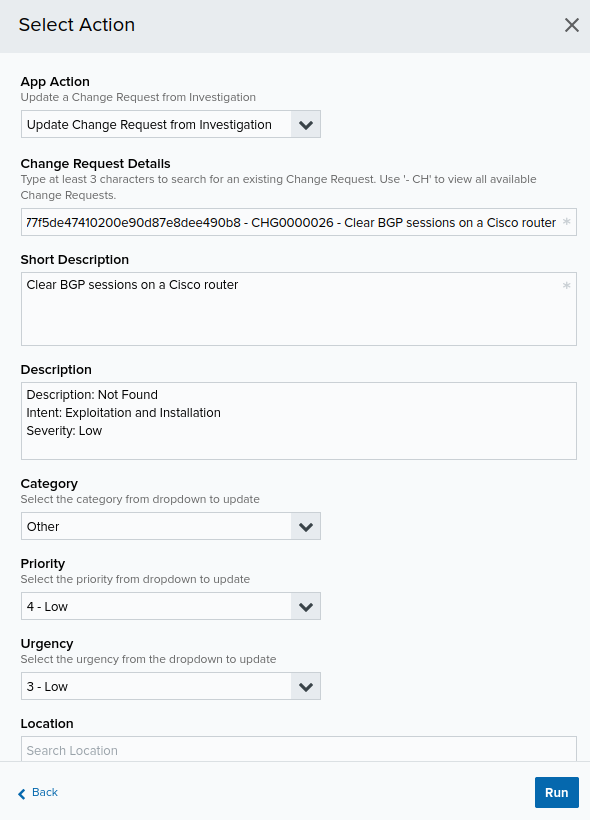
- Once done, click Run.
Creating New Incidents from Investigations
To create a new incident from an investigation- Go to the Investigations page.
- Click on an investigation from the list to show the investigation details and perform a response action.
- Click Select Action.
- In the Select Action dialog box, click on the ServiceNow tile.
- [OPTIONAL] If you have more than one USM Anywhere Sensor configured for the BlueApp for ServiceNow, use the Select Sensor option to set the sensor you want to use for the action.
- Select the Create a New Incident from Investigation option from the App Action dropdown. Additional fields appear below with details from the selected investigation.
- Select the Incident Type.
- Enter or modify the Short Description and Description, if necessary.
- You may also modify the default values in the Urgency, Impact, Category, and Assign To fields.
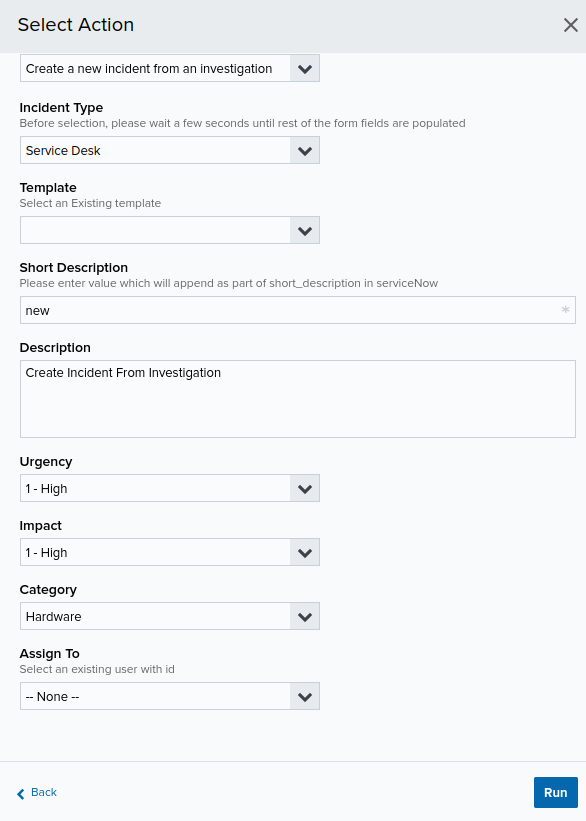
- Once done, click Run.
Updating Incidents from Investigations
To update an incident from an investigation- Go to the Investigations page.
- Click on the investigation from the list to show the investigation details and perform a response action.
- Click Select Action.
- In the Select Action dialog box, click on the ServiceNow tile.
- [OPTIONAL] If you have more than one USM Anywhere Sensor configured for the BlueApp for ServiceNow, use the Select Sensor option to set the sensor you want to use for the action.
- Select the Update an Incident from Investigation option from the App Action dropdown.
- Select the Incident Type. Additional fields appear below with details from the selected investigation.
- Modify the rest of the fields accordingly.
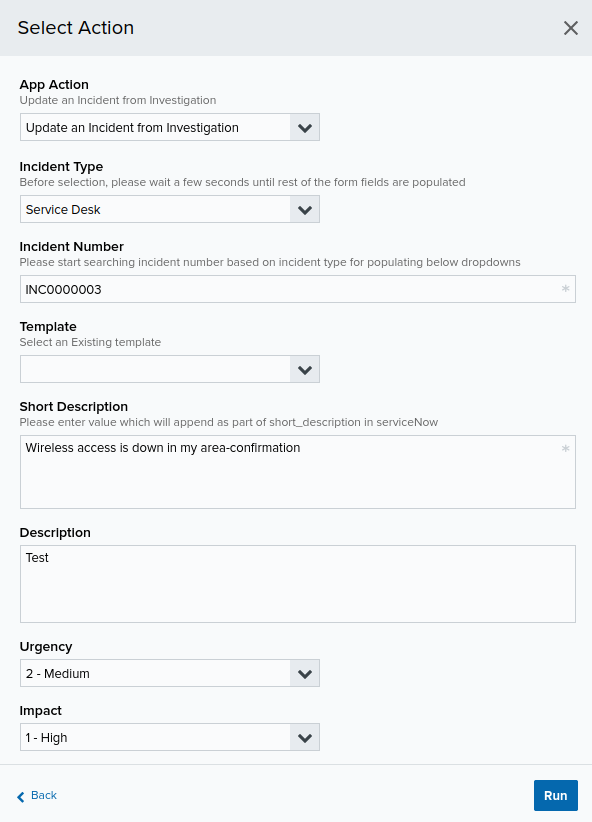
- Once done, click Run.