

USM Anywhere includes the option of searching items of interest on the page. There are several filters displayed by default. You can either filter your search or enter what you are looking for in the search field.
Filters Displayed by Default in the Main Asset Groups Page
Keep in mind that the “Enter search phrase” box and the “Asset Grouping” filter make the search in the asset groups. The rest of the filters make the search in the members of the asset group. So long as a member of the asset group matches the selected filter, USM Anywhere will display the asset group, even if there is only a member matching that filter.
Icons Next to the Filter Title
Icon - Meaning
| Icon | Meaning |
|---|---|
  | Sort the filters alphabetically. |
  | Sort the filters by number of items that matches them. |

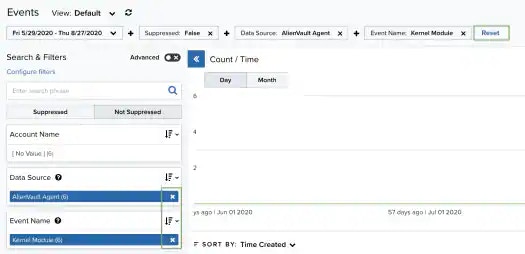
Note: When applying filters, the search uses the logical AND operator if the used filters are different. However, when the filter is of the same type, the search uses the logical OR operator.

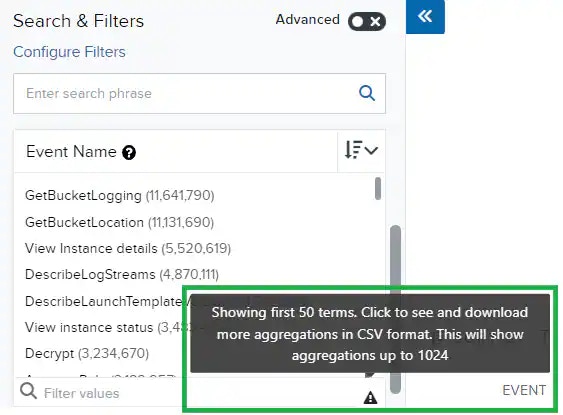
Standard Mode
This mode enables you to select one value per filter at the same time, and then the search is automatically performed. This mode is on by default. To activate the standard mode when the advanced mode is on- Go to Activity > Alarms.
-
In the upper-left corner of the page, click the

-
This turns the icon gray,
 If you exit the advanced mode and the selected filters are not compatible with the standard mode, a warning dialog box opens to inform you the current filters will be removed.
Advanced Mode
Advanced mode enables you to select more than one value per filter at the same time. This mode is off by default. To activate the advanced mode- Go to Activity > Alarms.
-
In the upper-left corner of the page, click the
To search all values of a filter
- Go to Environment > Asset Groups.
-
In the upper-left corner of the page, click the
- Select a filter title to select all filters below that title.
Searching Asset Groups by Using the Search Field
Use the search field to enter queries and refine your search. You can enter free text, use wildcards, and use advanced search syntax. When searching, keep in mind the accepted query string syntax list in this table.Accepted Query String Syntax
Any characters may be used in a query, but certain characters are reserved and must be escaped. The reserved characters are these:
-
- = & | > < ! [ ] ^ ” ~ : \ /
To search for Asset Groups using the search field
- Go to Environment > Asset Groups.
-
Enter your query in the search field.
If you want to search for an exact phrase having two or more words, you need to put quotation marks around the words in the phrase. This includes email addresses (for example, “bob@mycompany.com”).
Wildcard characters are considered as literal characters.
- Click the icon.
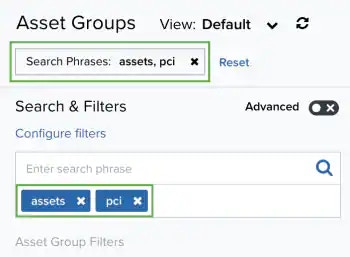
Advanced Search Filter on Asset Groups
The Advanced Search filter enables you to enter a search value on a selected field. The following table shows the filter fields that you can find in the first drop-down list.Advanced Search Fields (First Drop-Down List)
The result of a search when you use the Alarm Counter filter or the Event Counter filter depends on if an alarm or an event can identify the source or destination as an asset in the inventory. Your environment can have alarms or events associated with assets both included in the inventory and those not included in the inventory.
Advanced Search Fields (Second Drop-Down List)
The following table shows the operators that you can include in your query string.
Use the search field to enter queries and refine your search. You can enter free text, use wildcards, and use advanced search syntax. When searching, keep in mind the accepted query string syntax list in this table.
Accepted Query String Syntax
Any characters may be used in a query, but certain characters are reserved and must be escaped. The reserved characters are these:
-
- = & | > < ! [ ] ^ ” ~ : \ /
To search asset groups using the advanced search filter
- Go to Environment > Asset Groups.
-
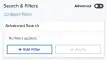
Below Advanced Search filter, click Add Filter.
-
Select a field from the first drop-down list.

-
Select an operator from the drop-down list.
Depending on the field you have chosen in the first drop-down list, the operators vary.

- Enter the search value. If you want to search for an exact phrase having two or more words, you need to put quotation marks around the words in the phrase. This includes email addresses (for example, “bob@mycompany.com”).
- Click the icon.
- Click Add Filter if you want to add a new search.
- Click the icon.
- Click Apply.