

The Advanced Search filter enables you to enter a search value on a selected field.
The following table shows the filter fields that you can find in the first drop-down list.
Advanced Search Fields (First Drop-Down List)
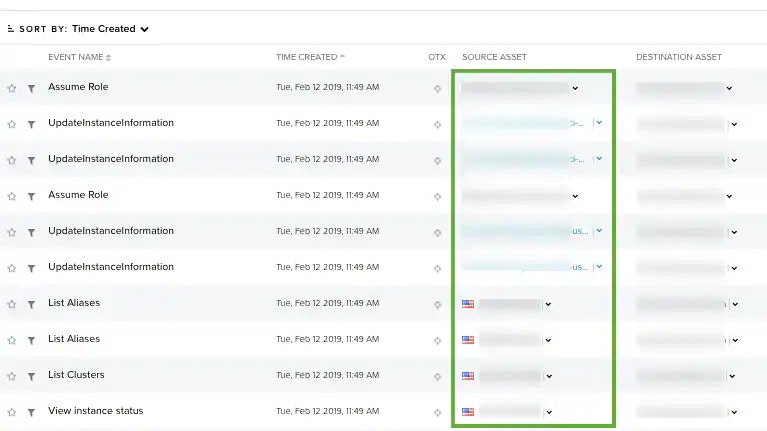
Note: The result of a search when you use the Alarm Counter filter or the Event Counter filter depends on if an alarm or an event can identify the source or destination as an asset in the inventory. Your environment can have alarms or events associated with assets both included in the inventory and those not included in the inventory. Assets included in the inventory display their names in blue, and assets not included in the inventory display their names in gray. The alarm and event counter filters only count the identified (blue) assets.
The following table shows the operators that you can include in your query string.
Use the search field to enter queries and refine your search. You can enter free text, use wildcards, and use advanced search syntax. When searching, keep in mind the accepted query string syntax list in this table.
Accepted Query String Syntax
Any characters may be used in a query, but certain characters are reserved and must be escaped. The reserved characters are these:
-
- = & | > < ! [ ] ^ ” ~ : \ /
- Go to Environment > Assets.
-
Below Advanced Search filter, click Add Filter.
-
Select a field from the first drop-down list.

-
Select an operator from the drop-down list.
See Advanced Search Fields (Second Drop-Down List) for more information.

- Enter the search value. If you want to search for an exact phrase having two or more words, you need to put quotation marks around the words in the phrase. This includes email addresses (for example, “bob@mycompany.com”)
- Click the icon.
- Click Add Filter if you want to add a new search.
- Click the icon.
- Click Apply.