

From the list of alarms, you can click any individual alarm row to display more information on the selected alarm, including individual events that triggered the alarm. See View Alarm Details for more information.
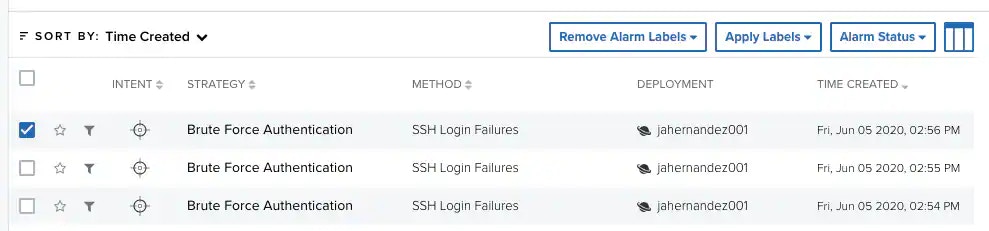
To select an alarm, select the checkbox to the left of the alarm. You can select all alarms at the same time by selecting the first checkbox in the column. These buttons display when you select an alarm:
- Remove Alarm Labels: This button displays if there are labels associated to any alarm. Use this button to remove a label or labels from an alarm. See Labeling the Alarms for more information.
- Apply Labels: You can add a label to an alarm, which enables you to have classified alarms. See Labeling the Alarms for more information.
- Alarm Status: You can add a status to an alarm. See Alarm Status for more information.


- Add to current filter: Use this option to add the asset name as a search filter. See Searching Events for more information.
- Look up in OTX: This option searches the IP address of the source asset in the LevelBlue LevelBlue Labs Open Threat Exchange® (OTX™) page. See Using OTX in USM Anywhere for more information.
- Add to current filter: Use this option to add the asset name as a search filter.
- Look up in OTX: This option searches the IP address of the asset in the LevelBlue LevelBlue Labs Open Threat Exchange® (OTX™) page. See Using OTX in USM Anywhere for more information.
- Full Details: See Viewing Assets Details for more information.


You can view your bookmarked items by going to the secondary menu and clicking the
