

Configuring Connectors
Connectors allow MailMarshal to import user and group information from Azure Entra, Active Directory and LDAP servers. Connectors allow you to import email addresses from user accounts, contacts, groups, and public folders. For information about creating connectors, see Creating Directory Connectors. To edit a connector:- In the left menu of the Management Interface website, expand Policy Elements.
- In the right pane, click Connectors.
- Select a connector, and then click Edit.
- On the Connector Type tab, you can edit the name and description of the connector.
- In the Reload Schedule section you can edit the schedule on which MailMarshal checks for updated information on the groups imported through this connector. You can choose to import once a day at a specific time, or more than once a day, or manually.
- If this is an Azure Entra connector, on the Entra Properties tab you can update the tenant, client, and secret.
- If this is an Active Directory connector, on the Active Directory Logon tab you can choose to connect as anonymous, or as a specific account. If you choose to connect using a specific account, enter the account details.
- If this is a LDAP connector, edit the information provided.
- On the LDAP Server tab you can edit the server name, port, and logon information. You can choose to connect as anonymous, or as a specific account. If you choose to connect using a specific account, enter the account details. You can enter or browse for a search root for this server. See the Help for full details of the fields on this tab. To change the attributes MailMarshal uses to retrieve group and member information from the LDAP server, click Advanced.
- On the Group Attributes tab, edit the information MailMarshal will use to retrieve groups from the LDAP server. See the Help for full details of the fields on this tab.
- On the User Attributes tab, edit the information MailMarshal will use to retrieve user email addresses from the LDAP server. See the Help for full details of the fields on this tab. For more information about how to retrieve all email addresses from a server, see Knowledgebase article Q11877.
Configuring User Groups
You can use MailMarshal user groups within policy groups and rules. User groups allow you to apply policy to specific users. MailMarshal uses SMTP email addresses to perform user matching. You can create and populate user groups within MailMarshal by entering email addresses manually or copying them from other Groups. You can use wildcard characters when you define groups. You can also import user groups with the Group File Import tool (see Using the Group File Import Tool).Creating and Populating User Groups
To create and maintain user groups, in the left pane of the Management Console, select Policy Elements. Then select User Groups from the right pane menu. To create a user group:- In the right pane menu of the Management Console, select User Groups.
- From the list header, click Add.
- Enter a name and description for the group.
- To create the group, click Save.
- In the right pane menu of the Management Console, select User Groups.
- From the list header, click Import Connector Group.
- To find groups, depending on the connector type click Browse or Search. Select the desired groups from the results. For more information see Help.
- To import the selected groups, click Save.
Adding Members to a MailMarshal Group
You can add addresses or wildcard patterns to a MailMarshal user group.Note: You can also automatically harvest addresses from email messages into a group. For more information, see Add message users into group.
- In the left pane of the Management Console, select Policy Elements.
- Select the appropriate user group from the right pane menu or list.
- From the list heading, click Add.
-
On the User Group Member panel, enter an individual SMTP address, a partial address using wildcard characters, or a domain name.
Note: For more information about wildcard characters, see Wildcard Characters.
- To add the value, click Save.
- Repeat to add more entries.
Adding Groups to a MailMarshal Group
You can add Entra, Active Directory, LDAP, and MailMarshal groups to a MailMarshal user group. To add other groups to a MailMarshal user group:- Select a MailMarshal user group from the right pane of the Management Console.
- From the list heading, click Add.
- Choose Select a user group, and then select a group from the list.
- To add the value, click Save.
- Repeat to add more items.
Pruning a MailMarshal Group
You can configure MailMarshal to remove user addresses from a MailMarshal group. You can prune addresses that have not been seen for a time. You can also prune addresses if a group grows too large. To configure group pruning:- Right-click a MailMarshal user group in the right pane of the Management Console, and select Edit.
- Select (toggle on) one or both pruning options (Delete members who have not been seen and Delete members when the group exceeds), and set the limits.
- Click Save.
Moving and Copying Users and Groups
To copy a user group, right-click it in the list in the right pane of the Management Console. To make a copy, choose Duplicate from the context menu. To add a user group to another user group, select the target group and then click Add. On the User Group Member panel, choose to select a user group, select a group from the list, and then click Save. To move users or groups, you must delete them from the original location and add them to the new location.Configuring IP Groups
You can use MailMarshal IP groups within policy groups and rules. IP groups allow you to apply policy based on the connecting IP address from which an SMTP connection was made or email was received. You can create and populate user groups within MailMarshal by entering individual IP addresses, ranges, or CIDR blocks.Creating and Populating IP Groups
To create and maintain IP groups, in the left pane of the Management Console, select Policy Elements. Then select IP Groups from the right pane menu. To create an IP group:- In the right pane menu of the Management Console, select IP Groups.
- From the list header, click Add.
- Enter a name and description for the group.
- Click Save.
Adding Members to an IP Group
You can add individual IP addresses, ranges, or CIDR blocks to an IP group. To add members to an IP group:- Select the appropriate user group from the right pane of the Management Console.
- On the Action menu, select Insert IPs.
- On the Add IP window, complete the required information. See Help for details. When you have completed the information, click Save.
- Repeat these actions to add additional items.
Editing an IP Group Member
You can edit the information in an IP Group member record. To edit a member, double-click the entry in the list, make required changes, and then click Save.Adding Groups to an IP Group
You can add other IP groups to a MailMarshal IP group. To add other groups to a MailMarshal IP group:- Select a MailMarshal IP group from the right pane of the Management Console.
- On the Action menu, select Insert IP Groups.
- In the Insert Into IP Group window, select a group from the list. Click Save.
- Repeat these actions to add additional items.
Moving and Copying IP Groups
To add an IP group to another IP group, in the left pane select it and drag it over the target group in the same pane. To move entries or groups, you must delete them from the original location and add them to the new location.Identifying Email Text Content Using TextCensor Scripts
TextCensor scripts check for the presence of particular lexical (text) content in an email message. MailMarshal can check one or more parts of a message, including the message headers, message body, and any attachments that can be lexically scanned. Apply TextCensor scripts to email messages by using Content Analysis Policy rules. A script can include many conditions. Each condition is based on words or phrases combined using logical and positional operators. The script matches, or triggers, if the weighted result of all conditions reaches the target value you set.Note: For MailMarshal to detect and block explicit language (such as profanity and pornographic language), objects such as the Email Policy rules and the TextCensor scripts need to contain that explicit language. Anyone who has permission to use the MailMarshal Management Console or Marshal Reporting Console may be exposed to this explicit language. As this language may be objectionable, please follow your company’s policy with respect to exposure to content of this type.
TextCensor Elements
TextCensor scripts contain one or more expressions, each consisting of a word or phrase.Wildcards
You can use two wildcard characters, anywhere in a word or phrase.*matches zero or more letter or digit characters or ideographs.?matches one letter, digit, or ideograph.
Notes:
- You cannot use pure wildcard patterns comprised entirely of a mixture of
[DIGIT],[LETTER],*, or? - Make patterns as specific as possible. Patterns that produce a very large number of matches will take a long time to evaluate and consume unacceptable amounts of system resource. For example, do not use the patterns
*e*ora*when evaluating English-language documents.
Positional Operators
TextCensor works with the positions of words or phrases within a file. For example, in the sentence “The quick brown fox jumps over the lazy dog” the word “quick” starts and ends at position 2, and the phrase “jumps over” starts at position 5 and ends at position 6. A positional operator works with expressions that evaluate to sets of positions. It takes two sets of positions as parameters, and returns a new set of positions. You can specify a distance for many positional operators. The default distance (if you do not specify a value) is 4. Table 14: TextCensor Positional OperatorsLogical (Boolean) and Special Operators
A logical operator takes Boolean (true/false) values as input, and returns a Boolean result. These results cannot be used as parameters of a positional operator. When one of the parameters to a logical operator is an expression that returns a position set, the parameter is treated as a logical value. A set with at least one position match is treated as true. A set that has no matches is treated as false. TextCensor also supports the special operator INSTANCES. Table 15: TextCensor Logical and Special OperatorsAnchored Regular Expressions
TextCensor supports use of Regular Expressions through the ARX operator. An anchored regular expression is a regular expression (regex) which must be preceded by a word on the left hand side of the ARX operator. Matching of the regex begins at the next character following the word. Regex patterns should always begin by matching one or more non-word characters. In most cases you can start the regex pattern with\W (to match whitespace).
Notes:
- ARX is based on Google RE2. The syntax is generally similar to the syntax used in MailMarshal Header Matching (see Regular Expressions).
- Distance parameters for ARX operators are specified in characters. The default is 100 characters.
- Regular expressions are case insensitive by default. You can force case sensitive matching with the operator
?-i - ARX does not support lookahead or lookbehind.
- ARX does not support capture groups. Capture groups will be ignored or converted to non-capturing sequences.
- ARX does not support
\Q...\Eliteral text. - For further details of the ARX syntax, see the RE2 wiki.
Multiple anchored regular expressions can be combined with other expressions and operators to create complex statements. For example,
TextCensor Concepts
The following concepts clarify how TextCensor expressions are evaluated.Note: This section does not apply to Regular Expression patterns.
Words
A word is made up of one or more letters and digits, and sometimes symbols.- In alphabetic languages, a word is a group of letters or digits separated by other characters (such as punctuation, other symbols, and white space).
- In Chinese, or Japanese kanji, a word or “token” may be composed of one or more characters (ideographs).
Phrases
A phrase is made up of a series of words separated by word break characters.Symbols and Punctuation
Symbols other than letters and digits are not treated as part of a word unless they appear in the specific statement being evaluated. A group of symbols is not treated as a word.Word Breaks
The sets of characters that are treated as word and number break characters generally follow Unicode standards. A word break character can also be matched exactly or by a wildcard.Accented Letters
TextCensor treats each accented character as a single letter. A letter with additional composed accent characters is normalized to a single character before the text is evaluated.Escape Characters
Some characters have special meanings in TextCensor. These characters are parentheses, square braces, the asterisk, the equal sign, the double quote character, and the question mark. You can place a backslash character (\) before any of these characters in order to use the character’s normal meaning. To use a normal backslash character, place two of them together (\\).
Within ARX expressions, the Regular Expression reserved characters apply (in particular the forward slash /) which marks the start and end of the regex pattern).
Case Sensitivity
TextCensor evaluation is NOT case sensitive by default. To perform a case sensitive match, quote the content using double quote characters. All special characters and escape characters retain their meaning within double quotes.Classes
You can use TextCensor Classes to match specific types of characters inside a word, or special types of words. Table 17: TextCensor ClassesNamed Statements
You can give a TextCensor statement a name. When a named statement is executed, the result is stored. You can reference it in later statements within the same script. If a statement contains only words or only uses positional operators, the stored result is the set of word positions found by that statement. If the statement uses any other operators then the result is logical. You can reference the result of a statement by using[@name] inside a statement. This can be used anywhere that you would otherwise use the bracketed result of an operator.
Note: Naming a statement does not affect the statement’s score. To use a named statement as a macro expression, in most cases you should set the statement’s score to zero.When using named statements within other expressions, remember that the result must match the required parameter type. If a statement returns a logical result you cannot use it as a parameter to a positional operator. Test your scripts before applying them in production.
Scoring a TextCensor Script
Each script is given a trigger threshold, expressed as a number. Each expression in a script is given a positive or negative score. If the total score of the content being checked reaches or exceeds the trigger threshold, the script is triggered. The total score is determined by summing the scores resulting from evaluation of the individual expressions in the script. For each expression, if the result is a true logical value, the expression score is the base score. If the expression result is a position set (the word or phrase was found one or more times in the text), by default the final score of the expression is the base score. You can choose how to add the score when the expression is matched more than once. The options are: Table 18: Cumulative scoring options
Negative scores and trigger levels allow you to compensate for the number of times a word could be used in text that you do not want to match. For instance: if
breast is given a positive score in an “offensive words” script, cancer could be assigned a negative score (since the presence of this word suggests the use of breast is medical/descriptive).
Note: Script evaluation always checks all expressions to obtain the final score. The order of expressions in a script is not significant. This is a change from earlier versions.
Creating Scripts
To work with TextCensor Scripts, in the left pane of the Management Console, select Policy Elements. Then select TextCensor Scripts from the right pane menu. To add a TextCensor Script:- In the right pane of the Management Console, select TextCensor Scripts.
-
On the menu above the list, choose Add to open the TextCensor Script window**.**
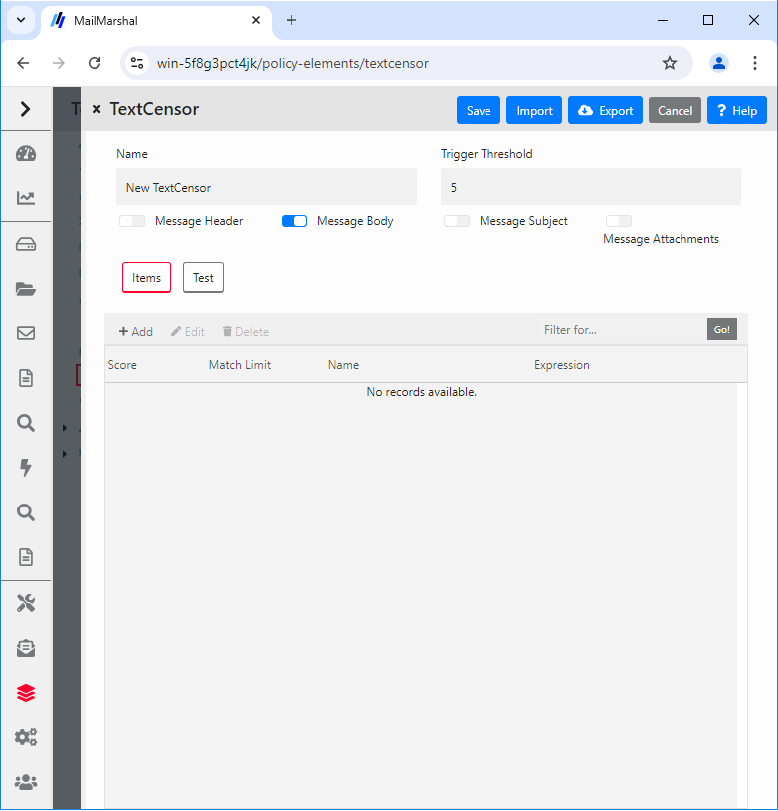
- Enter a name for the script.
-
Select which portions of an email message you want this script to scan by selecting one or more of the check boxes Subject, Headers, Body, and Attachments
Note: The script will check each part separately.For instance, if you select both Headers and Message Body, the script will be evaluated once for the headers, then again for the body. Script scoring is not cumulative over the parts.
- Add one or more TextCensor items. To begin adding items, in the TextCensor Script window click New to open the Add TextCensor expression window**.**
-
Enter the expression, optionally using the operators described earlier. For example:
In this example the expression score is added to the script total if the document contains the words
dog house(ordog houses, and so forth) in order, and does not contain the wordcat.Note: TextCensor expressions are not case sensitive by default. However, quoted content is case sensitive. Sotextcensorwould match TextCensor, but"textcensor"would not. -
Select a score and contribution method for this expression (see Scoring a TextCensor Script for more information).
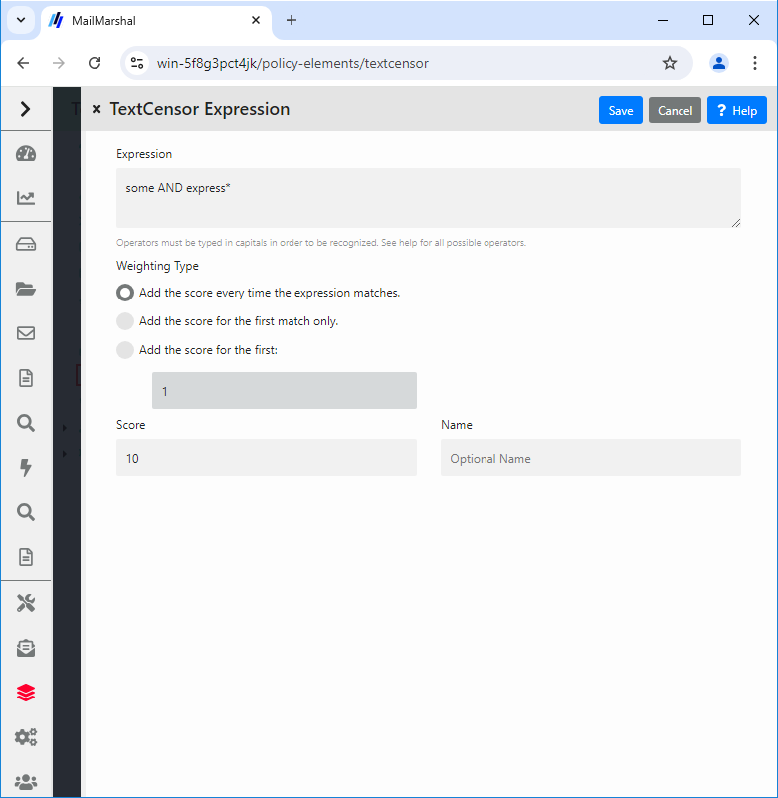
- Click Add (or press Enter) to add the expression to this script. The window remains open so you can create additional expressions.
- When you have finished entering expressions, click Close to return to the New TextCensor Script window.
- Select a trigger threshold. If the total score of the script reaches or exceeds this level, the script is triggered. The total score is determined by evaluation of all expressions in the script.
Editing Scripts
You can change the content of an existing script, including the individual items and overall properties. To edit a TextCensor Script:- Double-click the script to be edited in the right pane.
- Edit an item by double-clicking it.
- Delete an item by selecting it, and then clicking Delete.
- Change the contents of other fields such as the script name, parts of the message tested, and trigger threshold.
- Click Save to accept changes or Cancel to revert to the stored script.
Duplicating Scripts
Duplicate a script if you want to use it as the basis for an additional script. To duplicate a TextCensor Script:- Right-click the script name in the Management Console.
- Choose Duplicate from the context menu.
- After duplicating the script, make changes to the copy.
Importing Scripts
You can import scripts in files. Use this function to copy a script from another MailMarshal installation, or to restore a backup.Note: Some older product versions used a different format for the exported scripts. The earlier version scripts will be upgraded to the new format automatically. Any problems with upgrading will be reported.
- On the Action menu, choose New TextCensor Script to open the TextCensor Script window**.**
- Click Import.
- Choose the file to import from, and click Open.
- In the Edit TextCensor Script window, click Save.
Exporting Scripts
You can save scripts in files. Use this function to move a script between MailMarshal installations, or to edit a script in another application such as Microsoft Excel. To export a TextCensor Script to an XML file:- Double-click the name of the script to be exported in the right pane to open the Edit TextCensor Script window.
- Click Export.
- Enter the name of the file to export to, and click Save.
- In the Edit TextCensor Script window, click Save.
TextCensor Best Practices
To use TextCensor scripts effectively, you should understand how the TextCensor facility works and what it does. MailMarshal applies TextCensor scripts to text portions of messages. Depending on the portions you select, a script can apply to message subject, message headers, message bodies, and attachment content. MailMarshal can generally apply TextCensor scripts to the text of Microsoft Office documents and Adobe PDF files, as well as to attached email messages and plain text files.Note: When you apply complex scripts to large documents, the script evaluation can consume significant system resources and process slowly. Use the minimum number of statements and operators, and match the most specific text possible.
Constructing TextCensor Scripts
The key to creating good TextCensor scripts is to enter exact words and phrases that are not ambiguous. They must match the content to be blocked. Also, if certain words and phrases are more important, you should give those words and phrases a higher score. For instance, if your organizational Acceptable Use Policy lists specific terms that are unacceptable, you should give those terms a higher score to reflect the policy. In creating TextCensor scripts, strike a balance between over-generality and over-specificity. For instance, suppose you are writing a script to check for sports-related messages. If you enter the words “score” and “college” alone your script will be ineffective because those words could appear in many messages. The script will probably trigger too often, potentially blocking general email content. You could write a better script using the phrases “extreme sports”, “college sports” and “sports scores” as these phrases are sport specific. However, using only a few very specific terms can result in a script that does not trigger often enough. You can strike a good balance using both very specific and more general terms. Again using the example of sports related content, you could give a low positive weighting to a phrase such as “college sports.” Within the same script you could give a higher weighting to the initials NBA and NFL, which are very sports specific.Decreasing Unwanted Triggering
TextCensor scripts sometimes trigger on message content which is not obviously related to the content types they are intended to match. To troubleshoot unwanted triggering:- Use the problem script in a rule which copies messages and their processing logs to a folder. You could call this folder “suspected sports messages”.
- After using this rule for some time, check on the messages that have triggered the script. Review the message logs to determine exactly which words caused the script to trigger. See Viewing Messages.
- Revise the script by changing the expression scores, expression contribution method, trigger threshold, or key words, so as to trigger only on the intended messages.
- When you are satisfied, modify the rule so as to block messages that trigger the script. You could also choose to notify the sender and/or the intended recipient.
Testing Scripts
When you are working with a TextCensor script in the Management Console, you can test it against a file or pasted text. To test a TextCensor Script:- On the New or Edit TextCensor Script window, click Test.
- To test using a file, select Test script against file. Enter the name of a file containing the test text (or browse using the button provided).
- To test using pasted text, select Test script against text. Type or paste the text to be tested in the field.
- Click Test. MailMarshal will show the result of the test, including details of the items which triggered and their weights, in the Test Results pane.
Notifying Users with Message Templates and Message Stamps
MailMarshal provides two ways of sending notifications by email. Message stamps are short blocks of text that can be added to an email message. You can use a stamp to add a company disclaimer, or to warn the recipient of a message that MailMarshal has modified it. Message templates are complete email messages that can be sent to a user or administrator. MailMarshal uses templates for system notifications such as non-delivery reports. You can also use them to provide auto-responders or other custom notices. MailMarshal can use special digest templates to provide users with summary information about quarantined email. MailMarshal applies message stamps to both HTML and plain text portions of an email message. Message templates can also include plain text and HTML bodies. Variables can be used in both templates and stamps. Variables are specially formatted strings you can insert in a stamp or template. When MailMarshal uses the stamp or template, it replaces the variables with information about the specific message. This facility allows you to provide detailed information about the actions MailMarshal has taken on a specific message.Message Templates
Message templates are used when MailMarshal sends a notification email message based on the outcome of rule processing. The most common use of notification messages is to notify appropriate parties when an email message is blocked. Notifications are a very powerful tool to inform and modify user behavior. When well thought out and constructed, they can save the administrator a lot of time. You can also use a notification to set up a general auto responder based on message headers or content. For instance, MailMarshal could respond to a message torobot@ourcompany.com with the subject “Send Catalog” by returning the product catalog to the sender as an email attachment.
The same rule can send several notification messages. For instance, if MailMarshal detects a virus you could choose to send different messages to an email administrator, the external sender, and the intended internal recipient of the message.
You can attach files to a notification. Attachments can include the original message, the MailMarshal processing log for the message, and any other file (such as a virus scanner log file).
You can create a template as plain text, HTML, or both. If you choose to create a template with both HTML and plain text bodies, you must edit the two bodies separately. If you choose to create a template with HTML only, MailMarshal will automatically generate a plain text equivalent of the template with similar formatting.
You can include links to images in HTML templates. You cannot embed images.
Note: In addition to rule notification templates, MailMarshal uses a number of pre-configured templates for administrative notifications (such as delivery failure notifications). For more information about modifying these templates, see MailMarshal Properties – Advanced.
Creating a Message Template
To work with templates, in the left pane of the Management Console, select Policy Elements. Then select Message Templates from the right pane menu. To create a message template:- In the right pane of the Management Console, select Message Templates.
- On the Action menu, select New Message Template to open the Message Template window.
- By default, MailMarshal creates a HTML message body. MailMarshal will automatically generate a plain text equivalent of the message body when using the template. To choose a plain text body or edit both types separately, click Options.
- To see additional address fields, click Options.
- Enter a name for the template.
-
Enter appropriate information in the Header Details section. For instance, enter the email address to which replies should be sent in the Return Path field.
Note: The MailMarshal default configuration includes numerous templates. These are a good source of ideas for the creation of new templates.
- Enter text in the body section. To view the raw HTML, right-click in the HTML pane and select Edit Raw HTML. Edit the HTML, or paste HTML source from another editor, then click Save to return to the message template window.
- You can attach files to the notification, including the original message, the MailMarshal message processing log, and other files. To attach one or more files, select the appropriate box(es) and enter the file names if necessary.
-
You can use variables marked with braces
{ }. To see a list of variables available in any field, type{to open a context menu. You can also enter variable names manually. You can use nested variables. For details of the variables available in templates, see Using Variables.Note: When sending a notification to the original sender of an email message, use the{ReturnPath}variable in the To: field to reduce the chance of looped messages. Do not use the{ReturnPath}variable in the From: field.
Creating Digest Templates
The MailMarshal Array Manager uses digest templates to deliver periodic message digests to users who self-manage end-user management folders. For details of digesting, see Setting Up Message Digests. Digest templates are similar to message templates. The key differences are:- You cannot attach files to digest templates.
- You must associate each digest template with a message digest. See Setting Up Message Digests.
- You cannot edit the “To” field. The recipient is controlled by settings of the message digest.
$MessageDigestTableHTML.
The following arguments are available to customize the behavior of this variable. All arguments are optional.
Table 19: Digest detail levels
Table 20: Digest options
Example:
Note: To obtain the best results with digest templates, edit the plain text and HTML versions of the template separately using the “Both” option.
- In the right pane of the Management Console, select Message Templates.
- On the Action menu, select Add Digest to open the Digest Template window.
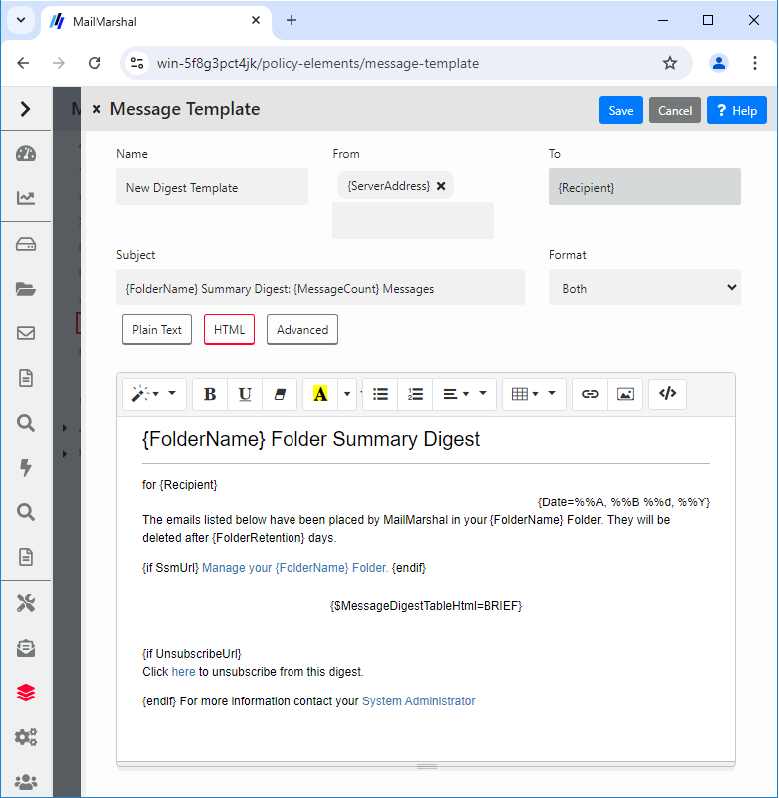
- By default, MailMarshal populates the template with basic information. MailMarshal creates separate HTML and plain text message bodies. To choose to use only one of the two types, click Options.
- To see additional address fields, click Options.
- Enter a name for the template.
- Enter appropriate information in the Header Details section. For instance, enter the email address to which replies should be sent in the Return Path field.
- Enter text in the body section. To view the raw HTML, right-click in the HTML pane and select Edit Raw HTML. Edit the HTML, or paste HTML source from another editor, then click Save to return to the message template window.
- You can use variables marked with braces
{ }. To see a list of variables available in any field, type{to open a context menu. You can also enter variable names manually. You can use nested variables. For details of the variables available in templates, see Using Variables. - Click Save.
Editing Templates
You can edit a template, including the address information and the message bodies. To edit a template:- Double-click a template name in the Management Console.
- Make changes then click Save. If you have created both a plain text and a HTML version of the template, remember to change both versions.
Duplicating Templates
You can make a copy of a template if you want to use it as the starting point for another template. To copy a template:- Right-click a template name in the Management Console.
- Choose Duplicate from the context menu.
- After duplicating the template, make changes to the copy.
Deleting Templates
You can delete a template if it is not used in any rules. To delete a template:- Select a template in the Management Console.
- Click the Delete icon in the toolbar.
Working with Message Stamps
Message stamps are short blocks of text that MailMarshal can apply to the top or bottom of an email message body. MailMarshal message stamps can include a plain text and an HTML version. MailMarshal will apply the appropriate stamp format to the body text of the same type in the message. Many companies use message stamps to apply disclaimers or advertising on outgoing email. MailMarshal can also use a message stamp to notify the recipient that a message has been processed (for example by having an offending attachment stripped). To work with Message Stamps, in the left pane of the Management Console, select Policy Elements. Then select Message Stamps from the right pane menu. To create a message stamp:- In the right pane of the Management Console, select Message Stamps.
- On the Action menu, select New Message Stamp.
- Enter a name for the stamp.
- Select whether the stamp is to appear at the top or the bottom of messages.
- Enter a plain text version of the message stamp in the Plain Text tab.
- Enter an HTML version of the stamp in the HTML tab.
- You can apply various formatting, including hyperlinks, to the HTML text using the buttons provided.
- You can define and use local CSS classes in a stamp. See Help for details.
- To view the raw HTML, right-click in the HTML pane and select Edit Raw HTML. Edit the HTML, or paste HTML source from another editor, then click Save to return to the message stamp window.
- To add the new stamp to the list of available message stamps, click Save.
Note: If message stamping is enabled for RTF (Microsoft TNEF) messages, the plain text message stamp will be used for these messages. To enable RTF stamping, see the Engine Advanced section of MailMarshal Properties.
Duplicating Message Stamps
You can make a copy of a stamp if you want to use it as the starting point for another stamp. To duplicate a message stamp:- Right-click the stamp name in the Management Console.
- Choose Duplicate from the context menu.
- After duplicating the message stamp, make any required changes to the copy. Remember to make changes to both the Plain Text stamp and the HTML stamp.
Editing Message Stamps
You can make changes to a stamp. Remember to make changes to both the Plain Text stamp and the HTML stamp. To edit a message stamp:- Double-click the stamp name in the right hand pane of the Management Console.
- Make the required changes.
- Click Save.
Deleting Message Stamps
You can delete a message stamp if it is not used in any rules. To delete a message stamp:- Select the stamp in the right hand pane of the Management Console.
- Click the Delete icon in the toolbar.
Using Variables
You can use variables when you create a message template, digest template, message stamp, or message classification description, and also in the field substitution of content analysis Header Rewrite rules. MailMarshal substitutes the appropriate information when processing each message or digest. Variables are marked by curly braces{ }. You can select from available variables in any field where they are available in a template, stamp, or classification. To see a list of available variables in a specific field, type { .
Not all variables are available in all contexts. MailMarshal may not have the required information to substitute. In particular, if a message is deadlettered, information about the message content is not available. If MailMarshal does not have any data, it will enter empty text into the variable marker or return the variable marker text.
The following table lists commonly used variables and their functions:
Table 21: MailMarshal variables
Date Formatting
When you use dates in variables within message templates, message stamps, and logging classifications, you can include formatted dates. This feature is especially useful to avoid confusion about the order of day, month, and year in dates. To use date formatting, include the template variable{date=%%var} where var is one of the sub-variables from the table below. You can include more than one sub-variable within the same date variable. For instance {date=%%d %%b %%Y} would return 07 Apr 2004.
Note: Each sub-variable must be preceded by %%. For example, to ensure that the date is formatted according to the Windows locale, use
{date=%%c}.To use locale-specific settings you must ensure that the Windows locale is applied to the account used by MailMarshal services. For more information, see Knowledgebase article Q12670.Using Virus Scanning
You can implement virus/malware scanning as an email policy element. For more information, see Stopping Viruses and Malware.Using Folders and Message Classifications
MailMarshal uses a Microsoft SQL Server database to log basic information about each message it has processed. This information includes the sender, recipient, message size, and actions taken. If MailMarshal moves or copies a message to a folder, it logs this event in the database. Using Message Classifications is another way to add detail to the log records. You can add Message Classifications by including an action within a MailMarshal Content Analysis Policy rule. You can view the classification given to a particular message using the Console Message History or reports from Marshal Reporting Console. You should include at least one logging action (either a folder action or a Classification action) in each Content Analysis Policy rule. MailMarshal default rules include such actions.Note: To avoid confusion in reporting, MailMarshal will not allow a folder and a classification with the same name.
Working with Message Classifications
Message Classifications are useful for reporting on broad categories, such as viruses or executable files quarantined. You can also use classifications to record very specific occurrences such as a specific file or size of file being sent. For example you could answer the question “How many PDF files over 500K in size are sent by Sales each week?” by creating a rule to log sending of such files. If several rules place messages in a single MailMarshal folder, you can use classifications to give additional granularity for searching and reporting. To work with classifications, in the left pane of the Management Console, select Policy Elements. Then select Classifications from the right pane menu. To create a message classification:- On the menu above the list, choose Add.
- In the window, enter a meaningful name for the classification.
- Give a brief description of the classification and its purpose. This description will be used in the Console and Reports, and can contain
{ }variables as in message stamps and templates. - To add the classification, click Save.
Editing Message Classifications
You can edit the name and description of a classification. To edit a message classification:- Double-click the classification name in the right pane of the Management Console to view its properties.
- Make any required changes.
- Click Save.
Duplicating Message Classifications
You can make a copy of a classification if you want to use it as the starting point for another classification. To duplicate a message classification:- Right-click the classification name in the Management Console.
- Choose Duplicate from the context menu.
- After duplicating the classification, make any required changes to the copy.
Deleting Message Classifications
You can delete a classification if it is not used in any rules. To delete a message classification:- Select the classification name in the right pane of the Management Console.
- Click the Delete icon in the toolbar.
Working with Folders
MailMarshal uses folders to store messages that it has quarantined, parked for later delivery, or archived. You can delete quarantined messages, release them to the recipient, and manage quarantined messages in other ways. MailMarshal also uses special “Dead Letter” folders to store messages that it could not completely process. You can manage messages in these folders in many of the same ways that you can manage quarantined messages. You can configure folders with specific security settings. You can configure folders to be available for end-user management through the Spam Quarantine Management console. You can configure folders to allow “fingerprinting” of released messages.Note: In earlier versions of MailMarshal you could configure the default action that MailMarshal took if a message was released from a folder. This option has been replaced by the “release action” option in rule actions. For more information, see Copy the message and BCC a copy of the message.
- Hold messages quarantined due to rule action (for instance, messages that are categorized as spam, virus infected, contain disallowed attachments, or blocked for other policy reasons).
- Hold archived messages.
- Hold historical information about delivered messages (Sent History).
- Hold messages that MailMarshal cannot process or cannot deliver, called dead letters. Dead Letters can result from bad email addresses, from corrupted data, from differing interpretations of Internet standards, or when a message is intentionally malformed in an attempt to exploit a security vulnerability.
Creating Folders
You can create as many folders as your policy requires. You can create the following types of folders: Standard Folder Used to quarantine dangerous or suspect mail. You can specify that an administrator or regular user can manage the folder contents through SQM. You can specify that messages released from the folder are eligible for attachment fingerprinting. Archive Folder Used to keep historic copies of delivered mail. MailMarshal saves messages stored in the folder for a specific period of time. You cannot manually delete mail stored in an archive folder. You can specify that messages released from the folder are eligible for attachment fingerprinting. Parking Folder Used to delay the delivery of mail. MailMarshal releases messages stored in the folder according to a predefined schedule. To create a folder:- In the left pane of the Management Console, select Policy Elements. Then select Folders from the right pane menu.
- On the menu above the list, click Add.
- Specify the appropriate values. For more information about available settings, click Help.
- Click Save.
Editing Folders
You can change the name and most features of a folder. You cannot change the type of an existing folder. You cannot change the name of dead letter folders. To edit a folder:- In the left pane of the Management Console, select Policy Elements. Then select Folders from the right pane menu.
- Double-click the folder you want to modify.
- Specify the appropriate values. For more information about available settings, click Help.
- Click Save.
Deleting Folders
You can delete a folder if it is not used in any rules. You cannot delete dead letter folders. To delete a folder:- In the left pane of the Management Console, select Policy Elements. Then select Folders from the right pane menu.
- Click the Delete icon on the menu above the list.
Configuring Default Folder Access
You can set the default folder permissions to control user ability to view and manipulate items in most MailMarshal folders. To configure default access permissions for MailMarshal folders:- In the left pane of the Management Console, select Policy Elements. Then select Folders from the right pane menu. Click Default Folder Security.
-
This pane displays a list of security objects. Available object types include MailMarshal roles, MailMarshal Users, and Windows users and groups. Click an object name to show the permissions that role has over the features of MailMarshal folders.
- To add items to the list, click Add then select the items. You can see and add individual users by selecting an item and selecting Show Users. Each item you add is given full permissions by default.
- To delete an item from the list, select it and click Delete.
-
To change permissions for an item highlight the name. The lower pane shows the current permissions for this item. Set permissions by selecting the appropriate options.
- A user could be a member of more than one role, and can also be listed individually. In this case, you can choose how permissions are applied by ordering the list. For details, see Help.
- To save the changes, click Save.
Configuring Access for a Specific Folder
Set the permissions on a particular folder to control user ability to view and manipulate items in that folder. Permissions on a specific folder override the default folder permissions. To configure access permissions for a specific MailMarshal folder:- In the left pane of the Management Console, select Policy Elements. Then select Folders from the right pane menu.
- In the right pane, edit a specific folder. Enable the item Override default folder security to show the Security tab.
- This pane displays a list of security objects as described above. Click a name to show the permissions that role has over the features of the specific MailMarshal folder.
- To add items to the list, click Add then select the items. Each item you add is given full permissions by default.
- To delete an item from the list, select it and click Delete.
- To change permissions for an item highlight the name. The lower pane shows the current permissions for this item. Set permissions by selecting the appropriate options.
- A user could be a member of more than one role, and can also be listed individually. In this case, you can choose how permissions are applied by ordering the list. For details, see Help.
- To save the changes, click Save.
- To apply the changes, click the Commit button in the toolbar.
Note: Setting access permissions for a folder in MailMarshal does not affect the Windows file permissions for the folder or items in it. To limit access through Windows, set the Windows access permissions for the MailMarshal Quarantine folder and all items in that folder on each MailMarshal email processing server.To ensure that only the users with MailMarshal permissions can access these items, give full control of the Quarantine folder to the LocalSystem account or other account used by the MailMarshal services, and deny access to all other accounts.
Header Matching and Rewriting
MailMarshal can perform searches and replace text in email headers using a Regular Expression engine. You can apply rewriting globally when messages are received. You can also perform header searches and header replacements within Content Analysis Policy rules.Changing and Adding Headers with the Receiver
MailMarshal provides global header rewriting to modify email header and envelope detail. Global rewriting is typically used to allow email aliasing. This action is performed by the MailMarshal Receiver during email message receipt. Some examples of actions that can be performed are- Address modification: for example, changing user@host.domain.com to user@domain.com.
- Field removal: for example, stripping out the received: lines from outbound messages.
- Alias substitution: for example, replacing addresses via a lookup table, as in user1@olddomain.com being replaced by user2@newdomain.com.
- Domain masquerading: for example, replacing all addresses in thisdomain.com with identical addresses in thatdomain.com.
- In the Management Console, select System Configuration and then expand Receiver Properties.
- Select Header Rewrite from the right pane menu.
- You can add a new global header rewrite rule, edit an existing rule, or delete an existing rule. You can also change the order of evaluation of the rules. For details of the rule editing processes, see Using the Header Rewrite Editor.
Using Rules to Find Headers
You can search email headers using regular expressions using the MailMarshal Content Analysis Policy rule condition “Where message contains one or more headers.” This rule condition allows matching based on the presence of specific email message headers, or specific content within any header. To create a header match condition, in the rule condition window click New. To perform more than one header match within a single condition, add a new header match rule for each match.Note: If more than one header to match is entered within a single rule condition, all expressions must match for the condition to be true (logical AND). To check any of several headers (logical OR), use one rule per header.
Using Rules to Change Headers
You can alter email headers using regular expressions using the MailMarshal Content Analysis Policy rule action “Rewrite message headers using expressions.” This rule action allows matching based on the presence of specific email message headers, or specific content within any header. To create a header rewrite action, within the rule action window click Add. To perform more than one header rewriting action within a single condition, add a header match rule for each header rewriting action.Note: If more than one header to rewrite is entered within a single rule, the order in which rewriting is applied will be significant. Rewriting actions will apply in top down order as they are listed in the rule action window. To change the order, use the arrows in the window.
Using the Header Rewrite Editor
This panel allows you to create a header matching or header rewriting rule. Header matching and rewriting uses regular expression matching and substitution. For more information about regular expressions, see Regular Expressions. The header rewrite editor includes two tabs:- On the General tab you can name the rule, select the header or envelope fields to be matched, select the portion of the field to be modified and choose logging options.
- On the Expressions tab you can enter matching and substitution expressions and test the rule.
- On the General tab, enter a name for the rewrite rule.
- Optionally enter a comment to explain the purpose of the rule.
-
Choose a parsing method from the list. Depending on this selection, MailMarshal will apply regular expression matching to parts or all of the selected headers.
Note: To insert a custom header, use the parsing method “Entire Line.” To match or modify all email addresses, use the method “Email Address”.
- If you select the method “Entire Line” MailMarshal will use the entire text of the header as the input text for the substitution engine.
- If you select the method “Email Address” MailMarshal will use each email address found in the line as the input text.
- If you select the method “Domain” MailMarshal will use the domain part of each email address as the input text.
-
Select (toggle on) Match Case to perform a case sensitive search. Clear this option to make the search case insensitive.
Note: To search for email addresses or domains, use a case insensitive search.
- If this is a rewriting rule, select whether the changes will be actually applied and/or logged. Select the check box Enable field changes to apply this rule to messages. Select the check box Log changes to write a log of changes to the MailMarshal logs for the message. If only Log changes is selected, the logs will show the changes that would have occurred.
-
Select the fields that you want the rule to apply to from the list. You can add one or more custom header field names.
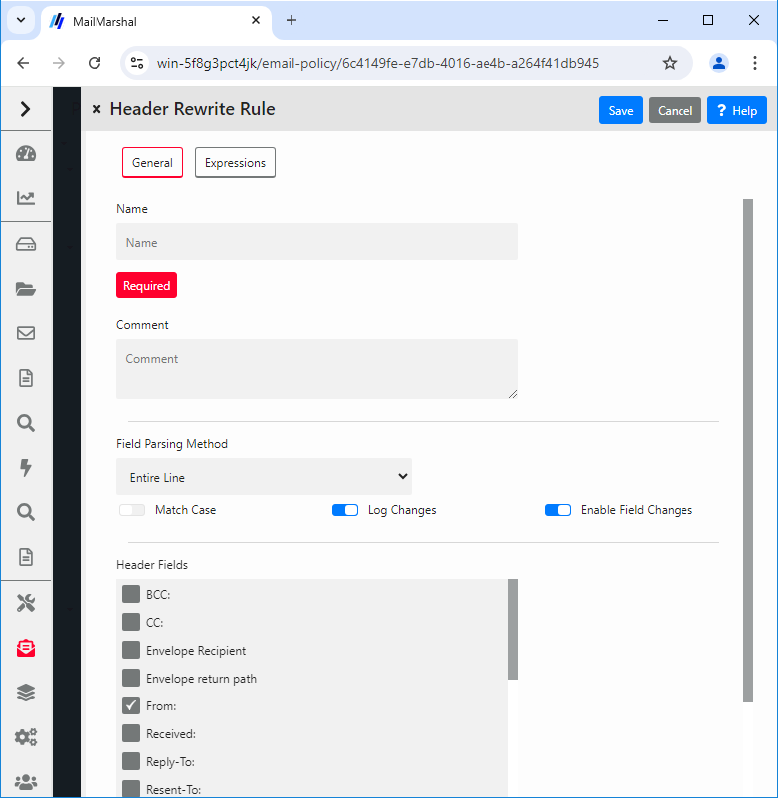
- Click Expressions to continue.
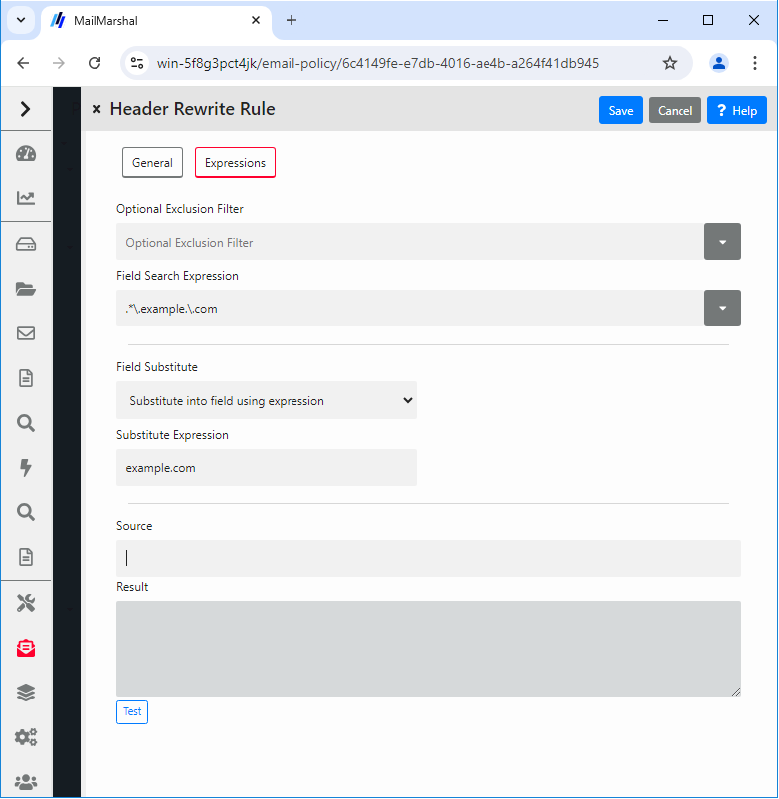
- In the Optional Exclusion Filter field, you can enter a regular expression. If this expression is found in the input text, the search will return “not matched”.
- In the Field Search Expression field, enter a regular expression that MailMarshal should use to select the data for matching or rewriting. If the input text matches this expression, the rule will match or rewrite it, subject to exceptions based on the exclusion filter.
-
If this is a rewriting rule, choose one of the rewriting methods:
-
Substitute into field using expression replaces the matched data using a sed or Perl-like syntax. You can use sub-expressions generated from the field search here. Refer to the sub-expressions as $1 through $9.
Note: If you replace the entire contents of a field, be sure to terminate the text with a CRLF (
\r\n). You can insert this value through the arrow to the right of the field. If you enter $0 (the tagged expression containing the entire input line) at the end of the substitution expression, a CRLF will already be included. - Map using file provides for substitutions from a file, to allow a level of indirection in resolving what to substitute into the field. For details of syntax, see Regular Expressions. For details of where to place the file, see Help.
- Delete the field removes the matching material from the header. When Entire line is selected in the parsing options, selecting Delete the field removes the entire header line from the message.
-
Insert if missing permits you to add a new header if any of the selected headers does not exist. MailMarshal will use the text of this field as the value of the new header line. For instance if you have added the custom header
x-MyNewFieldthen you might enter the valueCreated by Header Rewrite.Note: In Content Analysis rule header rewriting, you can include MailMarshal variables in the Substitute or Insert text. For details, see Help.
-
Substitute into field using expression replaces the matched data using a sed or Perl-like syntax. You can use sub-expressions generated from the field search here. Refer to the sub-expressions as $1 through $9.
-
To test the rule, enter an input string in the Source field and click Test. The result will appear in the Result field. For rewriting actions, the result will be the rewritten string. For matching, the result will be “matched” or “not matched”.
- If this is a rewriting rule, adjust the order of evaluation using the arrows provided below the list of rules.
Note: If you use several header matching rules within a single Content Analysis Policy rule condition, all must evaluate true for the condition to be true.If you create several rewriting rules for global Header Rewrite or within a single Content Analysis Policy rule action, the order of evaluation will be significant. Rewriting actions will be applied in top-down order as shown on the window.
Extending Functionality Using External Commands
An external command is a custom executable, Windows command, or batch file that can be run by MailMarshal. The command can be used to check email messages for a condition, or to perform an action when a message meets some other condition. You can use custom executable files or batch files with the Content Analysis Policy rule condition “Where the external command is triggered.” For instance, you can invoke fgrep.exe for advanced expression matching. If you want to use an external command to check for a condition, the command must return a standard return code. You can also use custom executable files with the Content Analysis Policy rule action “Run the external command.” For instance, a particular email subject line could trigger a batch file to start or stop a system service, or to send a page or network notification to an administrator.Note: If a command action changes the message or attachments, you must set an option on the rule action to force the message to be repacked. For details, see Run the external command.
- In the left pane of the Management Console select Policy Elements. In the right pane menu select External Commands.
- To create a new external command, on the menu above the list click Add. To edit an existing external command, double-click an item in the list.
- Enter a name for the external command.
-
Type the path for the executable file. You can also browse for the file by clicking Browse.
Note: To use a batch file, you must invoke the command interpreter explicitly as follows:
%Systemroot%\system32\cmd.exe /C {batchfile.cmd} [variables...] -
In the Parameters field, enter any command line parameters necessary for the command. You can pass specific information about a message to the command using MailMarshal variables. Particularly note the variable
{CmdFileName}. -
The Timeout and Timeout per MB values control how long MailMarshal will wait for a response before ignoring the external command. The default values are very generous.
Note: If the external command executable uses 10% of the timeout time in actual processing (CPU usage), MailMarshal will terminate the command, log the event as a runaway process, and place the message in the Dead Letter\Unpacking folder.
- The Single Thread setting indicates whether the command must operate on one message at a time, or can be invoked multiple times. In most cases this box should be left selected. You can multi-thread certain executable files.
- The Only execute once for each message setting determines whether an external rule condition command will be run for each component of a message, or only once. For example if you are using fgrep to perform Regular Expression searches of attached files, this box should be cleared to ensure that MailMarshal passes each component of each message to fgrep.exe.
-
If you plan to use the external command as a rule condition, you must set the trigger return code information. You should find this information in the documentation of the executable.
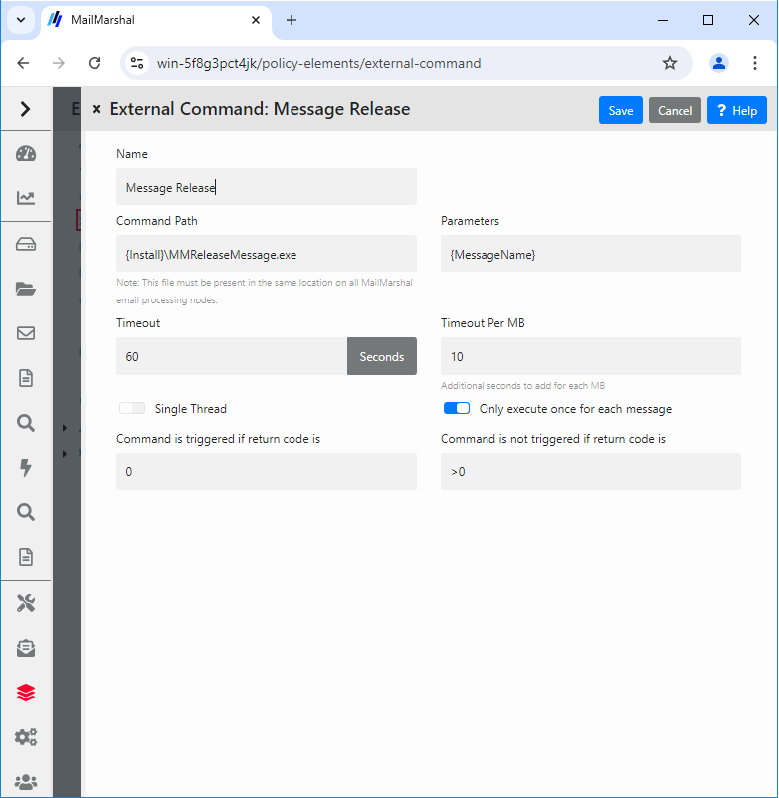
- If the code returned matches any value entered in the field Command is triggered if return code is, MailMarshal will consider the condition to be satisfied.
- If the code returned matches any value entered in the field Command is not triggered if return code is, MailMarshal will consider the condition not to be satisfied.
- If the code returned matches neither field, the file is moved to the Undetermined dead letter folder and an email notification is sent to the MailMarshal administrator.
- Entries in both return code fields can be exact numeric values, ranges of values (for example 2-4), greater than or less than values (for example <5, >10). More than one expression can be entered in each field, separated by commas (for example 1,4,5,>10).