

- To stop spam.
- To block virus or malware infected email.
- To prevent illegitimate relaying of email.
- To control who can send email through your server.
- To prevent malicious email attacks
- To filter email messages and attachments according to local policies of the organization.
Configuring Email Content Security
Configure email content security using the MailMarshal Management Console. For basic information about the Management Console see Understanding the MailMarshal Web User Interface. Content Security policies generally include elements of two types: Email transport policies These policies are implemented using global settings you configure in MailMarshal Properties. These policies control who is allowed to send email to or through the MailMarshal server. For more information on email transport policies, see Configuring SpamProfiler, Preventing Relaying and Controlling Who Can Send Email Through Your Server. Email content policies These policies are implemented using rules you configure as part of MailMarshal Email Policy. These policies control the content of email messages. For more information on email content policies, see Stopping Spam, Stopping Viruses and Malware, and Filtering Messages and Attachments. To start the Management Console, open a supported web browser and navigate to the default HTTPS website of the Array Manager server.Stopping Spam
Stopping unsolicited incoming email (commonly known as spam) is a primary goal for most organizations. The LevelBlue SpamCensor and SpamBotCensor technology filter spam efficiently with minimal overhead. The SpamProfiler is a signature based check performed at the Receiver, that allows MailMarshal to refuse delivery of spam or quarantine it with minimal processing.Anti-Spam Configuration and Rules
The default email policy provided with MailMarshal includes a policy group titled Anti-Spam. This policy group includes a number of rules to block spam. Some basic rules are enabled by default. Additional rules can be enabled and/or customized to suit each installation. To view the Spam policy group:- In the left pane of the Management Console, expand the item Email Policy.
-
In the right pane, expand Content Analysis Policy and select Anti-Spam.
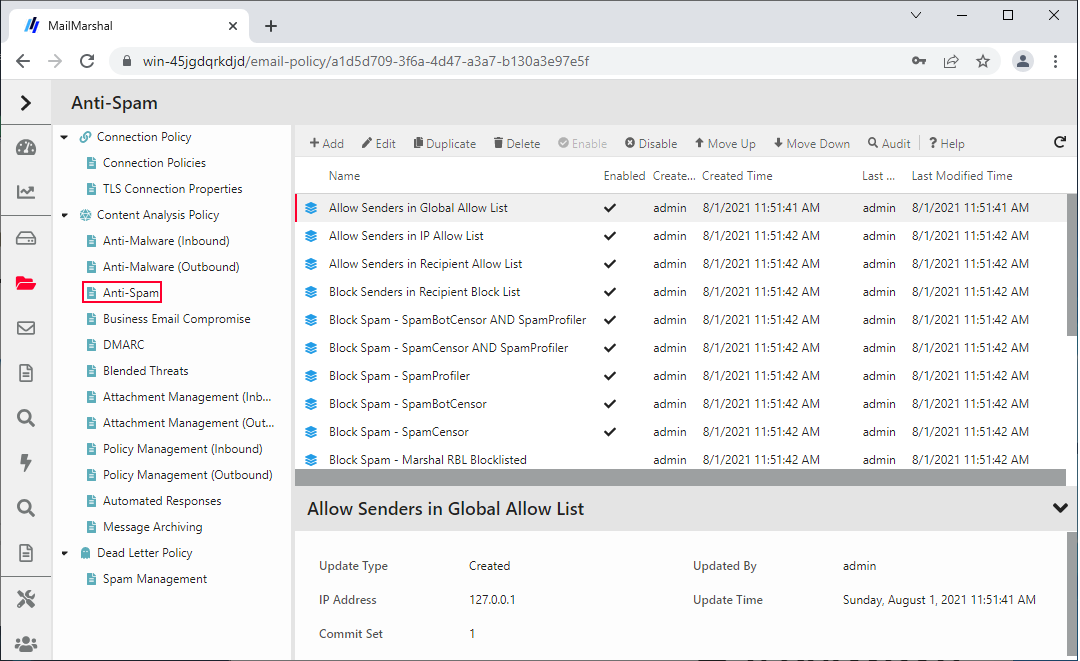
- To view details of each rule, including a description of its intended use, select the rule and click Edit in the toolbar.
-
Rules to quarantine spam using the SpamBotCensor, SpamCensor and SpamProfiler.
Note: To ensure the reliability of SpamCensor and SpamProfiler, verify that they are enabled and correctly configured. See Configuring SpamProfiler and Configuring SpamCensor, SpamProfiler, and YAE Updates.To ensure the reliability of SpamBotCensor, ensure the processing nodes receive connections directly from the Internet.
- A rule to allow email messages from specific addresses.
- Rules to implement lists of blocked senders and safe senders for each user. Users can update these lists through the MailMarshal Spam Quarantine Management Website.
- A rule to quarantine email messages that contain text relating to scams, using the MailMarshal TextCensor.
-
A rule to block spam email that contains spam-linked URLs in the message header or body. The rule uses the URLCensor function to compare URLs in received messages with listings maintained by external blocklist sites. URLCensor decodes URLs intentionally obscured with decimal, octal, or hexadecimal notation. For more information about using URLCensor, see the LevelBlue Knowledgebase.
Note: To use URLCensor, you must ensure that MailMarshal uses a reliable, efficient DNS server. For more information, see Configuring Default Delivery Options.
Configuring SpamProfiler
SpamProfiler is a signature based service that examines email at the MailMarshal Receiver. SpamProfiler can significantly reduce the load on the MailMarshal Engine. By default MailMarshal enables SpamProfiler and uses Content Analysis Policy rules to quarantine messages in a folder. You can also use this facility to block messages at the receiver, without unpacking them. To configure SpamProfiler:- In the Management Console, select System Configuration and then expand Receiver Properties.
-
To enable SpamProfiler, select it from the menu and select Enable SpamProfiler.
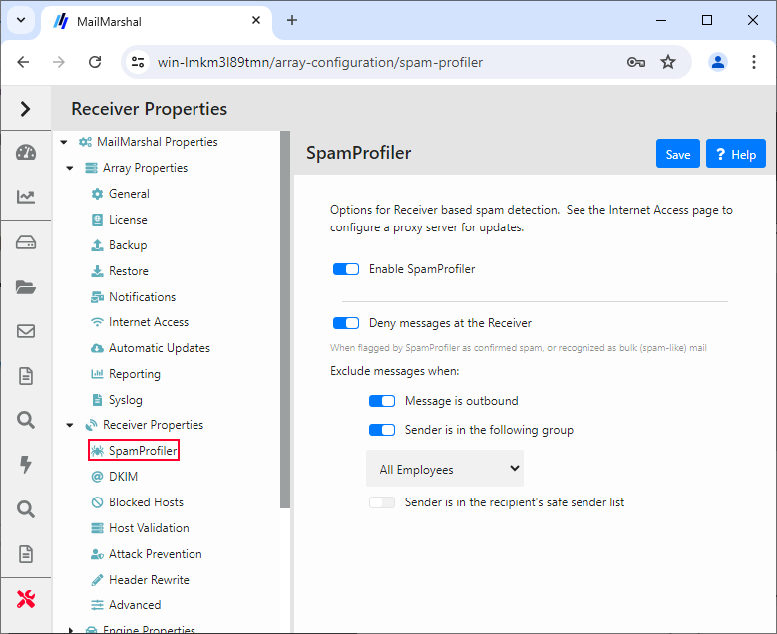
- To block message at the receiver, select the option Deny messages. You can exclude groups of senders from blocking using the additional options. For details of the options, see Help.
- To quarantine or delete messages, enable SpamProfiler and then use the Content Analysis Policy rule condition Where message is detected as spam by SpamEngine. For more information see Where message is/is not detected as spam by SpamEngine.
Configuring SpamCensor, SpamProfiler, and YAE Updates
LevelBlue provides updates for the SpamCensor, SpamProfiler, and Yara Analysis Engine (YAE) facilities to all customers with current MailMarshal maintenance contracts. The updates are delivered through the Web by HTTP and HTTPS.Configuring and Checking Automatic SpamCensor Updates
Automatic updating of the SpamCensor is enabled by default. You can choose to download updates manually or automatically. To monitor and configure SpamCensor updates:- In the Management Console, select System Configuration and then expand Array Properties.
- Select Automatic Updates from the menu. The display shows the time and result of the last update attempt, and the time of the next attempt.
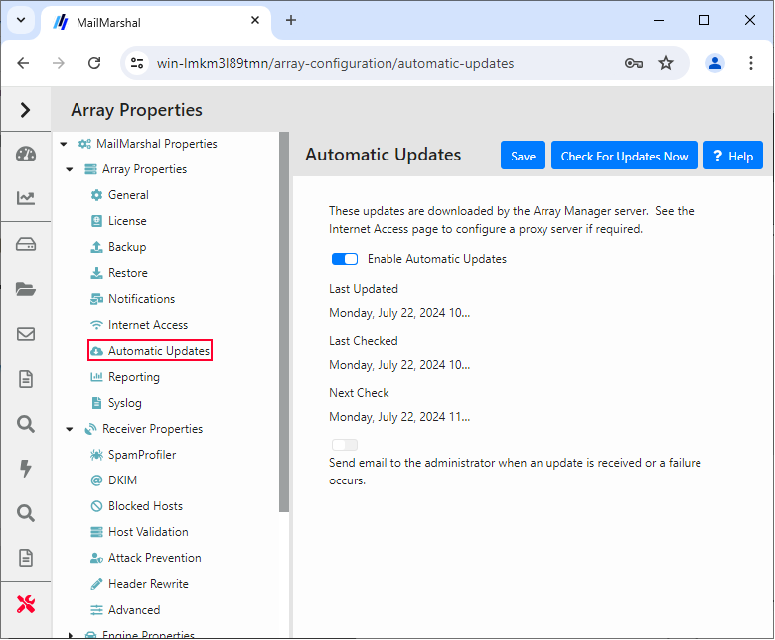
- If you do not want the SpamCensor to update automatically, toggle off Enable Automatic Updates.
- If you want to be notified by email when a SpamCensor update is received or a problem occurs, toggle on Send email to the administrator. MailMarshal sends an email message to the administrator address configured on the Notifications page of MailMarshal Properties.
- If you want to perform a check for SpamCensor updates immediately, click Check for Updates Now.
Configuring Proxy Settings for Updates
If the MailMarshal server(s) do not have direct access to the Web, you can configure MailMarshal to use a proxy server to download the updates. This proxy server setting applies to SpamCensor and SpamProfiler updates. SpamCensor updates are downloaded by the Array Manager. SpamProfiler updates are downloaded by each processing node. To configure proxy settings for the updates:- In the Management Console, select System Configuration and then expand Array Properties.
- Select Internet Access from the menu.
- You can configure the following settings for the Array Manager (SpamCensor updates) and for the processing nodes (SpamProfiler updates).
- If you want MailMarshal to access the Web directly, select Direct Access.
- If you want MailMarshal to use a specific proxy server, select Proxy. Enter a proxy server name and port. If necessary, enter a user name and password for proxy authentication.
- To apply the proxy settings, click Save and then commit MailMarshal configuration changes.
Stopping Viruses and Malware
Blocking virus and malware infections at the email gateway is a primary goal of email content security for most organizations. MailMarshal can scan email messages for virus infection using any of a number of virus scanners, including McAfee for Marshal and Sophos for Marshal. Nearly all MailMarshal installations use virus scanning. MailMarshal also provides additional important layers of protection against malware using proprietary Zero Day updates, Yara Analysis Engine malware detection, and the Outbreak Detection function of SpamProfiler.How MailMarshal Uses Virus Scanners
MailMarshal can use one or more scanners to check email for viruses. Because virus scanners have differing architecture and update policies, some organizations choose to use multiple scanners.Note: Before MailMarshal can use a virus scanner in email processing, you must configure it within MailMarshal.
Features
MailMarshal supports the following virus prevention and management features:- Email antivirus scanning at the gateway: Adds a proactive layer of defense at a key strategic point in the network.
- Multiple virus and malware scanners (optional): Increases the chances of detecting a virus and reduces the vulnerabilities from delays in patch updates.
- Virus notification and reporting: Provides email notifications of specific viruses, and comprehensive reporting on virus incidents (including the virus names if provided by the scanner in use).
- Unpacking documents and archives
- Scanning text for keywords and suspect code
- Blocking dangerous file types
- Blocking encrypted files
Implementation Options
To work with MailMarshal, a virus scanner must have a command-line interface or a MailMarshal DLL supplied by LevelBlue. The scanner must return a documented response indicating whether or not a virus is detected. Most commercially available virus scanners meet these specifications.Note: Because DLL based scanners are always resident in memory, they are about 10 times faster than command line scanners. LevelBlue recommends the use of DLL scanners for sites with high message traffic.
Anti-Malware Policy and Rules
The default email policy provided with MailMarshal includes two policy groups titled Anti-Malware (Inbound) and Anti-Malware (Outbound). These policy groups include a number of rules to block viruses and malware. To view the Anti-Malware policy groups:- In the left pane of the Management Console, select the item Email Policy.
- Expand Content Analysis Policy, and select the item Anti-Malware (Inbound) or Anti-Malware (Outbound).
- To view details of each rule, including a description of its intended use, double-click the rule name in the right pane.
Best Practices
LevelBlue recommends the following basic practices to ensure security with respect to malware/viruses and scanning:- Ensure that SpamCensor and SpamProfiler updating is enabled, to provide a Zero Day layer of protection. The SpamCensor updater also delivers updates for the Yara Analysis Engine and file unpacking.
- Block messages and attachments that MailMarshal cannot scan, such as password protected attachments and encrypted attachments (for example files of type ‘Encrypted Word Document’).
- Block encrypted messages that MailMarshal cannot decrypt, such as PGP and S/MIME messages and encrypted ZIP files.
- Block executable and script files by type and name. This helps to ensure that unknown viruses will not be passed through.
- Subscribe to email notification lists for malware outbreaks. Such lists are available from many antivirus software companies. When an outbreak occurs, block the offending messages by subject line or other identifying features.
Note: If resident or “on access” virus scanning is enabled, exclude the MailMarshal working folders from scanning. See Excluding Working Folders From Virus Scanning. Some integrated scanners use additional temporary locations, and these must also be excluded. See release notes for the specific scanners.
Viewing Virus Scanner Properties
Double click the name of any virus scanner in the right pane to review MailMarshal configuration information for that scanner. With external scanners you can modify the configuration. For details of the fields, see the Help for this panel.Preventing Relaying
Relaying email means sending a message to an email server for delivery to another email server. An open relay is an email server that accepts messages from any server for delivery to any other server. Spam senders often exploit open relays. It is best practice for an email server to refuse relaying requests, unless the source is known and trusted. By default MailMarshal only allows relaying requests from the email server that was selected for delivery of local email (in the Configuration Wizard). For instance, if you entered the IP address of an Exchange server as the local delivery location, MailMarshal will also relay outgoing email from the Exchange server. You may need to allow relaying from other locations. You can allow relaying in two ways:- By specific account authentication. See Authentication by Account.
- By Relaying Table.
- In the Management Console, select System Configuration and then select Relaying.
-
In the right pane, double-click the default Relay Table entry. The Relay Table panel displays the list of sources allowed or denied relay permission.
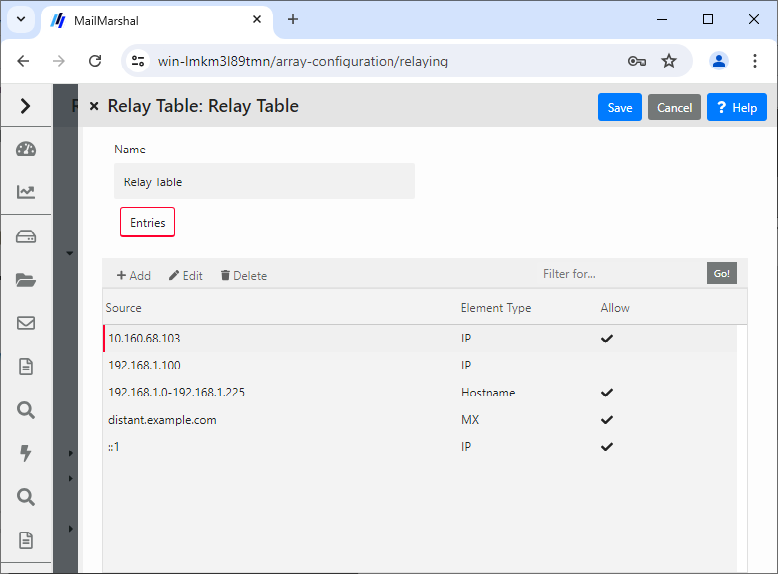
- To permit relaying from additional computers, click Add.
- In the Relay Table Entry panel select one of the available options, and then enter the required data. You can use a single IPv4 or IPv6 address, a hostname, or a MX lookup for a domain. For example, you can choose to permit relaying from the IP range 10.15.1.0– 10.15.1.255.
-
Click Save to both panes, and then commit configuration changes.
Note: For more details of the available options, see Configuring Relaying. For details of the fields on the windows, click Help.To learn about an additional item that affects relaying in rare cases, see Help for the setting “Block suspicious local-part relay attempt.”
Controlling Who Can Send Email Through Your Server
MailMarshal includes a number of features that allow you to control acceptance of email messages. These include Reputation Service checking, PTR lookups, a list of blocked hosts, and authentication by account (user name and password).Reputation Services and DNS Blocklists
MailMarshal can retrieve information from Reputation Services or DNS based blocklists including the Marshal IP Reputation Service, and third-party services such as SpamCop and Spamhaus. A Reputation Service is a service that provides an automated response through the DNS protocol. These services typically attempt to list email servers that are associated with spamming, open relays, or other unacceptable behavior. Each list has its own policies, and you should carefully evaluate the lists you choose to use.Note: Reputation Services results are based on the IP address of a server, and currently provide information about IPv4 addresses only.
Recommended Usage
To minimize performance issues, use only one or two reliable services. You can view the result returned by a Connection Policy rule Reputation Service condition by reviewing the MailMarshal Receiver text log.Note: MailMarshal improves Reputation Service performance by automatically maintaining a list of trusted IP addresses (“adaptive allow list”). Connections from servers on this list are not submitted for checking. The list of trusted addresses is generated based on recent server activity, using a proprietary heuristic. You can choose to enable or disable the adaptive allow list for each Reputation Service that you configure.You can also use reputation services in Content Analysis Policy rules through the MailMarshal Category (Spam Censor) facility. This is a more flexible method because it allows for weighted combinations of conditions. For more information about this facility, see the technical reference “MailMarshal Anti-Spam Configuration,” available from the LevelBlue website. You can view the result returned by a Category reputation service lookup in the message log (if the message is quarantined) or the MailMarshal Engine text log.
Configuring Access to a Reputation Service
MailMarshal maintains a list of available reputation services it can use in Connection Policy rules. To configure access to a reputation service:-
In the Management Console, expand Policy Elements and select Reputation Services. The right pane shows a list of configured services.
Note: The Marshal IP Reputation Service will be automatically provisioned for use by trial installations and customers with current maintenance.Provisioning requires Internet access from the Array Manager server.
- You can edit or test a service entry or add a new entry. See Help for details of the required information.
Using a Reputation Service Rule
The default email policy provided with MailMarshal includes a Connection Policy rule that uses the Marshal IP Reputation Service. This policy is enabled by default. To disable or re-enable the default Reputation Service rule:- Verify that the Marshal IP Reputation Service is present in the list of Reputation Services. This service is enabled by default in current versions of the product.
- In the left pane, expand the item Email Policy.
- Expand Connection Policy and double-click Connection Policies.
- In the right pane, double-click the rule Deny Trustwave Reputation Service Blocklisted on connection. On the General tab, toggle the Enabled status, and then click Save.
- Commit the configuration changes.
PTR Lookups
MailMarshal can mark or refuse email from external servers that do not have correctly published Reverse DNS (PTR record) information. You can use this method to help guarantee the genuineness of a remote site, and as a layer of anti-spoofing protection.Note: Use PTR lookups with caution. Not all sites publish correct PTR information. Valid email traffic can be blocked by DNS checking if the sending site does not have PTR records, or if the records are faulty.If MailMarshal refuses a connection due to this policy, the connection is closed with the response:
554 no SMTP service here.- In the Management Console, select System Configuration and then expand Receiver Properties.
- Select Host Validation from the right pane menu.
- To validate hosts sending incoming email using DNS information, toggle on Validate connecting hosts in the DNS. MailMarshal will perform a reverse DNS lookup on each IP address from which email is being sent.
- Select an option using the radio buttons.
- Choose Accept unknown hosts to accept email from hosts without appropriate DNS information, but log this fact to the MailMarshal Receiver text log.
- Choose Host must have a PTR record to block messages from any host that does not have a valid DNS PTR record. Blocked messages are logged in the Windows Event Log and return the SMTP response:
554 No SMTP service here. - Choose PTR Record must match the HELO connection string to block messages from hosts whose PTR domain does not match the HELO identification sent by the server. This is the most restrictive option. Blocked messages are logged in the Windows Event Log and return the SMTP response:
554 No SMTP service here.
- To implement the blocking, click Save and then commit configuration.
Blocked Hosts
You can maintain a list of servers that are never allowed to send any email through MailMarshal. MailMarshal will reject SMTP connections from these servers. Entries on this list will generally be servers outside your local LAN. To edit the list of Blocked Hosts:- In the Management Console, select System Configuration and then expand Receiver Properties
- Select Blocked Hosts from the right pane menu.
- Toggle on Refuse Mail… and then add server names, IP addresses, or IP address ranges to the list. For information about the format of entries, see Help.
- To implement the blocking, click Save and then commit the configuration.
Authentication by Account
MailMarshal can require each computer connecting to it to provide a user name and password. MailMarshal supports the CRAM-MD5, LOGIN, and PLAIN options for SMTP authentication. Additionally, authentication can be within a TLS session. To use authentication by account:-
Create and maintain a list of accounts using the policy element Accounts. For more information see Setting Up Accounts.
Note: You can also check authentication using an Active Directory group. For details of this option, see Knowledgebase article Q16649.
- Configure MailMarshal to advertise ESMTP authentication. For more information see MailMarshal Properties – Advanced.
-
Create a Connection Policy rule using the condition “Where sender has authenticated”. For information about creating rules see Understanding Rules. For information about this rule condition see Where sender did/did not authenticate successfully.
Note: You can also check the authentication of messages using a Content Analysis Policy rule. For more information, see Where the DKIM verification result is. Using Content Analysis Policy to check authentication provides more flexibility in actions and other conditions, but could reduce security.
Preventing Malicious Email Attacks
MailMarshal helps to protect your network from intentional attempts to disrupt your operations. Denial of service attacks can cripple entire networks. Directory harvest attacks initially consume bandwidth and can result in your network receiving additional spam. MailMarshal allows you to tailor denial of service prevention and directory harvest prevention features to suit your network and business requirements. Enable one or both forms of attack prevention if you believe that your network is vulnerable to attack.Understanding Denial of Service Attack Prevention
Denial of service (DoS) attacks cause target organizations to lose access to common business services, such as email. In an email DoS attack, the attacker floods email servers with messages or unused connections, causing the target email servers to slow down or cease operation.How MailMarshal Prevents DoS Attacks
MailMarshal prevents DoS attacks by the following means:- Identifying external email servers that are attacking your network
- Blocking new connections from attacking servers for a period of time
Optimizing DoS Attack Prevention Settings
To determine the optimum settings for the DoS attack prevention parameters, you can log blocked hosts. You can use the Senders Blocked by DoS Prevention report (from Marshal Reporting Console) to see which servers were blocked. If you are affecting email flow from legitimate sources, you can change the settings to allow more messages through. You can also exclude specific hosts from DoS attack prevention by IP address or address range. You configure DoS settings once for the entire MailMarshal array. However, MailMarshal applies the traffic limits you set at each email processing server. For example, if you use the default setting of 50 connections per minute and your installation is an array of five servers, your network can receive up to 250 connections per minute from any one external server (50 connections at each of 5 servers) When DoS prevention is triggered on one email processing server in a array, the other servers in the array are not affected. When DoS prevention is blocking connections from a server, MailMarshal returns the SMTP response421, Service not available. A legitimate server that receives this response will try again later.
Preventing Denial of Service Attacks
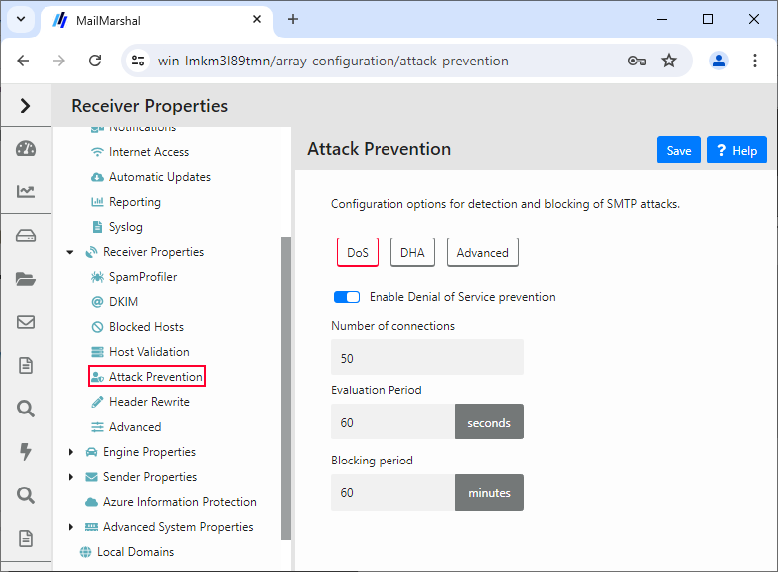
You configure DoS attack prevention by specifying the values MailMarshal will use to evaluate incoming email traffic, the blocking period, and any excluded hosts. You can adjust these values at any time. To configure DoS attack prevention:- In the Management Console, select System Configuration and then expand Receiver Properties.
- Select Attack Prevention in the right pane menu, and select the DoS tab.
- Select (toggle on) Enable Denial of Service prevention, and specify values. For more information about the fields and settings, click Help.
- Click Save.
- Commit configuration to apply your changes.
Enabling and Disabling DoS Attack Prevention
After configuring DoS attack prevention, you can enable or disable the feature without changing the configuration. To enable or disable DoS attack prevention:- In the Management Console, select System Configuration and then expand Receiver Properties
- Select Attack Prevention in the left pane, and select the DoS tab.
- Toggle the status of Enable Denial of Service prevention, as needed.
- Click Save.
Understanding Directory Harvest Attack Prevention
In a directory harvest attack (DHA), an attacker attempts to identify valid email addresses by sending randomly-addressed messages to an email server. When a message reaches a recipient without being bounced back, the attacker enters the valid address in a database used for sending spam. The attacker sends messages addressed either to random usernames, or to usernames that follow a common pattern, such as _firstname_lastname_@example.com.How MailMarshal Prevents DHA Attacks
MailMarshal helps to prevent DHAs by the following means:- Identifying external email servers that are attacking your network
- Blocking email from attacking servers for a specified period of time
556 Too many invalid recipient requests. While MailMarshal is blocking connections from a server, MailMarshal returns the SMTP response 421 Service not available. A legitimate server that receives this response will try again later. You can also exclude specific hosts from DHA prevention by IP address or address range.
Note: To ensure that DHA prevention works properly, enable it on a MailMarshal installation on the highest upstream email server in your network (closest to the public Internet).
DHA Prevention Settings
You configure DHA settings once for the entire MailMarshal array. However, MailMarshal applies the traffic limits you set at each email processing server. For example, if you use the default setting of 10 messages with invalid recipients per minute, and your installation is an array of five servers, your network can receive up to 50 invalid messages per minute from any one external server (10 messages at each of 5 servers). When DHA prevention is triggered on one MailMarshal email processing server, other servers in the array are not affected. You can adjust the limits depending on your array and MX configuration. To determine the optimum settings for the DHA prevention parameters, you can log blocked hosts. You can use the Senders Blocked by DHA Prevention report (from Marshal Reporting Console) to see which servers were blocked. If you are affecting email flow from legitimate sources, you can change the settings to allow more incorrectly addressed messages through. You can also exclude specific hosts from DHA attack prevention by IP address or address range.Preventing Directory Harvest Attacks
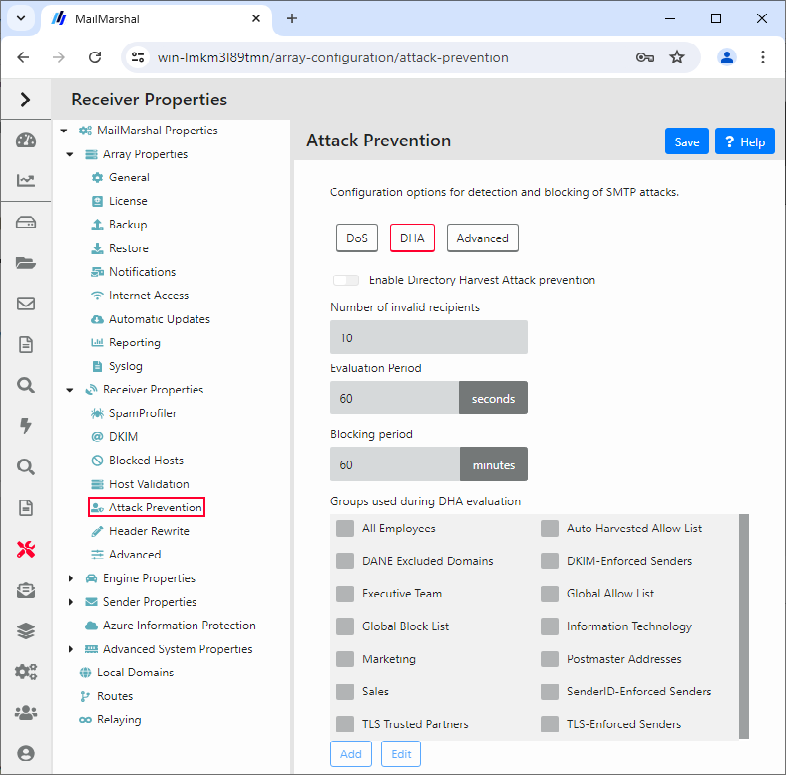
You configure DHA prevention by specifying the values MailMarshal will use to evaluate incoming email traffic. You can adjust these values until you determine the optimum settings for your network. To configure DHA prevention:- Create a list of all valid recipients by completing the following steps:
-
Create one or more Azure Entra, Active Directory or LDAP user groups that together contain all the user email addresses in your environment. For more information, see Creating and Populating User Groups.
Note: Take care not to miss any users (email addresses) that are valid for email delivery. Select the group(s) at the highest point in the organizational hierarchy that you want to protect to ensure that you include all possible users in that hierarchy.
- Select these groups (or a group containing them) when configuring DHA prevention in the following steps.
-
Create one or more Azure Entra, Active Directory or LDAP user groups that together contain all the user email addresses in your environment. For more information, see Creating and Populating User Groups.
- In the Management Console, select System Configuration and then expand Receiver Properties.
- Select Attack Prevention in the right pane menu, and select the DHA tab.
- Select (toggle on) Enable Directory Harvest Attack prevention, and specify appropriate values. Specify the group(s) you created to be used during evaluation. For more information about the fields and settings, click Help.
- Click Save.
- Commit configuration to apply your changes.
Enabling and Disabling Directory Harvest Attack Prevention
After configuring DHA prevention, you can enable or disable the feature without changing the configuration. Use the following procedure: To enable or disable DHA prevention:- In the Management Console, select System Configuration and then expand Receiver Properties
- Select Attack Prevention in the right pane menu, and select the DHA tab.
- Toggle the status of Enable Directory Harvest Attack prevention, as needed.
- Click Save.