

Planning Checklist
Plan your MailMarshal installation by reading the following sections and completing the following checklist: Table 2: Planning checklistUnderstanding MailMarshal Components
MailMarshal consists of several software components, which you can install on different computers in your network. These components can be installed in a variety of configurations to suit any size organization from small businesses to distributed enterprises. Figure 1 shows the components on separate computers for clarity. In lower volume scenarios you can install all components on a single computer.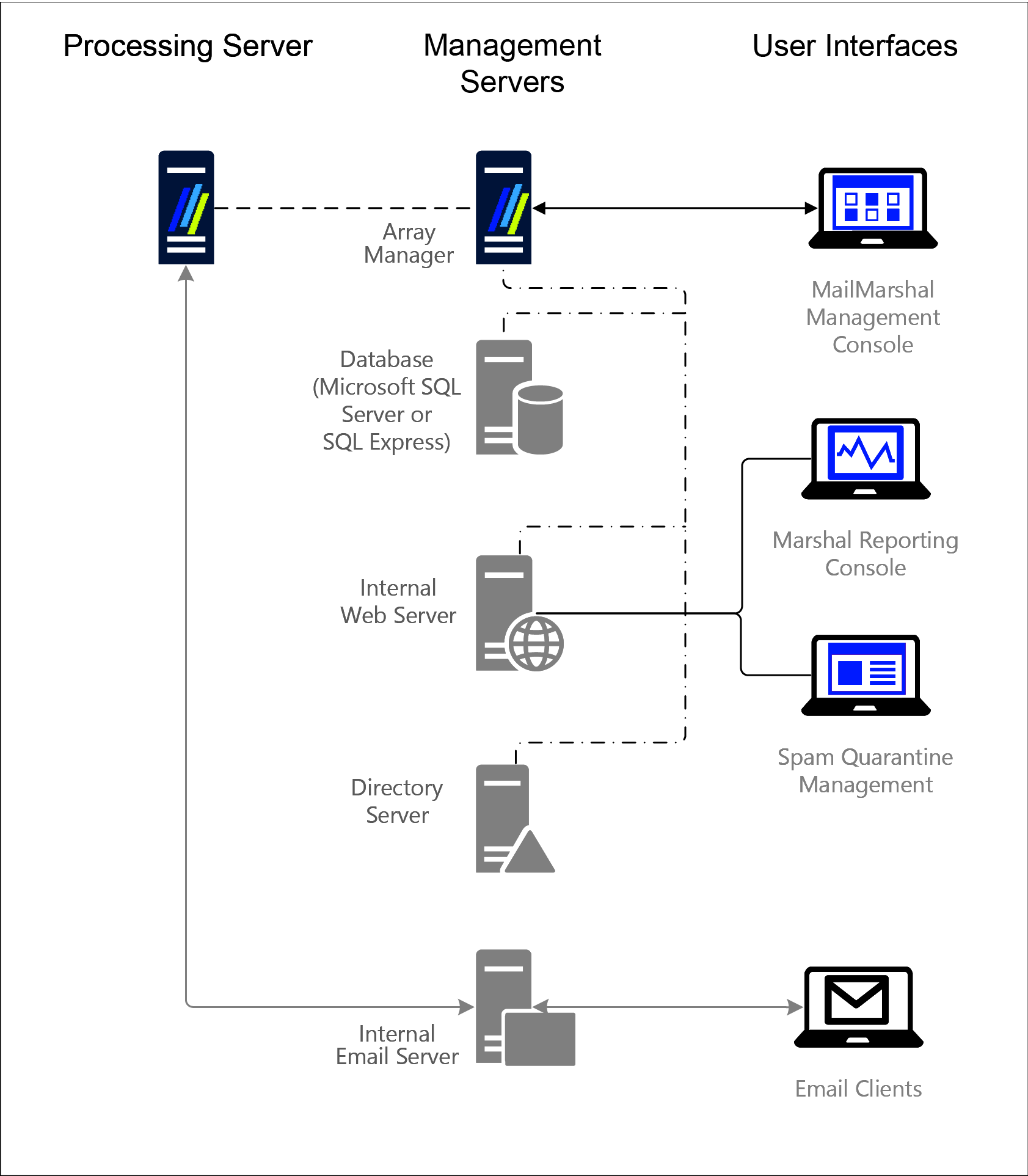
MailMarshal Components
MailMarshal includes the following components: Processing Server Accepts incoming email subject to Connection Policy (Receiver), applies Content Analysis Policy in the form of rules (Engine), and forwards email to your email server or to the recipient (Sender). You can use one or more MailMarshal Servers in your installation. Array Manager Manages an array of MailMarshal email processing servers. The Array Manager connects to the email processing servers and to the database, hosted using Microsoft SQL Server or SQL Express. The Array Manager server also hosts the Configuration Service and an instance of Microsoft IIS, used by the Management Console. For more information, see Other Software and Services. Management Console Web-based interface allowing Administrator access. Administrators can define policy (rules), configure MailMarshal, and manage and monitor undelivered or filtered email. Spam Quarantine Management Website Optional Web-based interface for internal email users to view and manage quarantined email. Marshal Reporting Console Optional Web-based interface used to generate traffic and management reports based on MailMarshal activity. To operate properly, MailMarshal requires an Array Manager (with Management Console), at least one email processing Server, and a database server (hosting the product database and configuration service database). You can optionally install the Spam Quarantine Management website and the Marshal Reporting Console if you plan to use the additional features these components offer.Other Software and Services
In addition, MailMarshal may require the following software and network services: Microsoft SQL Server, SQL Express, or Azure SQL Server The MailMarshal database stores configuration data and log information. If your email volume permits, you can use the free SQL Express. If your email volume is higher, use Microsoft SQL Server. If possible, install the database software and the MailMarshal Array Manager on the same computer. For more information, see Array Installation Requirements and Database Software Considerations. If your MailMarshal installation is hosted on an Azure server, you can use Azure SQL to host the database. Due to latency, you should not attempt to use Azure SQL with a locally hosted MailMarshal installation. Microsoft Internet Information Services (Microsoft IIS) If you want to offer the end-user Spam Quarantine Management Website, install the MailMarshal Web Components on a server with Microsoft IIS and .NET 4.0 installed.Understanding Installation Scenarios
While you can configure MailMarshal to run in many environments, there are two basic configurations to consider, based on the number of users and your typical email volume:- Standalone, or basic installation (several variations available)
- Array installation
Standalone Installation
For small to medium-sized organizations, a standalone installation provides convenience and value. In a standalone installation, you install all the MailMarshal components as well as the SQL Express or Microsoft SQL Server database on a single computer. To use the MailMarshal Spam Quarantine Management Website or Marshal Reporting Console, install these components on a Microsoft IIS Server. You can configure a standalone installation of MailMarshal in the following ways:- As a POP3/SMTP server (for very small organizations)
- As an internal email relay to your email server
- On your existing email server
MailMarshal as Email Server
You can install MailMarshal to function as a POP3/SMTP email server, providing all email server functions for a small organization, as shown in Figure 2.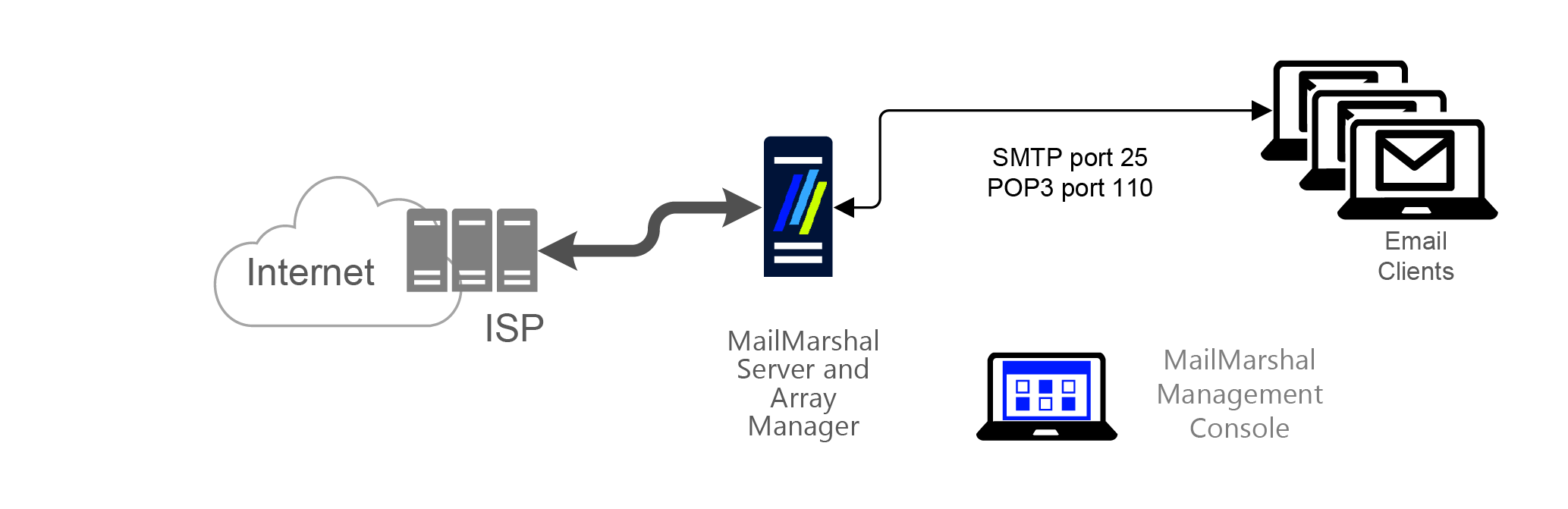
MailMarshal as an Internal Email Relay
You can install MailMarshal on a separate computer to act as an email relay within an organization, as shown in Figure 3.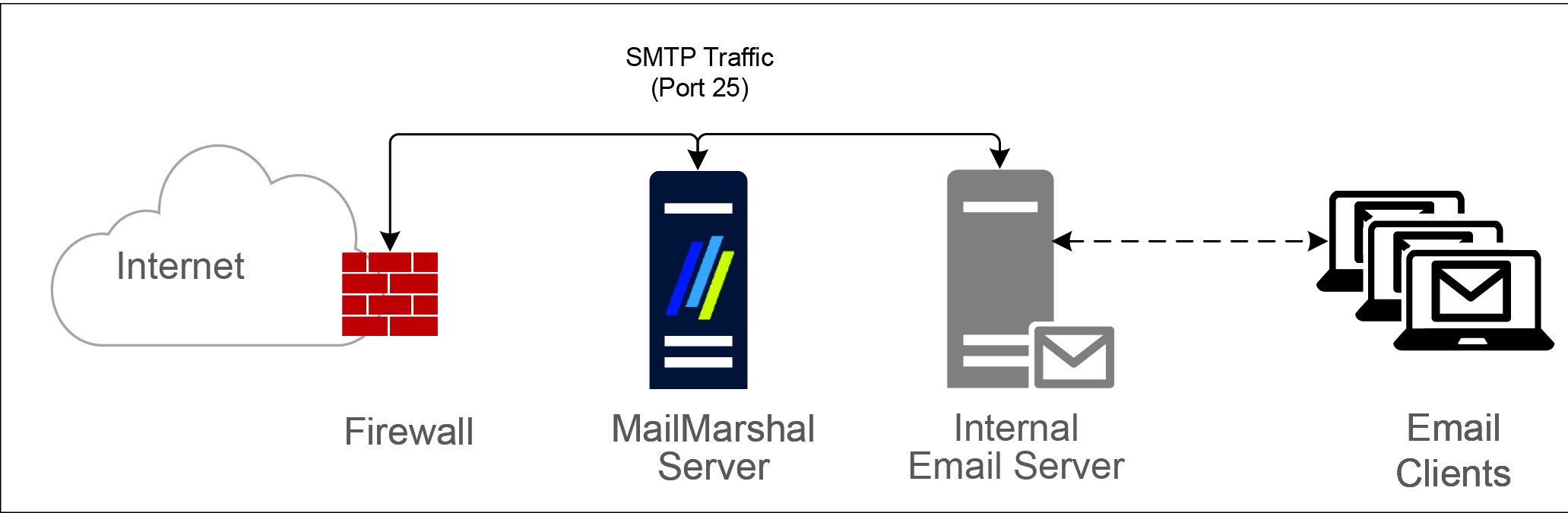
MailMarshal on Existing Email Server
You can install MailMarshal on your existing email server computer, as shown in Figure 4.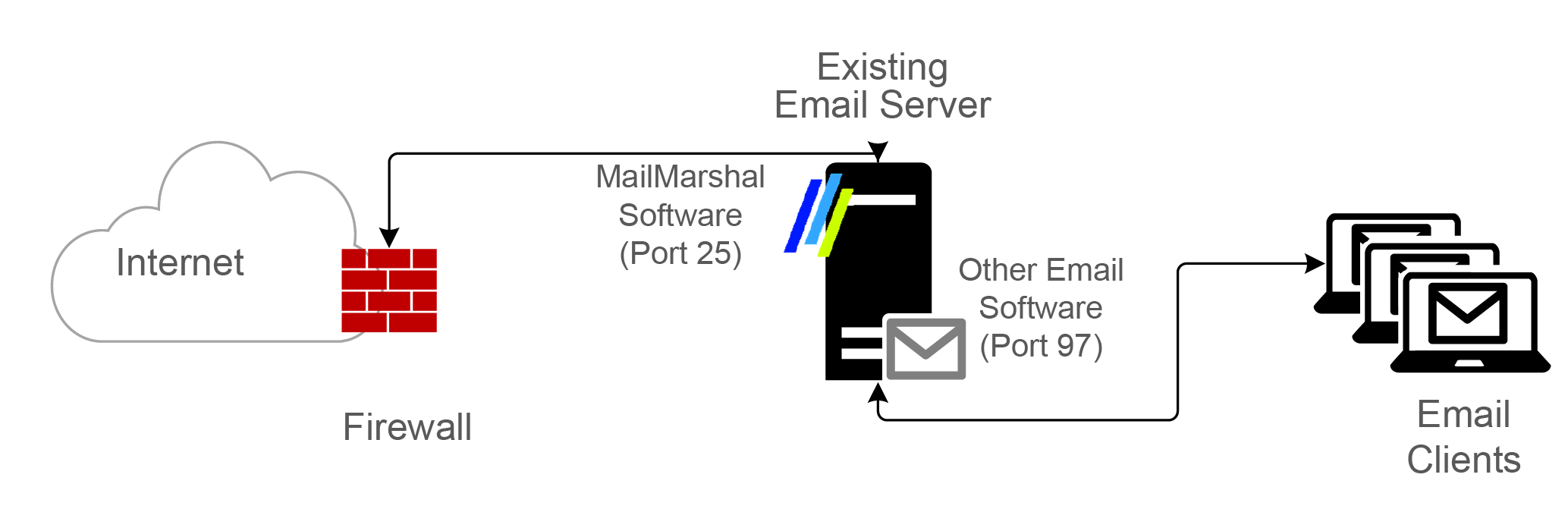
localhost IP address on port 97 for delivery. The existing email server forwards outbound email to MailMarshal on port 25 using the localhost IP address.
In this case, your email server must have sufficient resources to support both MailMarshal and another email server application. Install the MailMarshal Server and Array Manager components on your existing email server. Many organizations that choose this configuration can also install Microsoft SQL Server or SQL Express on the same computer to host the MailMarshal database.
When you install MailMarshal on the same physical server as the existing email server software, normally you do not need to change the inbound routing. However, because MailMarshal takes on the role of listening for SMTP traffic on port 25, you must configure your existing email server to listen for SMTP traffic on another port. Many organizations use port 97 for this purpose, but you can configure your existing email server to listen on any free TCP port.
This configuration is not suitable if you have multiple internal email servers (SMTP or Exchange). With multiple internal email servers, install MailMarshal on a separate computer as an email relay. For more information, see MailMarshal as an Internal Email Relay.
Array Installation
You can install an array of MailMarshal Servers in a variety of configurations to manage email for larger enterprises. MailMarshal provides a broad range of enterprise configurations that can include redundancy and failover support. Figure 5 shows a typical MailMarshal array configuration.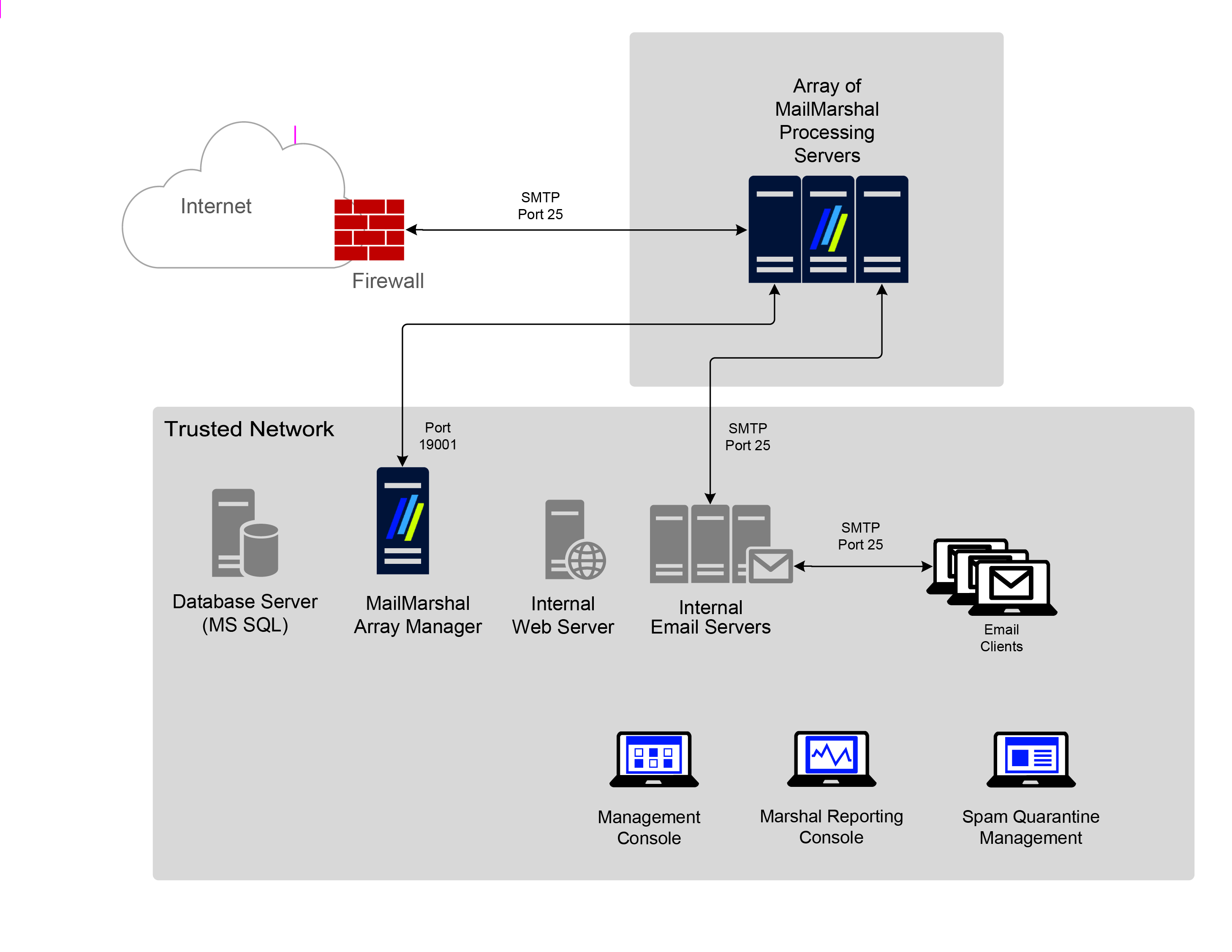
- On the same server as the Microsoft SQL Server hosting the database. Since the Array Manager is the only MailMarshal component that communicates directly with the database, installing the Array Manager on the computer that hosts Microsoft SQL Server or SQL Express results in the most efficient operation.
- On another computer in the network close to the computer hosting the database over a high-speed network connection.
- On an Active Directory Global Catalog or other Directory Server. The Array Manager communicates regularly to the Global Catalog if you are running Active directory, or through LDAP to another existing Directory Server.
- The MailMarshal Management Console website is installed on the Array Manager server and can be accessed by web browser clients.
- To use the MailMarshal Spam Quarantine Management Website or Marshal Reporting Console, install these components on a Microsoft IIS Server domain member inside the network.
Hardware and Software Requirements
Depending on the installation scenario you select and your estimated email volume, the specification for computers on which you install MailMarshal components can vary. The following sections specify the recommended hardware and software for various computers where you may be installing MailMarshal components. Consider all the requirements before mapping your MailMarshal installation. The MailMarshal installation package includes many prerequisite software updates, including SQL Express and .NET Framework. If you install MailMarshal from a Web download, you may have to download software you need from the vendor sites. To avoid a system restart during product installation, install any prerequisite software on your computers before you start installing MailMarshal. For more information about the latest requirements and supported environments, see the LevelBlue Knowledgebase.Standalone Installation Requirements
In standalone installations, computer requirements for the MailMarshal components may vary depending on whether you use MailMarshal as the POP3 email server or relay, or if you plan to install MailMarshal on an existing email server. The following table lists system requirements for installing the MailMarshal Server, Array Manager, and selected database on a single computer. MailMarshal supports use of SQL Express or Microsoft SQL Server as host database. If you install MailMarshal on an existing email server, the minimum hardware requirements may be greater than those shown in the table, depending on the number of users and typical email volume. Table 3: Standalone installation requirements
When processing large volumes of email, disk I/O can become a limitation. To provide optimal throughput in this case, plan to include dual drives so you can install the MailMarshal Server components on one drive and the database and Unpacking folder on a separate physical drive. For more information about choosing folder locations, see Understanding MailMarshal Folder Locations.
To provide redundancy, plan for quad drives configured as two mirrored pairs. For more information to determine your configuration needs, see the Technical Reference titled “MailMarshal Sizing Guide” at LevelBlue.com.
Array Installation Requirements
In an array installation scenario, you may plan for several MailMarshal Servers and one Array Manager computer. The following sections provide hardware and software requirements for MailMarshal Server and Array Manager computers. For more information to determine your specific requirements, see the “MailMarshal Sizing Guide” Technical Reference, at LevelBlue.com.Server Requirements
The following table lists system requirements for a MailMarshal email processing server computer in an array configuration. Table 4: Array Server installation requirements
When processing large volumes of email, disk I/O can become a limitation. To provide optimal throughput in this case, you may want to plan for dual drives in the MailMarshal Server computer so you and install Server components on one drive and the Unpacking folder on a separate physical drive. For more information about choosing folder locations, see Understanding MailMarshal Folder Locations.
To provide redundancy, you may want to plan for quad drives configured as two mirrored pairs. For more information about determining your configuration needs, see the “MailMarshal Sizing Guide” Technical Reference at LevelBlue.com
Array Manager Requirements
The following table lists system requirements for a MailMarshal Array Manager computer also hosting the Management Console website and SQL Express or Microsoft SQL Server database. Table 5: Array Manager Server requirementsWeb Components Requirements
To use the MailMarshal Spam Quarantine Management Website, install the MailMarshal Web Components on a computer running Microsoft Internet Information Services (Microsoft IIS). The following table lists system requirements and recommendations for the computer running Microsoft IIS. Table 6: Web Components Server requirements
Use a secure (HTTPS) website to protect user data and authentication information.
There are additional requirements to install Web components on a computer running a Windows Domain Controller. For more information, see the LevelBlue Knowledgebase.
Database Software Considerations
MailMarshal supports use of SQL Express or Microsoft SQL Server. To estimate the size of your MailMarshal database and determine whether to use SQL Express or Microsoft SQL Server, review the following sample worksheet, and then complete My Worksheet (Table 8) with appropriate estimates. Table 7: Sample database worksheetNote: Each record in the Message table (quarantine, classification or delivery record) adds approximately 1.1KB to the database (depending on the size of data) Indexing on the Message table adds a smaller but significant amount. The Content table (logging of attachments) can also consume significant space, depending on the average number of attachments per message.
The following table shows calculations with example data you can use as a guideline if the assumptions for email volume, log retention duration, and safety margin are appropriate for you.
Table 9: Database sizing calculations
For small installations, when the MailMarshal email processing server is on a computer other than the Array Manager and database server, the database server will have a light load on the database. However, using the Consoles and Reports user interfaces places additional load on the database.
If you have more than 500 email users, the Microsoft SQL Server memory footprint can become quite high. In this case, you can add memory to the Microsoft SQL Server computer (3GB or more) so Microsoft SQL Server can use its maximum available memory and still reserve memory for the Array Manager, operating system, and other system demand. Other environment factors may also affect performance and throughput rates. For large installations, consider using multiple disk drives for the various database files to optimize SQL Server performance.
Note: SQL Server, in particular 64 bit versions, will consume all available system memory by default. You may need to limit SQL memory usage. See Knowledgebase article Q14902.
Understanding MailMarshal Folder Locations
By default, the installation process creates several folders in the MailMarshal program installation folder. For many cases, the default folder locations work well. In some cases, you can enhance product performance by creating these folders on another local physical hard drive. You can choose different locations on each email processing server. The folders are defined as follows: Logging MailMarshal uses this folder to store text logs that provide details of each action taken by each MailMarshal service. By default, MailMarshal retains logs for five days. The files can be large when email volume is highNote: Compressing this folder with Windows file system compression reduces the disk space required and does not affect performance in most cases. Do not use compression for any other MailMarshal folders.
Note: MailMarshal does not accept new messages if there is less than 512MB of free disk space available for the Queues, Unpacking, Quarantine, or Logging folders. MailMarshal slows down mail acceptance if there is less than 1GB of free space available for these folders. This is a significant increase in required space from earlier versions.For more information, see Knowledgebase article Q11669.
Supported Antivirus Software
MailMarshal supports a number of third-party antivirus scanners to scan for virus or malware laden email. The scanners offering a MailMarshal specific DLL file offer much higher throughput and enhanced features. Command line scanners are suitable for basic scanning in relatively small organizations. LevelBlue licenses the Marshal antivirus solutions separately from the MailMarshal product. Trial versions of the Marshal antivirus solutions are available from the installation package or as downloads from LevelBlue.com. MailMarshal actively supports the antivirus software brands listed in the following table. For more information about currently supported versions, see Knowledgebase article Q10923. Table 10: Supported Antivirus scannersNotes:
- The Sophos (SAVI interface) and Symantec scanners that were previously supported are not supported in this release, as the required 64-bit integration is not currently available.
- Kaspersky for Marshal is no longer sold.