

Installation Checklist
To install MailMarshal, complete each step in the checklist. For more information, refer to the appropriate section. Table 12: Installation checklistInstalling Prerequisite Software
Before installing MailMarshal, install any prerequisite software the MailMarshal components require. This will simplify troubleshooting, and allow you to avoid restarting your computer during the product installation process. For more information about required software for each MailMarshal computer in your configuration, see Hardware and Software Requirements. The MailMarshal installation package includes many prerequisites, and provides links that allow you to download the remaining prerequisites from LevelBlue or vendor sites.Note: To install the integrated virus scanning packages linked on the MailMarshal setup program Scanners tab, you must first install MailMarshal. The scanner installers check for a valid product license on the local server.For information about antivirus configuration, see Supported Antivirus Software and Configuring Antivirus Scanning.
- Run the setup program from the MailMarshal installation.
- On the Prerequisites or Antivirus tab, click the link for the product you want to install or download.
- Follow the instructions until the product is installed.
- When product installation is complete, return to the setup program.
Installing MailMarshal on a Standalone Server
You can install the MailMarshal Server, Array Manager, and database on one computer. For more information about standalone MailMarshal installation, see Standalone Installation and Standalone Installation Requirements. Use the Basic Install option to install MailMarshal on a standalone computer. The basic install option installs MailMarshal using the default installation and folder locations. If you are installing from the “with SQL Express” version of the installer package, the Basic Install installs a local instance of SQL Express if necessary. To use a different SQL Server computer, select Custom Install. See the instructions under Installing a MailMarshal Array Manager.Note: The Basic Install uses a default set of install options required to use SQL Express with MailMarshal. These include Mixed Mode authentication and TCP connections. If you want to review and alter other installation options (such as instance name and install location), LevelBlue recommends you install SQL Express before installing MailMarshal. See the Prerequisites tab of the MailMarshal setup program.
- Ensure you have installed all prerequisite software specified for a standalone installation. For more information, see Standalone Installation Requirements and Installing Prerequisite Software.
- Log on to the computer as a member of the local Administrators group.
- Close any open applications.
- Run the setup program from the MailMarshal installation package.
- On the Setup tab, click Install MailMarshal.
- On the Welcome window, click Next.
- On the License Agreement window, carefully read the license information.
- Click I accept the terms of the license agreement, and then click Next.
-
On the Setup Type window, select Basic Install, and then click Next.
If you choose to install SQL Express:
- Note that SQL Express will install .NET Framework 4.6. The setup program prompts you to enter a strong password for the SQL Express
saaccount. - SQL Express setup executes in silent mode. This process may take a number of minutes. Once installation is complete, MailMarshal installation continues.
- Note that SQL Express will install .NET Framework 4.6. The setup program prompts you to enter a strong password for the SQL Express
-
The Basic Install process attempts to connect to a SQL instance on the local computer using Windows authentication, and create a database named
MailMarshal.Note: If the process encounters problems connecting, you can use Custom Install for more options. See the instructions under Installing a MailMarshal Array Manager. If the database already exists, you can choose to use or re-create it. If you are unsure, use Custom Install to create a database with a different name. - The Settings Summary window displays the folder locations and database details for the installation. Review the settings, and then click Next.
- On the Ready to Install window, click Install. The setup program displays a progress bar until the program is installed.
- On the Finished window, ensure Run Configuration Wizard is selected, and then click Finish.
Installing MailMarshal as an Array
A MailMarshal array consists of a MailMarshal Array Manager and one or more MailMarshal Servers. The Array Manager hosts the user interfaces and manages the database connection. The Array Manager exports the same rules and other configuration to all MailMarshal Servers connected to it. First, install the Array Manager and database on a computer in the trusted network. Then, install the MailMarshal Server software on one or more computers in the DMZ to work as an array of email processing servers. Each MailMarshal Server receives email and processes it using your rules. Base the number of servers you install on your email volume. You can add servers later as needed. For more information about an array installation and requirements, see Array Installation and Array Installation Requirements.Installing a MailMarshal Array Manager
To install MailMarshal in an array configuration, first install the Array Manager component on the computer you selected as the Array Manager computer. To install the Array Manager:- Ensure you have installed all prerequisite software specified for an array installation. For more information, see Array Manager Requirements and Installing Prerequisite Software.
- Log on to the computer as a member of the local Administrators group.
- Close any open applications.
- Run the MailMarshal installation package.
- On the Setup tab, click Install MailMarshal.
- On the Welcome window, click Next.
- On the License Agreement window, carefully read the license information.
- Click I accept the terms of the license agreement, and then click Next.
- On the Setup Type window, select Custom Install, and then click Next.
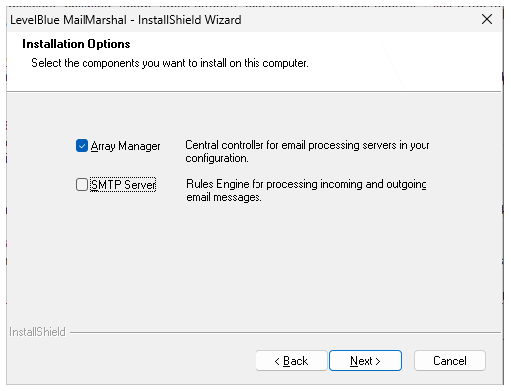
- On the Installation Options window, ensure Array Manager is selected. The MailMarshal Management Console user interface is installed by default when you install the Array Manager component.
-
Clear SMTP Server, and then click Next. The installer verifies the presence of IIS, required for the Management Console website.
- On the SQL Server Options window, choose to use an existing SQL server or install SQL Express locally (if the installation package includes SQL Express).
- On the Choose Installation Location window, optionally change the installation and folder locations.
-
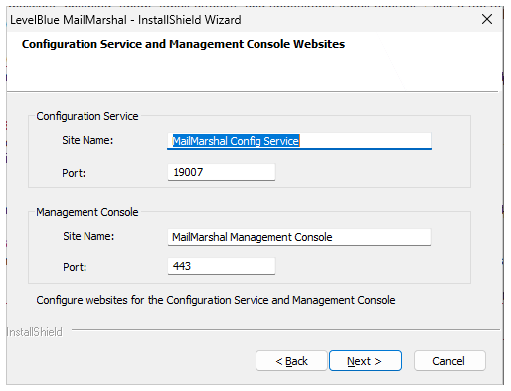
On the Configuration Services and Management Console Websites window, set site names and ports for the MailMarshal Configuration Service and Management Console websites. By default, the Configuration Service site is named MailMarshal Config Service on port 19007, and the Management Console site is named MailMarshal Management Console on port 443.
-
On the Configuration Service Administrator window, specify a Windows username and password, full name and email address for the Config Service.
Note: These credentials are used as the initial login for the MailMarshal Management Console website. You can create other credentials after completing installation.
-
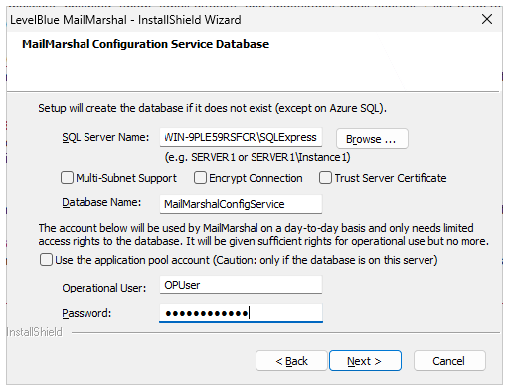
On the MailMarshal Configuration Service Database window, set SQL Server options for the MailMarshal Configuration Service database.
-
Specify a local or remote SQL server.
- If the endpoint is an Availability Group or Failover Cluster Instance, select Multi-Subnet Support to improve failover performance (see Microsoft documentation for details).
- If the endpoint is configured with encryption, select Encrypt Connection and Trust Server Certificate. For more information about encryption settings for SQL Server and MailMarshal, see Knowledgebase article Q21224.
-
Specify a database name (by default,
MailMarshalConfigService).Note: A database name must start with a letter (a..z) or an underscore (_). The name can also contain digits (0..9). Other characters including the hyphen (-) are generally NOT allowed. -
Choose an account to use for database access. This account can be a Windows or SQL Server account. If the SQL Server is on the same computer as MailMarshal, you can use the Application Pool account (the Application Pool Identity of the MailMarshal Management Console website).
Note: You can change the account information later using the MailMarshal Config Service Admin Tool.
-
Specify a local or remote SQL server.
-
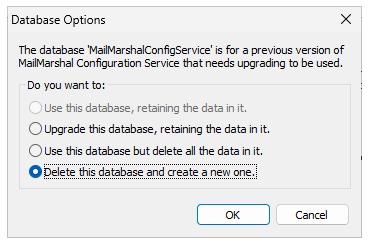
Click Next. MailMarshal verifies the database information. If the database you selected already exists, you can choose options to use it, or cancel and provide a different database name. The available options depend on the database that is actually found.
-
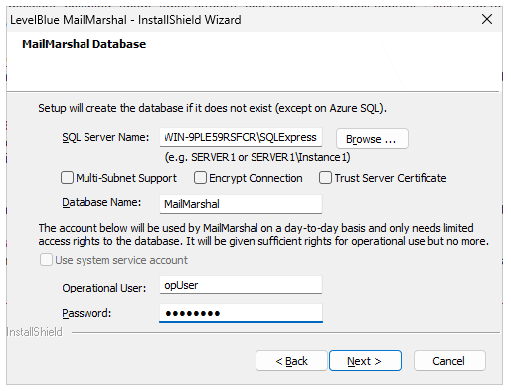
On the MailMarshal Database window, set SQL Server options for the MailMarshal database.
-
Specify a local or remote SQL server.
- If the endpoint is an Availability Group or Failover Cluster Instance, select Multi-Subnet Support to improve failover performance (see Microsoft documentation for details).
- If the endpoint is configured with encryption, select Encrypt Connection and Trust Server Certificate. For more information about encryption settings for SQL Server and MailMarshal, see Knowledgebase article Q21224.
-
Specify a database name (by default,
MailMarshal).Note: A database name must start with a letter (a..z) or an underscore (_). The name can also contain digits (0..9). Other characters including the hyphen (-) are generally NOT allowed. -
Choose an account to use for database access. This account can be a Windows or SQL Server account. If the SQL Server is on the same computer as MailMarshal, you can use the system service account (the Local System account used by default to run MailMarshal services). MailMarshal can also configure an “operational user” account with limited permissions, and use this account for most processing. For full information about available database connection and security options, see Knowledgebase article Q12939.
Note: You can change the account information later using the MailMarshal Server Tool.
-
Specify a local or remote SQL server.
- Click Next. MailMarshal verifies the database information. If the database you selected already exists, you can choose options to use it, or cancel and provide a different database name. The available options depend on the database that is actually found.
- Follow the instructions in the setup program until you finish installing MailMarshal.
-
On the Setup Complete window, ensure Open the Management Console Website is selected, and then click Finish. The Management Console opens in the default browser. The Management Console installs by default as the default HTTPS website of the local machine.
Notes:
- You cannot use Internet Explorer to access the Management Console.
- The HTTPS certificate that is automatically generated may be reported as invalid by some web browsers. You can configure another certificate using IIS.
Installing a MailMarshal Server
To complete a MailMarshal array installation, first install the MailMarshal Array Manager. Then, follow the steps to install a MailMarshal Server on additional computers. You can install additional email processing servers initially or add them later as needed. To install the MailMarshal Server components:- Ensure you have installed all prerequisite software specified for a MailMarshal Server computer. For more information, see Server Requirements and Installing Prerequisite Software.
- Log on to the computer you plan to use as a MailMarshal Server as a member of the local administrator group.
- Close any open applications.
- Run the setup program from the MailMarshal installation kit.
- On the Setup tab, click Install MailMarshal.
- On the Welcome window, click Next.
- On the License Agreement window, carefully read the license information.
- Click I accept the terms of the license agreement, and then click Next.
- On the Setup Type window, select Custom Install, and then click Next.
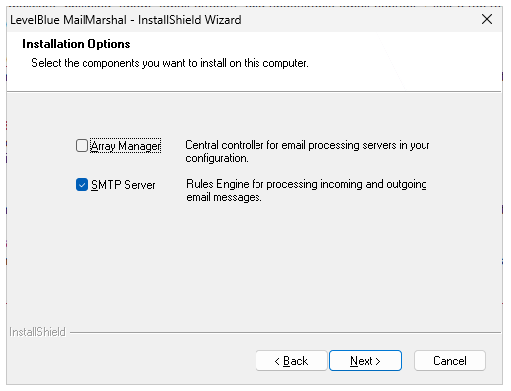
- On the Installation Options window, ensure SMTP Server is selected.
- Clear Array Manager, and then click Next.
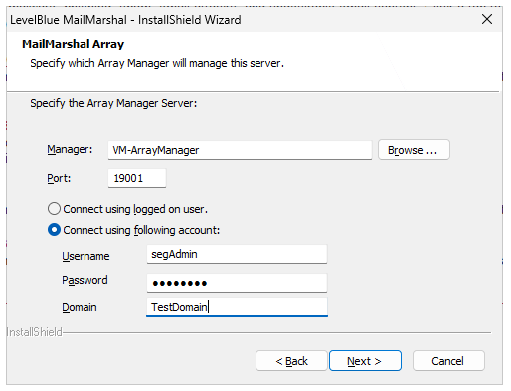
- On the MailMarshal Array window, enter the name of the MailMarshal Array Manager that you will use to manage policy for this server. The name can be the computer name, IP address, or Fully Qualified Domain Name.
- If you have changed the default MailMarshal port, enter the new value in the Port field.
- If you are not logged in as a user with permission to join the MailMarshal array, select Connect using following account and enter Windows credentials with permission to connect to the Array Manager server.
- Click Next.
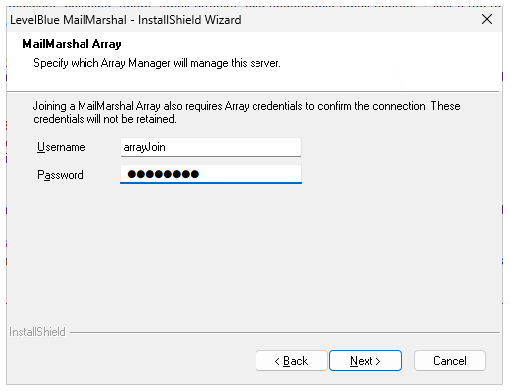
- Enter a MailMarshal Array Join credential. To create and administer these credentials, see the Array Join tab of the MailMarshal Server Tool on the Array Manager. Both the username and password are case sensitive. The default credential is:
- Username:
arrayJoin - Password: the server name of the Array Manager computer in uppercase
- Username:
- Click Next.
- Continue running the setup program until you finish installing a MailMarshal Server.
- On the Setup Complete window, click Finish to close the setup wizard. The server retrieves configuration information from the Array Manager immediately and begins accepting email connections.
- If you plan to install the MailMarshal Server on additional computers, repeat the MailMarshal Server installation process on the other computers.
Running the Configuration Wizard
After you have completed a standalone installation or installed the Array Manager component in an array installation, you must run the MailMarshal Configuration Wizard. This Wizard lets you configure MailMarshal to accept email and apply rules. When you click Finish on the final window of the MailMarshal Setup Wizard, by default MailMarshal opens the Management Console website to the configuration wizard. If you do not run this wizard after running setup, MailMarshal runs the wizard the first time you access the MailMarshal Management Console.Notes:
- You cannot use Internet Explorer to access the Management Console.
- The HTTPS certificate that is automatically generated may be reported as invalid by some web browsers. You can configure another certificate using IIS.
- If the Configuration Wizard is not running, start the Wizard by browsing to the MailMarshal Management Console website. Use a supported browser (Chrome, Edge, Firefox, or Safari).
-
Log in to the Management Console. For a custom install use the Username and Password you entered in the Installation Wizard. For a basic install use Username
adminand Passwordadmin.Note: For security, you should change the default password as soon as possible after completing the Wizard. See the Authorized Users item in the Management Console. - On the Welcome window, click Next.
-
On the General window:
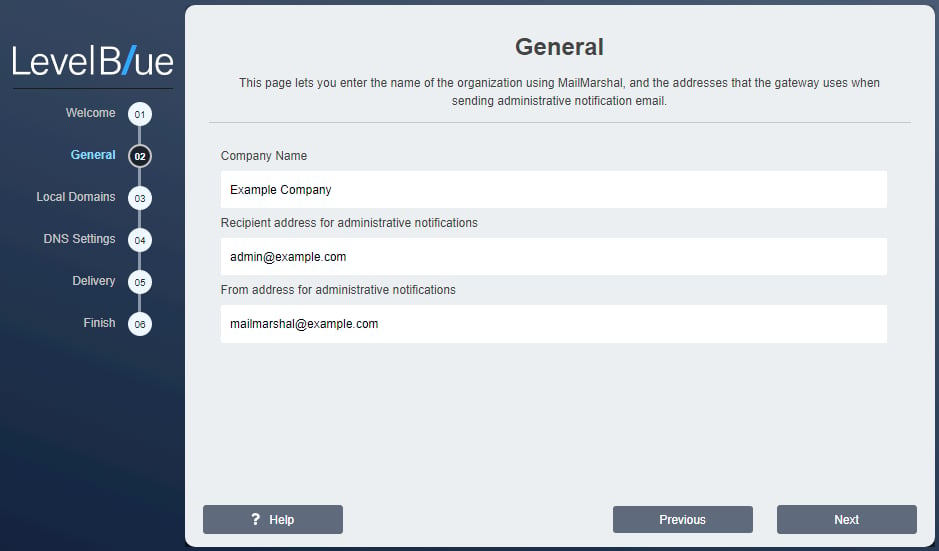
- Type your company or organization name. This information identifies your organization when you request a license key for MailMarshal.
- Enter a Recipient Address. MailMarshal sends administrative notifications (such as Dead Letter reports) to the address you specify in this field. This address should be a valid and appropriate mailbox or group alias within the local delivery domains of MailMarshal.
- MailMarshal sends administrative and user notifications and other automated email from the address you specify in the From Address field. This address should be a valid address to allow for replies to notifications within the local delivery domains of MailMarshal.
- Click Next.
-
On the Local Domains window, enter one or more domain names for which this MailMarshal server will accept incoming mail.
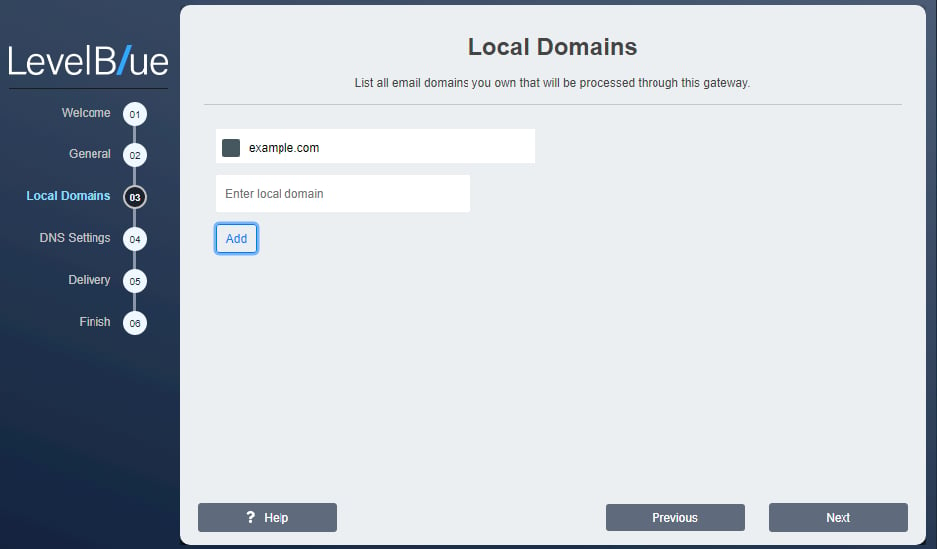
- Enter a domain name, and then click Add.
- Repeat the above steps for each local domain
- To delete an existing entry, select it and then click Remove.
- To change an entry, delete it and then add it again.
-
Click Next.
Note: You will set the delivery location in a later step. To choose advanced options (such as POP3 delivery and multiple delivery locations), after completing the wizard you can edit Routes.
-
On the DNS Servers window, enter the addresses of servers MailMarshal uses for domain name resolution. The wizard pre-populates the fields using Windows DNS settings, but MailMarshal performs DNS lookups independently of the Windows settings. The DNS servers used by MailMarshal should be located no further away than your ISP.
 Note: If MailMarshal must perform DNS lookups through a firewall, the firewall must permit both TCP and UDP based lookups.
- Enter the IP address of the primary DNS server. You must enter a valid IPv4 or IPv6 address.
- Enter a secondary address. You can leave this entry blank, but your configuration is more robust if you supply a secondary DNS server.
- Click Next.
-
On the Delivery window, specify the methods MailMarshal will use by default to deliver inbound and outbound email.
 Note: After you complete the wizard, you can configure other delivery options, including POP3 delivery, load balancing, and multiple routes. For more information, see Configuring Delivery Options and Customizing Settings for Nodes.
- Enter the server name, fully qualified domain name, IPv4 address, or IPv6 address, and the port of a local server that MailMarshal will use to deliver all incoming email (addressed to local domains).
- If you entered a name, you can choose to deliver mail over IPv4, IPv6, or either protocol.
- Choose to deliver outgoing email directly using DNS lookup, or to forward email to another server for delivery.
- If you select “forward email to another SMTP server”:
- Specify the server name, fully qualified domain name, IPv4 address, or IPv6 address, and the port of the server (usually port 25). For instance, use this option to send all outbound email through the email servers at your ISP.
- If you entered a name, you can choose to deliver mail over IPv4, IPv6, or either protocol.
- Click Next.
- Enter the server name, fully qualified domain name, IPv4 address, or IPv6 address, and the port of a local server that MailMarshal will use to deliver all incoming email (addressed to local domains).
- Review the Completing window, and then click Finish.
Configuring Email Routing
After you install MailMarshal and run the Configuration Wizard, you may need to change the email routing on other computers so the MailMarshal Server becomes the gateway for incoming and outgoing email. For more information, see Understanding Installation Scenarios. These routing changes can require you to adjust one or more of the following items: DNS MX records If you install the MailMarshal Server on a server with a different name or IP address from your prior email server, change the MX records that control email delivery from the Internet. Internal email server settings Configure all other internal email servers within your organization to forward outgoing email to a MailMarshal Server for delivery. In some cases, you may also want to route email between local domains through MailMarshal. Port settings In some cases, MailMarshal is configured as a single server on the same physical server as other email software. In this case, change the settings of the other email software to allow MailMarshal to receive SMTP connections from the Internet on port 25. Configure alternate ports so that MailMarshal and the other software can exchange email. Firewall or relay server settings If MailMarshal receives incoming email from a firewall that employs address translation, change the translated address for incoming email to the address of the MailMarshal Server. If the firewall or another server acts as an email relay, change the address to which it forwards inbound email to the address of the MailMarshal server.Creating Directory Connectors
MailMarshal can apply email policies selectively based on the email address of a local or remote user. Typically, organizations apply policy to groups of local users by retrieving lists of users from an internal directory of email users such as Microsoft Exchange or Lotus Notes. MailMarshal can also retrieve groups by connecting to Azure Entra, a Microsoft Active Directory or an LDAP directory server. Creating MailMarshal connectors allows you to retrieve your user and group information periodically from these directories. To create a directory connector:- Open the MailMarshal Management Interface website.
- In the left menu, expand Policy Elements.
- In the right pane, click Connectors.
-
Click Add.
Note: For detailed guidance on fields, click Help.
- On the Connector Type tab, choose the type of directory this connector will access. MailMarshal supports connections to Azure Entra, Microsoft Active Directory and several types of LDAP directories.
- Enter a connector name and description
- In the Reload Schedule section, specify how often MailMarshal will import directory information through this connector, and then click Next.
- If this is an Azure Entra connection, on the Entra Properties tab, enter the required credentials. For more details about generating and retrieving the credentials from Entra, see LevelBlue Knowledgebase article Q21246.
- If this is a Microsoft Active Directory connection, on the Microsoft Active Directory Logon tab, choose to connect as anonymous, or as a specific account. If you choose to connect using a specific account, enter the account details.
-
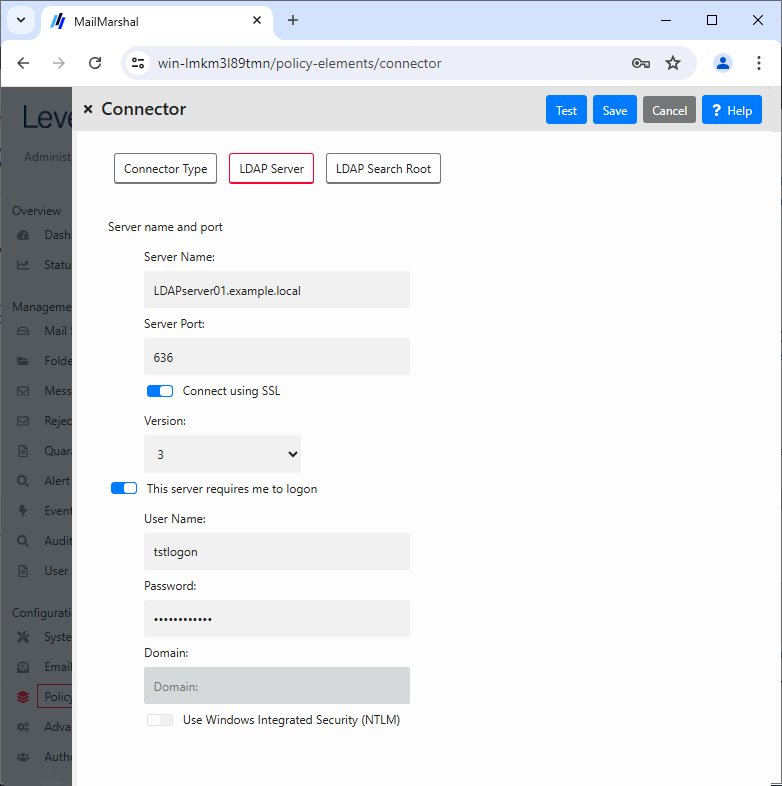
If this is an LDAP connection, specify the following information:
- Select a specific type of LDAP directory server from the list. MailMarshal sets default parameters to retrieve group and member details for the type of server you choose.
- On the LDAP Server tab enter the server name, port, and logon information if required. If you choose to log on using a specific account, specify the account details. If you do not know the required information, contact the administrator of the LDAP server.
- On the LDAP Search Root tab, identify a search root for this server. If you do not know whether a search root is required, contact the administrator of the LDAP server.
- If this is a generic LDAP connection, on the LDAP Group Attributes and LDAP User Attributes tabs, customize the information MailMarshal will use to query the LDAP server for group names and group members. For details of the fields, see Help.
Note: The wizard populates default values depending on the server type you selected. You may need to customize the values. Consult the LDAP server documentation and the LDAP server administrator. - Click Test to validate the connection settings. Click Save to create the connector.
Configuring Antivirus Scanning
To work with MailMarshal, an antivirus product must offer a command-line interface or be supported by a custom MailMarshal DLL. The scanner must return a documented response indicating whether or not a virus is detected. Most commercially available virus scanners meet these specifications. For more information about supported antivirus products, see Knowledgebase article Q10923. To allow MailMarshal to use your antivirus product to scan email for viruses, first exclude specific MailMarshal folders from virus scanning. The MailMarshal Engine service does not run if an antivirus product scans these folders. Then, you must configure MailMarshal to use the antivirus product you installed.Excluding Working Folders From Virus Scanning
MailMarshal uses a number of folders to process and quarantine email messages, possibly including virus infected messages. MailMarshal will not operate if these folders are scanned by an antivirus or anti-malware product. To prevent scanning these working folders, you must configure your scanning products to exclude specific working folders on every MailMarshal Server. You must exclude these working folders even if you do not configure MailMarshal to scan for viruses using the antivirus product. If the virus scanner does not have the facility to exclude the appropriate folders, you must disable on-access scanning completely for that scanner. Some scanners also automatically enable an Internet protection feature. In this case, disable the Internet protection option in addition to disabling the on-access scanning option. MailMarshal checks for resident file scanning by writing theeicar.com standard test virus file (not a real virus) in each of the folders that must be excluded from scanning. If any copy of the test file is removed by a resident scanner, or if MailMarshal is denied access to the files, the MailMarshal Engine service on the Server does not start and MailMarshal sends an email notice to the administrator.
If the check succeeds, MailMarshal deletes copies of the eicar.com file, preserving the original in the Unpacking\avcheck folder.
By default, the MailMarshal setup program creates working folders in the MailMarshal installation folder. If you choose a different folder name or drive location when you install the product, you must exclude the folders in your specified installation location.
You can verify the location of these folders by running the MailMarshal Server Tool from the MailMarshal Tools group in the MailMarshal program group on each Server. Click the Folders tab to see the folder locations. For more information, see Changing Folder Locations.
For information about excluding folders from on-access scanning, refer to your antivirus product documentation. For example, in Network Associates NetShield, you can specify exclusions using the Exclusions tab in Scan Properties.
In your antivirus scanning product control panel, exclude the following MailMarshal folders from virus scanning:
Quarantine folder to store messages, including those quarantined by virus scanning rule actions. The product stores email in the Queues\Decryption and Queues\Incoming folders pending processing.
MailMarshal copies files to the Unpacking folder to scan for viruses. If an antivirus scanner finds and removes a file in the Unpacking folder before MailMarshal scans for viruses, MailMarshal may determine the file is virus-free and deliver the email with the virus still present.
Configuring MailMarshal to Use an Antivirus Product
If you have installed MailMarshal as an array with more than one Server, you must make the same virus scanners available on all MailMarshal Servers. You can make a scanner available by installing the software on the MailMarshal Server, or in some cases by installing the virus scanner software remotely and configuring MailMarshal to access it. If you install command line virus software on more than one MailMarshal Server, you must install it in the same location (same drive letter and folder) on each Server. To configure virus scanning in MailMarshal:- Ensure you have installed one or more supported virus scanners on each MailMarshal Server computer, following the manufacturer’s instructions.
- Ensure the scanner does not perform on-demand scanning of the MailMarshal excluded folders. For more information, see Excluding Working Folders From Virus Scanning.
- Access the MailMarshal Management Console website.
- In the left pane, under Configuration, expand Policy Elements.
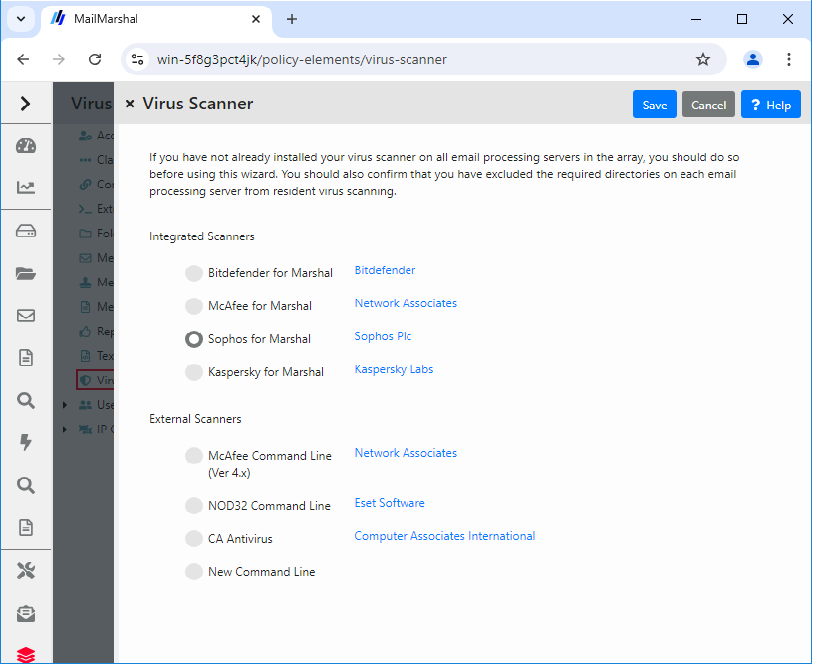
- In the right pane menu list, click Virus Scanners.
- In the left pane of the Management Console, click Policy Elements, and then select Virus Scanners.
-
Click Add.
Note: For detailed guidance on adding scanners, click Help.
-
Select your antivirus scanner from the list.
-
If you are configuring a command line scanner, in the Path field, enter the location of the antivirus scanner program, such as
c:\McAfee\Scan.exe. - If your command line scanner is not in the list and you selected New Command Line, specify the additional details required. For assistance see Help.
- Click Save to add the virus scanner. MailMarshal will test the action of the scanner on each installed MailMarshal email processing server.
- If you plan to use more than one virus scanner, repeat Steps 7 through 11 for each scanner.
Installing and Customizing Web Components
In addition to the web Management Console, MailMarshal includes a Spam Quarantine Management console that allows email recipients to review and manage their own quarantined messages. You can install the Spam Quarantine Management component on any Microsoft IIS server that can connect to the MailMarshal Array Manager computer on the configuration port (19001 by default). You can also install the Spam Quarantine Management component on a multi-server Web farm using the state management features of ASP.NET. For more information about hardware and software requirements, see Web Components Requirements.Installing the MailMarshal Web Components
Run the Web Components setup to install the MailMarshal Spam Quarantine Management (SQM) Website. To install the SQM website:- Ensure you have installed all prerequisite software specified for a Web components computer, and opened required ports for communication with the Array Manager and client browsers. For more information, see Web Components Requirements.
- Log on as a local administrator to the computer on which you want to install the MailMarshal Web components.
- Close any open applications.
- Run the setup program from the MailMarshal installation kit.
- On the Setup tab, click Web Components Setup.
- On the Welcome window, click Next.
- On the License Agreement window, carefully read the license information.
- Click I accept the terms of the license agreement, and then click Next.
-
Choose a destination location and program folder. Web Components install as a 32 bit application. By default the location is
C:\Program Files (x86)\Trustwave\SEG Web Components. -
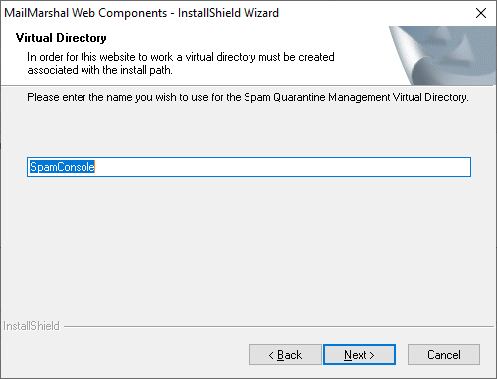
On the Virtual Directory window, enter a website directory name. This name becomes the virtual path of the site URL, in the default website on the server.
- Click Next.
- On the Ready to Install the Program window, click Install.
- On the Setup Wizard Complete window, click Finish.
-
To complete setup of the Spam Quarantine Management website, run your default browser. The default URL for this site is
http://IISServerName/SpamConsolewhere IISServerName is the name of the Microsoft IIS server where you installed the Web components. -
On the configuration page of the Spam Quarantine management site, specify the Site URL, Array Manager connection information, User Authentication method, and User Interface settings. For more information, click Help.
 Note: You can set the authentication method for a MailMarshal installation only once. If you install the Spam Quarantine Management Web component on more than one Microsoft IIS server, all the servers must use the same method
 - As part of Spam Quarantine management site setup, the site creates an administrator login (for the specified email address, or the Windows login used to access the configuration page). You can change many site settings later by logging in to the site using the Administrator login.
Customizing the Web Components
You can configure user interface settings for the Spam Quarantine Management website, using the Administrator login. The configurable settings include:- Default Theme
- Availability of custom Blocked and Safe Senders lists
- Availability of email address management (add or delete an email address from the list of addresses managed by the user)
- Availability of mail history charts, folder message counts, and the “all folders” view.
Note: The charts, counts, and “all folders” view can slow site performance, especially on larger sites. If you are experiencing slow page loading, LevelBlue recommends you disable these features.
Upgrading MailMarshal
MailMarshal 12.0 supports upgrade from version 10.1.0 and above.Note: If you plan to use a new server for the new version and you want to keep existing configuration, you must still upgrade.
Upgrading from MailMarshal Version 10.1.0 or Above
You can upgrade directly to the latest release of MailMarshal from these versions. Upgrade the Array Manager first. Then upgrade other MailMarshal componentsNote: To upgrade from earlier versions, first upgrade to a version that supports direct upgrade.You should also consider a clean installation of the current version.
- Ensure the computer you want to upgrade meets the prerequisites for the latest version of MailMarshal.
- You must enable the Windows Authentication feature in IIS.
- Ensure the Microsoft SQL Server is a supported version. For supported direct upgrades, no change in SQL Server is required.
- Log on as a local administrator to the MailMarshal Array Manager computer.
- Verify anti-virus exclusions.
- Back up your MailMarshal configuration. Use the MailMarshal 10.X Management Console. You can also use the
MMExportCfgcommand line tool. - Close any running MailMarshal user interfaces (including Server Tool, other tools, and web interfaces).
- Run the MailMarshal setup program from the installation package.
- On the Setup tab, click Install MailMarshal. On the Welcome window, the setup program displays the current version of MailMarshal and the version to which it will upgrade. Click Next.
- On the License Agreement window, carefully read the license information.
- Click I accept the terms of the license agreement, and then click Next.
- On the Ready to Install window, click Install.
- The setup program stops the MailMarshal services, installs any required prerequisites, updates the product files and database, installs the management websites if required, and starts the services.
- On the Update Complete window, click Finish.
- If you are upgrading a MailMarshal Array, install the software on each processing server.
- Open the Management Console website, verify that each email server is connected and to ensure the Receiver, Engine, and Sender services are running.
- If you are using the MailMarshal Web components:
- If you have customized any Web component graphics, make a backup copy of the custom files to a backup folder. For more information, see Customizing the Web Components.
- On the Web components computer, run the MailMarshal setup program from the installation package.
- On the Setup tab, click Install Web Components.
- Run the Web components setup until you have completed the installation process. If the previous version of the Admin Console website was installed it will be removed.
- If you backed up custom graphic files, copy your backup files to the proper locations in the new install folders.
- Refer to the Release Notes to learn more about new product features and updates. For more information about using the new version of the product, see the User Guide.
Upgrading from Other Versions of MailMarshal
To upgrade from a MailMarshal version prior to 10.1.0, except 8.3.2, first upgrade to 10.1.0. For version 8.3.2, first upgrade to 10.2.5. See the release notes for each version, available on the “previous versions” page of the LevelBlue website. There are several important steps to the upgrade process. Review the available documentation before beginning.Uninstalling MailMarshal
If you choose to uninstall MailMarshal, you must reroute your email to suit your new configuration. The following steps provide guidelines for the types of steps you must take to remove MailMarshal from your email delivery mechanisms. When you uninstall MailMarshal, you will no longer be able to use the MailMarshal Management Console to view the contents of theQuarantine folder on the server.
To uninstall MailMarshal:
- Connect to the MailMarshal Management Console.
- In the left pane, select Mail Servers.
- In the right section of the right pane, select the Server you wish to uninstall and then click Edit.
- On the General tab, Services section, select the Receiver service, and then click Stop.
- Allow the Engine and Sender services to run until MailMarshal processes all the received email. You can verify that all mail queues are empty by viewing the lists in the menu tree of the main Mail Servers page.
- Reroute your email delivery settings to exclude the MailMarshal Server you want to uninstall. For example, you may need to change the DNS MX records, firewall translation settings, and internal email server settings that directed email to the MailMarshal server both from external email and from your internal email server.
- Verify that email is flowing through the new path and no email is being delivered to the MailMarshal server you plan to uninstall.
- If you want to preserve the data from the MailMarshal Server you are uninstalling, back up the contents of the MailMarshal
Quarantinefolder and all sub folders. - On the server you want to uninstall, run Add/Remove Programs in Control Panel to remove MailMarshal. You may have to restart your computer to remove some program files.
- To delete the
Quarantinefolders, first delete the contents of theSymbolicsub folder. - Delete the remaining
Quarantinefolders and files. - If you are using a MailMarshal array and want to remove the product completely, repeat Steps 1 through 12 on each additional email processing server.
- Use Add/Remove Programs from the Windows Control Panel to remove additional components you may have installed, such as Web Components.
- Use Add/Remove programs from the Windows Control Panel to remove the MailMarshal Array Manager. The Management Console will also be removed.