

Understanding Policy Types
MailMarshal email policy is divided into Connection Policy, Content Analysis Policy, and Dead Letter Policy. Each Policy Group and Rule belongs to one of these types of policy.Note: Connection Policy was previously known as Receiver Rules. Content Analysis Policy was previously known as Standard Rules.
Connection Policy
MailMarshal applies Connection Policy while the MailMarshal Receiver is receiving a message from a remote email server. Connection Policy can cause MailMarshal to refuse to accept a message based on the size or origin of the message. Because Connection Policy is based on the limited information available while the message is being received, only a few conditions are available in Connection Policy rules.Content Analysis Policy
MailMarshal applies Content Analysis Policy after a message has been fully received. They are processed by the MailMarshal Engine. Content Analysis Policy can evaluate a large number of conditions, because the complete email message is available for evaluation. Content Analysis Policy can also take a large number of quarantine and logging actions.Dead Letter Policy
MailMarshal applies Dead Letter Policy when a message cannot be unpacked, or cannot be processed, due to errors in message formatting. By default these messages are quarantined in special folders. You can specify a limited number of actions to deliver some of these messages to their original destination or an alternate address.Understanding Policy Groups
A policy group is a group of rules that share base User Matching conditions and a schedule of times when they apply. When MailMarshal is processing email, the conditions defined for a policy group must be met before any rule in that policy group is evaluated. You can choose to use just a few policy groups, or many. For example, you could use one policy group to contain rules that apply to all messages outbound from the organization, and another policy group to contain rules that apply to all inbound messages. If your organization is divided into departments, you can also use policy groups to group rules governing email to and from each department. Some default policy groups and rules are provided with MailMarshal. You should make changes and additions to meet your needs. LevelBlue recommends a minimum of two policy groups: one for incoming email and one for outgoing email. If you have more than one policy group, you can choose the order in which MailMarshal processes the groups. You can set a schedule for a Content Analysis Policy or Connection Policy group. Any rules in the policy group will only be enabled at the scheduled times. You can choose to apply one or more of three different scheduling options:- A repeating weekly schedule
- An absolute starting date and time
- An absolute ending date and time
- In the left pane of the Management Console, select Email Policy and then select a type of policy.
- Click Add.
-
On the General tab, enter a name and optional schedule information for this policy group.
Note: Scheduling is not available for Dead Letter Policy Groups.
- On the Filtering tab, select the User Matching conditions for this policy group. If MailMarshal needs more information to define a condition, the description of the condition includes a hyperlink. Click the hyperlink to open a user matching condition panel that allows you to enter the required information.
Understanding Rules
MailMarshal Rules define filtering policy in detail. Rules include three basic sections: User Matching, Conditions, and Actions. User matching and scheduling also depend on the definition of the parent Policy Group.Creating Rules
You can create as many rules as you need to implement your content security policy. To create a rule:- In the left pane of the Management Console, select Email Policy.
- Expand Connection Policy, Content Analysis Policy, or Dead Letter Policy, and select a Policy Group.
- Choose Add from the list menu to open rule properties. The properties panel includes four tabs that allow you to select conditions and actions. If MailMarshal needs more information to define a condition or action, the description of the item includes a hyperlink. Click the hyperlink to open a panel that allows you to enter the required information.
- On the General tab, enter a name and optional description for this policy rule.
-
On the Users tab, select the User Matching conditions for this rule.
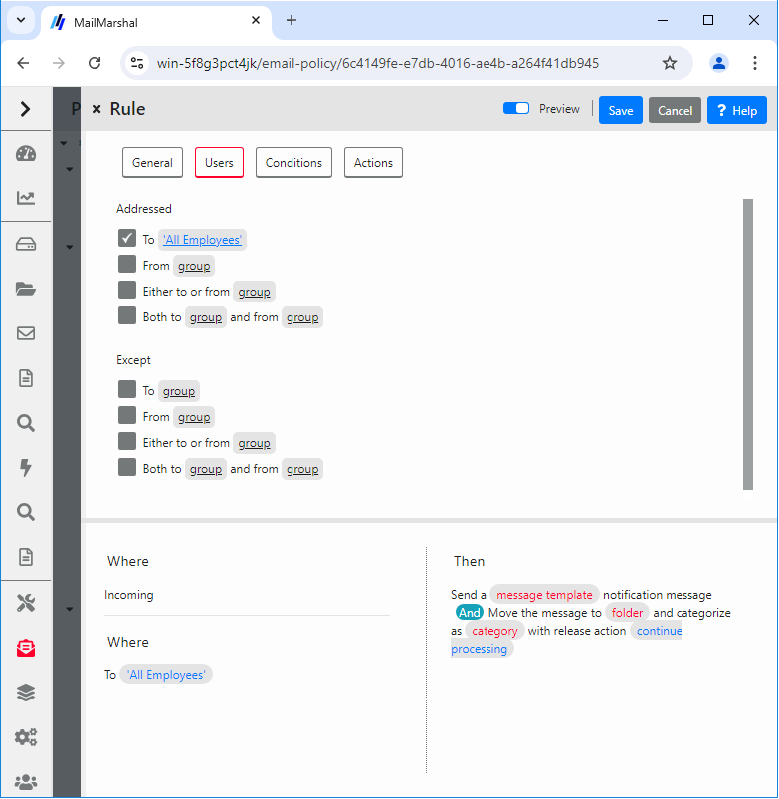
- On the Conditions tab, select the conditions for this rule and specify any additional information required as for Step 4.
- On the Actions tab, select the actions for this rule and specify any additional information required as for Step 4.
- To create the rule, click Save.
Understanding User Matching
MailMarshal performs user matching using the SMTP email addresses and sender IP addresses associated with a message. When you create policy groups and rules, you can include a number of User Matching conditions. User Matching conditions can refer to individual SMTP addresses, wildcard patterns of addresses, and user groups. Some “From” user matching conditions can also refer to MailMarshal IP Groups. All the User Matching conditions in a policy group or rule must match (evaluate true) in order for MailMarshal to evaluate any other rule conditions.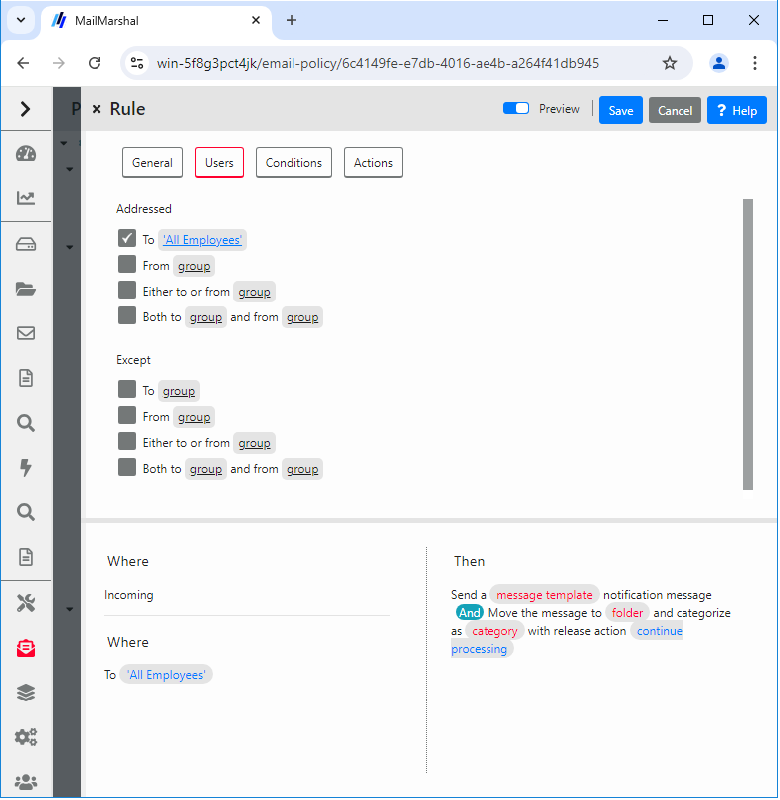
Note: Whenever a condition requires a “group,” the list can contain individual email addresses, wildcard patterns to match sets of addresses such as domains, and MailMarshal user groups. Certain “From” conditions can also contain MailMarshal IP Groups. Conditions that use the same group list to match both “To” and “From” do not allow IP Group matching.For more information about wildcard characters, see Wildcard Characters.For more information about which email addresses in a message MailMarshal checks, see Knowledgebase article Q12238.
Understanding Rule Conditions
MailMarshal evaluates rule conditions within each rule. MailMarshal checks rule conditions after any User Matching conditions. In general MailMarshal will only apply the rule actions to a message if all rule conditions evaluate true. You can choose one or more rule conditions when you create or edit a rule in the Management Console. If the condition includes options, arguments, or variables, you can click a hyperlink in the rule edit panel to open a panel that allows you to specify values.Note: Many conditions allow you to choose a positive or negative match (trigger the condition if the selected criteria are matched, or not matched). This option may be available as a separate link or within the main condition. Rule negation (“does not match”) can be useful to control the flow of rule evaluation. However negation of a complex condition should be carefully considered and tested to avoid unwanted results.
Rule Conditions for Content Analysis Policy Rules
The following conditions are available for use in Content Analysis Policy rules. They are further explained in the sections following.- Security
- Where message is/is not detected as spam by SpamEngine
- Where the result of a virus scan is/is not
- Where message is/is not identified as containing malware by Yara Analysis Engine script
- Where message does/does not contain suspect URLs
- Where message does/does not appear to be spoofed based on criteria
- Where message does/does not trigger TextCensor script(s)
- Message Attachments
- Where message attachment is/is not of type
- Where attachment fingerprint is/is not known
- Where message does/does not contain attachment(s) named (file names)
- Where attachment parent is of type
- Where the attached image does/does not/may match image category
- Size
- Where message size is
- Where the estimated bandwidth required to deliver this message is
- Where message attachment size is
- Where number of recipients is count
- Where number of attachments is count
- Sender
- Where the sender is/is not in the recipient’s safe senders list
- Where the sender is/is not in the recipient’s blocked senders list
- Where sender’s IP address does/does not match address
- Where sender did/did not authenticate successfully
- TLS
- Where message was/was not received via TLS
- Where message was/was not received via TLS versions
- Where the TLS client certificate was/was not presented with criteria
- Other
- Where the external command is/is not triggered
- Where message does/does not contain one or more headers (header match)
- Where message does/does not trigger category script(s)
- Where the DKIM verification result is
- Where message was checked with DMARC and a result applied
Note: In a single rule, an AND relationship exists between multiple conditions. If a single rule includes multiple conditions, they must all evaluate true for the rule action to be taken. To match any of several conditions, place each one in its own rule. To create OR relationships between conditions, create a separate rule for each condition.
Where message is/is not detected as spam by SpamEngine
This condition allows you to take action on a message based on the result of evaluation by SpamProfiler, SpamBotCensor, and/or SpamCensor. You can use this condition in a rule that is processed early, to quarantine spam with minimal processing load. You can use this condition in combination with user group exclusions or other conditions to fine-tune recognition of spam.Note: You can also choose to reject messages at the Receiver based on SpamProfiler evaluation. For more information, see Configuring SpamProfiler.To use SpamBotCensor you must ensure that MailMarshal processing nodes are directly connected to the Internet (with no other gateway or firewall forwarding incoming messages to MailMarshal).
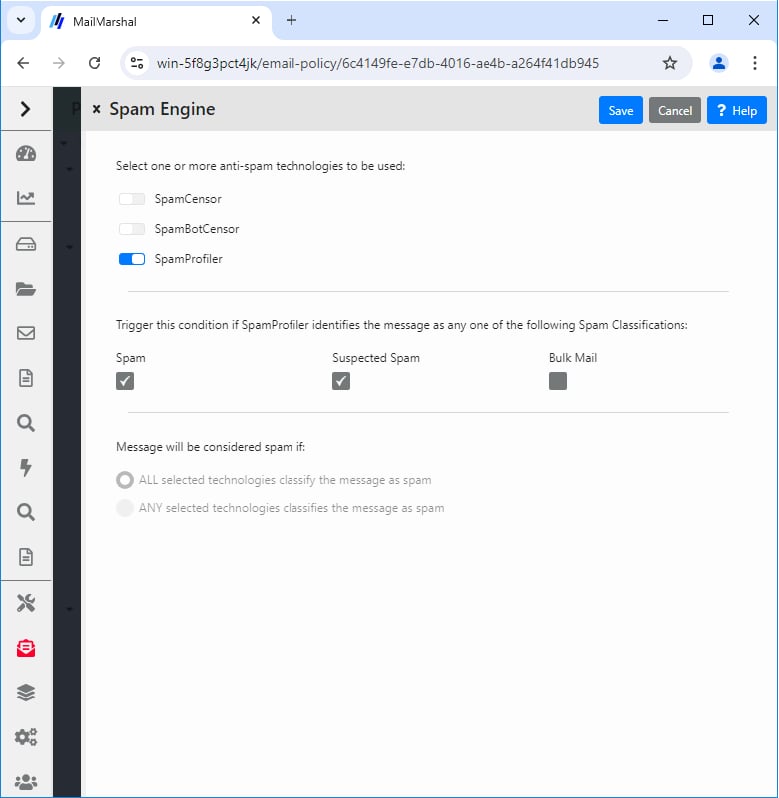
- If you select SpamProfiler, you can select one or more sub-classifications to check. The SpamProfiler evaluation triggers if any of the sub-classifications triggers.
- You can choose to trigger the condition if all or any of the technologies classifies the message as spam.
Where the result of a virus scan is/is not
This condition allows you to select from the virus scanning features available in MailMarshal. Use the rule condition panel to choose the desired virus scanning action and the results to be checked for.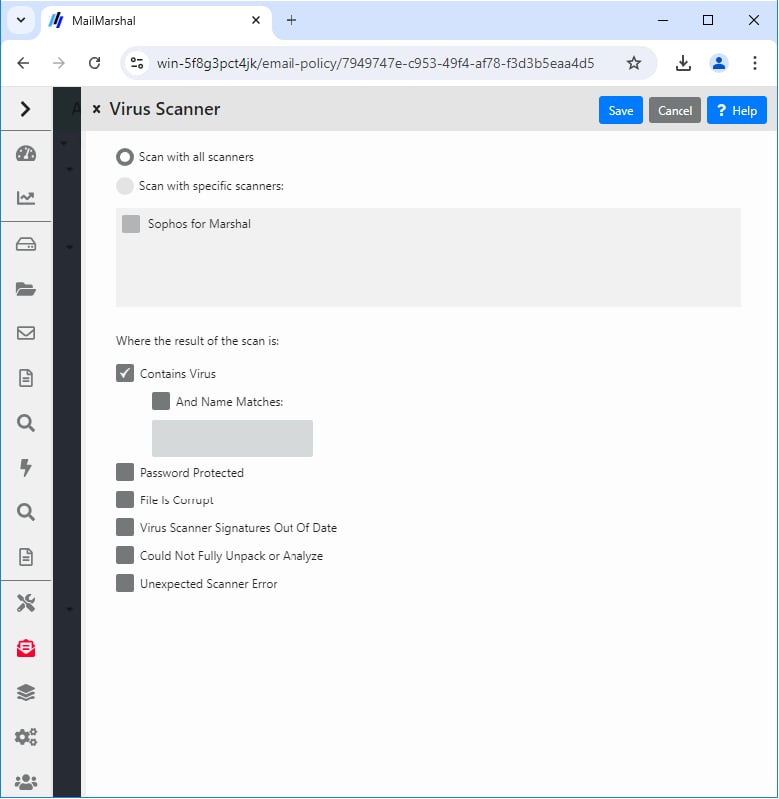
- All Scanners: MailMarshal uses all configured virus scanners to scan all parts of the message and attachments.
- Specific scanners: To limit the virus scan to specific installed scanners, choose this option then select the desired scanners from the list. MailMarshal uses the scanners you select.
- Contains Virus: The condition will trigger if any part of the message contains a virus. This is the basic condition.
- …and Name Matches: When you select this item, the condition will only trigger if the name of the virus as returned by the scanner matches the text in the field. You can use this condition to modify the MailMarshal response based on certain virus behaviors. For instance you can choose not to send notifications to the sender address for viruses known to spoof the “from” address. You can use wildcard characters when you enter virus names. For more information, see Wildcard Characters and Regular Expressions.
- Password Protected: When you select this item, the condition will trigger if the scanner reports the file as password protected.
- File is corrupt: When you select this item, the condition will trigger if the scanner reports the file as corrupt.
- Virus scanner signatures out of date: When you select this item, the condition will trigger if the scanner reports its signature files are out of date.
- Could not fully unpack or analyze file: When you select this item, the condition will trigger if the scanner reports that it could not unpack the file.
- Unexpected scanner error: When you select this item, the condition will trigger if the scanner reports an unknown error or the code returned is unknown.
Note: The detailed failure results depend on return codes provided by the individual scanner vendors.With the exception of Contains Virus and Unexpected scanner error, the virus scanning features listed on the rule condition panel can only be used with DLL based scanners. If you attempt to select options that are not supported by the scanners you have selected, MailMarshal will not allow you to save your selections.Use the option “Unexpected scanner error” to specify an action MailMarshal should take when the code returned by the scanner is not known to MailMarshal. If this option is not selected in a rule condition, an unexpected return code will result in the message being dead lettered. For command line scanners, configure the list of return codes in the virus scanner properties. For more information about virus scanner properties, see Using Virus Scanning.
Where message is/is not identified as containing malware by Yara Analysis Engine
This condition allows you to take action on a message based on the result of evaluation by the proprietary Yara Analysis Engine (YAE). This technology provides an additional layer of protection against malware and other spam messages. You can use this condition in combination with other conditions to fine-tune recognition of malware. The rule condition panel allows you to select a specific Yara Analysis Engine script for use in this condition.Note: MailMarshal includes a default rule to check messages and attachments using a YAE script that is provided by the LevelBlue SpiderLabs Email Security team and automatically updated (
AMAX.yae). Advanced administrators can create custom YAE scripts. For more information, see the document “Using Yara Analysis Engine Scripts”, available from the MailMarshal support page on the LevelBlue website.Where message does/does not contain suspect URLs
This condition extracts URLs from the message and checks them against a list of suspect URLs maintained by LevelBlue and constantly updated from a variety of trusted sources.Note: To improve overall performance, place rules that use this criterion after spam blocking rules, and before rules that rewrite URLs for Blended Threat analysis.
Where message does/does not appear to be spoofed based on criteria
This condition allows you to define when MailMarshal should consider a message to be spoofed. A spoofed message did not originate within the domain of the claimed sender email address. MailMarshal can check spoofing based on local domain servers, authenticated connections, and/or Sender ID. In the rule condition panel, select any of the detailed criteria for this condition.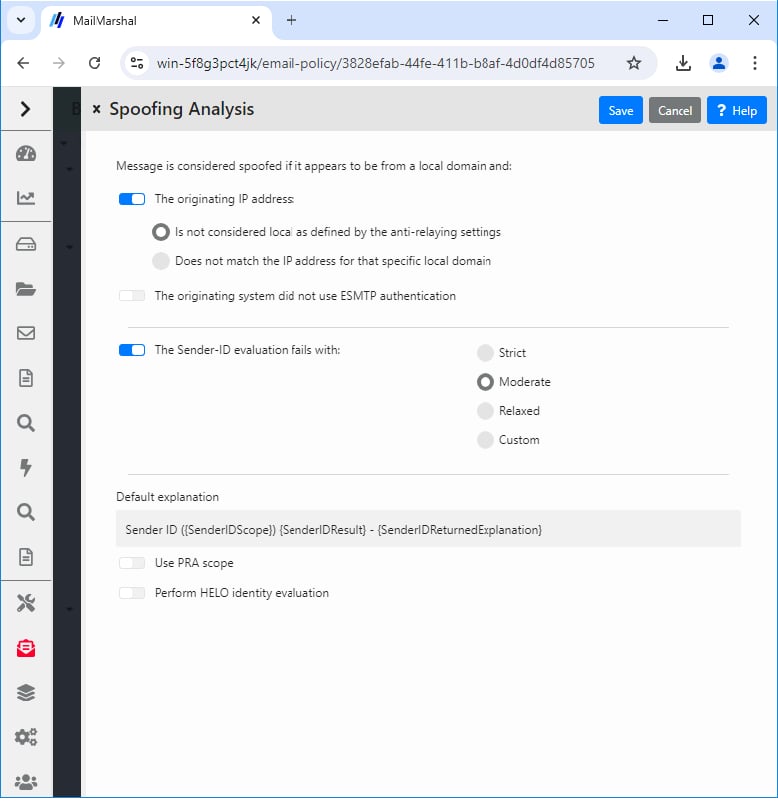
- Is not considered local as defined by the anti-relaying settings: When you select this option, MailMarshal considers email with a local sender address “spoofed” if it does not originate from a computer allowed to relay. The list of computers allowed to relay is determined by the IP address ranges in the MailMarshal Relaying Table that is effective from this server. This option is useful if you allow multiple servers and workstations in the local network to route email directly through MailMarshal.
-
Does not match the IP address for that specific local domain: When you select this option, MailMarshal considers email with a local sender address “spoofed” if it is not delivered to MailMarshal from the correct Local Domain email server. The Local Domain server is the computer to which MailMarshal delivers messages for the specific SMTP domain of the “From:” address.
Note: This is the more restrictive option. It requires all email originating within the organization to have been routed to MailMarshal from a trusted internal email server. Only messages accepted by the internal email server will be accepted by MailMarshal. This option can stop local users from “spoofing” addresses within the local domains.
Note: For more information about Sender ID, see Knowledgebase article Q11559.
Where message did/did not trigger TextCensor script(s)
This condition checks textual content in some or all parts of the message and its attachments, depending on the settings defined in the specific scripts. In the rule condition panel, you can select one or more TextCensor scripts to be used in evaluating the message. You can add a script or edit an existing script. For detailed information about Scripts, see Identifying Email Text Content Using TextCensor Scripts.Note: You can include more than one TextCensor script in this condition by selecting multiple boxes in the rule condition panel. By default if you select more than one script, all the scripts you select must trigger for the condition to be true (logical AND). You can choose to make the condition true if ANY script triggers (logical OR).
Where message attachment is/is not of type
MailMarshal checks the structure of all attached files to determine their type. MailMarshal can recognize over 175 types as of this writing. The rule condition panel provides a listing of file types organized by category. To select an entire category, select the check box associated with the category. To select individual types within a category, expand the category and select the check boxes associated with each type.Note: You can enter additional custom types by entering signature information in a configuration file. For information about the required procedures and structure of the file, see Knowledgebase article Q10199.
Where attachment fingerprint is/is not known
The “fingerprint” identifies a specific file (such as a particular image). The rule condition panel allows you to choose to base the condition on fingerprints which are known or unknown. To add a file to the list of “known” files, use the “add to valid fingerprints” rule action, or the “add fingerprints” option in the Console when releasing a message. To delete a file from the list of “known” files, locate the file. It will be present on one or more of the MailMarshal email processing servers in the ValidFingerprints sub folder of the MailMarshal installation folder. Delete the file from this location on all servers then commit the MailMarshal configuration. Files can also be “made known” by placing them in the ValidFingerprints sub-folder of the Quarantine folder on any email processing server. MailMarshal loads these fingerprints every 5 minutes, and when configuration is committed. For further information about this process, see Knowledgebase article Q10543.Where message does/does not contain attachments named
Use this condition to block files by extension, by specific file name, or by a wildcard pattern of the file name. You can enter a list of file names in the rule condition panel. When you enter information, you can use the wildcard characters asterisk (*) and question mark (?). For example, the following are valid entries:*.SHS;*.VBS;*.DO?
You can use this condition to quickly block dangerous file types such as VBS, or known virus attachments such as “creative.exe”. However, the condition checks only the file name and not the contents of the file. Use the condition “Where message attachment is of type” to check files by structure.
Where attachment parent is of type
This condition is intended to be used with the condition “Where message did/did not trigger TextCensor script(s).” When this condition is selected, MailMarshal considers the file type of the immediate parent container as well as that of the attachment. For instance, you can check whether an image is contained in a MS Word document. The rule condition panel provides a listing of available parent types organized by category. To select an entire category, select the check box associated with the category. To select individual types within a category, expand the category and select the check boxes associated with each type. You can also choose to apply the condition to types in or out of the selected list. For instance, you can check that an image is not contained in a Word document.Where the attached image does/does not/may match image category
This condition allows you to take action on a message based on the result of analysis of attached images by Image Analyzer (an optional component licensed separately).Note: You cannot select this rule condition if Image Analyzer is not licensed.If the Image Analyzer license expires while this condition is selected, images will not be scanned by Image Analyzer. In this case the MailMarshal Engine log will show that Image Analyzer has not been used because it is not licensed.
- Files MailMarshal recognizes as IMAGE types
- Binary files of unknown type.
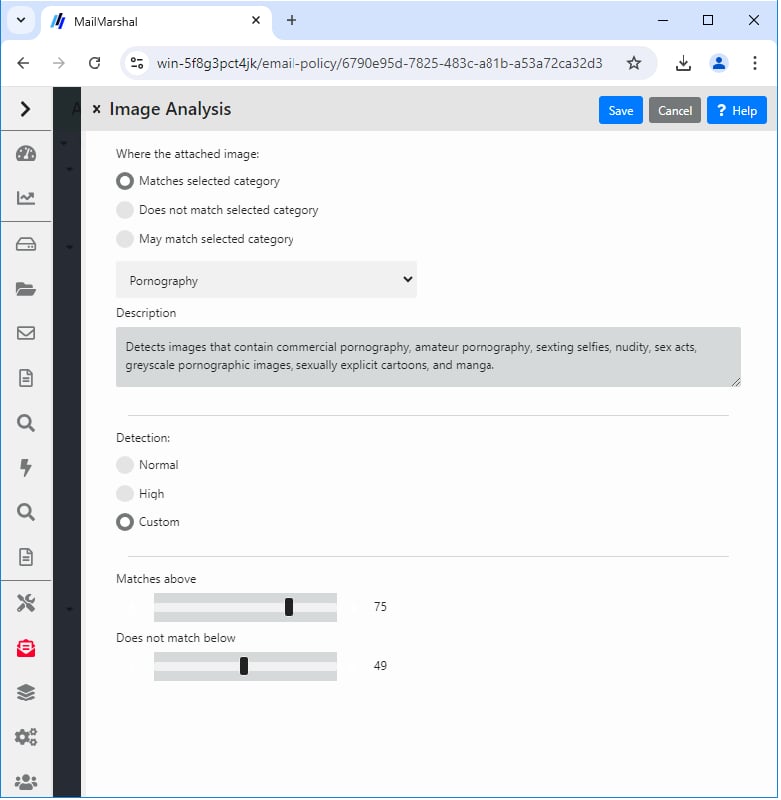
- Matches above: Specifies the minimum Image Analyzer return value that causes an image to be classified as matching the selected category, for example, likely to be pornographic. Default value: 75 for “normal” setting; 60 for “high” setting.
- Does not match below: Specifies the maximum Image Analyzer return value that causes an image to be classified as not matching the selected category. Default value: 49.
Notes:
- MailMarshal versions prior to 10.1 used only the “Pornography” category. Any rules upgraded from those earlier versions use this category.
- Some earlier product versions included additional sensitivity settings. These settings are no longer required.
Where message size is
MailMarshal uses the size of the entire message, before unpacking, in this condition. The rule condition panel allows you to choose a size and matching method (greater than a given size, less than a given size, between two sizes, not between two sizes, equal to or not equal to a size). If you choose to match between two sizes the matching is inclusive.Note: MailMarshal checks the size of the received message in its encoded format. This is typically 33% larger than the size reported by an email client.
Where the estimated bandwidth required to deliver this message is
MailMarshal calculates the bandwidth required to deliver a message by multiplying the message size by the number of unique domains to which it is addressed. The rule condition panel allows you to choose a total bandwidth and matching method (greater than a given size, less than a given size, between two sizes, not between two sizes, equal to or not equal to a size). If you choose to match “between” two sizes the matching is inclusive. One use of this criterion is to move high-bandwidth messages to a “parking” folder for delivery outside peak hours. Another use is to reject high-bandwidth messages.Where message attachment size is
This condition checks the size of each attachment separately after all unpacking and decompression is complete. The size of an attachment can be greater than the size of the original message, due to decompression of archive files. The rule condition panel allows you to choose a size and matching method (greater than a given size, less than a given size, between two sizes, not between two sizes, equal to or not equal to a size). If you choose to match “between” two sizes the matching is inclusive.Where number of recipients is count
This condition checks the number of SMTP recipient addresses in a message. It is typically used to block messages with large recipient lists as suspected spam. The rule condition panel allows you to choose a number and matching method (greater than a given number, less than a given number, between two numbers, not between two numbers, equal to or not equal to a number). If you choose to match “between” two numbers the matching is inclusive.Where number of attachments is count
This condition is typically used to block messages with large numbers of attachments. The number of attachments can be counted using top level attachments only, or top level attachments to email messages including any attached messages, or all attachments at all levels.Note: “Top level attachments” are the files explicitly attached by name to an email message. Other files, such as the contents of a zip archive or images within a MS Word document, may be contained within the top-level attachments.
Where the sender is/is not in the recipient’s safe senders list
This condition allows you to take action on a message based on the list of “safe senders” maintained by a local message recipient through the Spam Quarantine Management Website. A typical use of this action is to create an exception to Spam rules, using the rule action “Pass the message to rule.” The default rules provided with new installations of MailMarshal include a rule to perform this function. The user can enter an individual email address, or a wildcard pattern using the asterisk (*) wildcard character. In the rule condition panel, choose whether to apply the condition if the sender is, or is not, in the recipient’s safe senders list.Note: If the Safe Senders list is disabled (from the Administrator section of the SQM website), this condition has no effect.
Where the sender is/is not in the recipient’s blocked senders list
This condition allows you to take action on a message based on the list of “blocked senders” maintained by a local message recipient through the Spam Quarantine Management Website. A typical use of this action is to create a rule that quarantines all email from addresses in the user’s blocked list. The default rules provided with new installations of MailMarshal include a rule to perform this function. The user can enter an individual email address, or a wildcard pattern using the asterisk (*) wildcard character. In the rule condition panel, choose whether to apply the condition if the sender is, or is not, in the recipient’s blocked senders list.Note: If the Blocked Senders list is disabled (from the Administrator section of the SQM website), this condition has no effect.
Where sender’s IP address does/does not match address
This condition can be used to take action on messages from one or more ranges of IP addresses.Note: This condition is also available in Connection Policy rules. To save resources and improve security, you should use this condition in a Connection Policy rule where possible.
- An IP Address: Enter a single IPv4 or IPv6 address. For instance, enter “10.2.0.4” or “::1”.
- A range of IP addresses: Enter the starting and ending IP addresses for an inclusive range. For instance, enter “10.2.1.4” and “10.2.1.37”
- An entire network range: Enter an IP address and a network mask in CIDR notation. For instance, enter “10.2.1.4” and “24” to match the entire 10.2.1.0 subnet. Enter “fe80::” and “10” to match IPv6 link-local addresses.
- To include the address or range, select the check box.
- To exclude the address or range, clear the check box.
Where sender did/did not authenticate successfully
This condition can be used to check whether MailMarshal authenticated the remote system using an account and password. For more information about setting up accounts for authentication see Setting Up Accounts.Note: You can also check for authentication using the Connection Policy rule condition “Where sender has authenticated.” To save resources and improve security, you should use the Connection Policy condition where possible. Using a Content Analysis policy rule allows more actions and combinations of conditions.
Where message was/was not received via TLS
This condition allows you to take action on messages depending on whether they were received with TLS (Transport Layer Security). For more information about setting up TLS in MailMarshal, see Securing Email Communications.Where message was/was not received via TLS versions
This condition allows you to take action on messages depending on the version of TLS used to secure the connection. For more information about setting up TLS in MailMarshal, see Securing Email Communications.Where the TLS client certificate was/was not presented with criteria
This condition allows you to take action on messages depending on the specific features of the SSL certificate that was used to secure the connection. You can check the date, trust, revocation status, and other features. For full details of the available options, see Help. For more information about setting up TLS in MailMarshal, see Securing Email Communications.Where the external command is/is not triggered
This option allows you to select one or more external commands MailMarshal uses to test the message. External commands can be executable programs or batch files. In the rule condition panel, specify the commands. If more than one command is specified, all commands must be triggered for this condition to be triggered. For more information about external commands see Extending Functionality Using External Commands.Where message does/does not contain one or more headers
This condition can be used to check for the presence, absence, or content of any message header, including custom headers. You can use this condition to check for blank or missing headers, or to reroute email. Within the rule condition panel, click Add to create a new header match rule. For more information about creating header match rules, see Using Rules to Find Headers. You can check more than one header match in a single condition. If you check more than one match, all matches must be true for the condition to be true (logical “and”). To match any of several header conditions (logical “or”), include more than one rule with one condition per rule. To edit any Header Match condition (or view its details), highlight it, and then click Edit. To delete a Header Match condition, highlight it, and then click Delete.Note: You can only use Header Match conditions within the rule where you create them. To use the same condition in more than one rule, create it in each rule.
Where message does/does not trigger category script(s)
This condition allows action to be taken on messages that trigger a category script. Select one or more categories using the rule condition panel.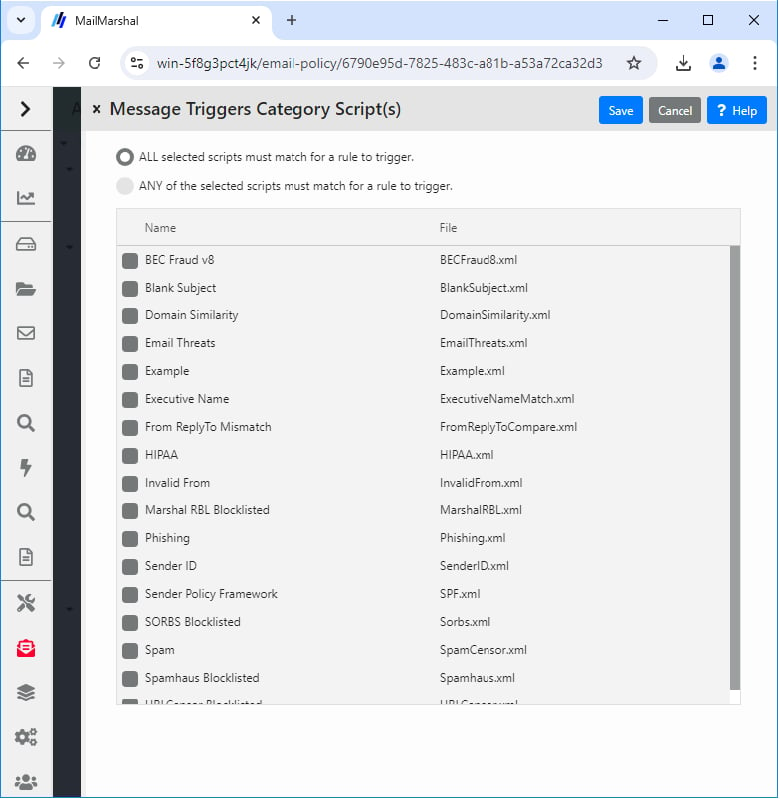
Where the DKIM verification result is
This condition allows you to take action on messages depending on the results of DKIM (DomainKeys Identified Mail) validation. You can choose to take action on messages that pass or fail validation, on messages where the required information could not be retrieved, or on messages where the DKIM header was not present.Note: DKIM validation of the message is performed when the message is received. To use this condition, you must enable DKIM validation (in System Configuration, see MailMarshal Properties > Array Properties > Receiver Properties > DKIM).
Where message was checked with DMARC and a result applied
This condition allows you to take action on messages depending on the results of DMARC (Domain-based Message Authentication, Reporting & Conformance) validation. You can choose to take action on messages that pass validation, messages that could not be evaluated, and messages that fail validation. For messages that fail DMARC validation, you can base the action on the DMARC policy of the sending domain. For full details of the available options, see Help.Rule Conditions for Connection Policy Rules
The following conditions are available for use in Connection Policy rules.- General
- Where message is of a particular size
- Where SPF evaluation is
- Sender
- Where sender’s HELO name is/is not criteria
- Where sender’s IP address does/does not match address
- Where sender did/did not authenticate successfully
- Where sender’s IP address is/is not listed by Reputation Service
- TLS
- Where message was/was not received via TLS
- Where message was/was not received via TLS versions
- Where the TLS client certificate was/was not presented with criteria
Where message is of a particular size
This condition is normally used with a “refuse message” action to refuse large messages. The rule condition panel allows you to choose a size and matching method (greater than a given size, less than a given size, between two sizes, not between two sizes, equal to or not equal to a size). If you choose to match “between” two sizes the matching is inclusiveNote: The MailMarshal Receiver can only process this condition if the outside server has made an ESMTP connection and reported the message size. In order to check the size of all messages, you should repeat this condition in a Content Analysis Policy rule to include messages received from sources that do not support ESMTP. See also Knowledgebase article Q10602.
Where SPF evaluation result is
This condition directs MailMarshal to check the message source using the Sender Policy Framework (SPF). Select the SPF results that trigger the condition using the option buttons. To select a custom triggering value, and to configure advanced options, select Custom and then click Change Settings. See Help for definitions of the options.Note: For more information about SPF, see Knowledgebase article Q11560.
Where sender’s HELO name is/is not criteria
This condition allows action to be taken based on the HELO name provided by the remote email server. Choose from the following options:- Where sender’s HELO name is: The condition will be true if the HELO name matches the criteria you select below.
- Where sender’s HELO name is not: The condition will be true if the HELO name does not match the criteria you select below.
- A specific string: Check this box and enter a character string to base the condition on an exact string (for example, AKLMAIL1)
- An IP address: Check this box to base the condition on HELO strings that are IP addresses (not text names). Check the additional box “Correctly enclosed in brackets” to require brackets around the IP address.
- A fully qualified domain name: Check this box to base the condition on HELO strings that are fully qualified domain names (FQDNs). For instance, AKLMAIL1.EXAMPLE.COM is a FQDN.
Note: You can check one or more of the boxes.Matching of a specific string supports wildcards. For more information, see Wildcard Characters.
Where sender’s IP address does/does not match address (Connection Policy)
This condition can be used to permit relaying, or to refuse messages, from one or more ranges of IP addresses. MailMarshal shows the configured ranges in the rule condition panel. To add a range to the list, click New to open the Match IP Address panel. To modify an existing address, highlight it, and then click Edit. To delete an existing address from the list, highlight it, and then click Delete. Add or modify an address or range using the rule condition panel. Select one of the three choices using the option buttons:- An IP Address: Enter a single IPv4 or IPv6 address. For instance, enter “10.2.0.4” or “::1”.
- A range of IP addresses: Enter the starting and ending IP addresses for an inclusive range. For instance, enter “10.2.1.4” and “10.2.1.37”
- An entire network range: Enter an IP address and a network mask in CIDR notation. For instance, enter “10.2.1.4” and “24” to match the entire 10.2.1.0 subnet. Enter “fe80::” and “10” to match IPv6 link-local addresses.
- To include the address or range, select the check box.
- To exclude the address or range, clear the check box.
Where sender did/did not authenticate successfully (Connection Policy)
This condition is normally used with the “Accept message” action to allow relaying by specific users. This condition will trigger if MailMarshal authenticated the remote system using an account and password. For more information about setting up accounts for authentication see Setting Up Accounts.Note: You can also check for authentication using the Connection Policy rule condition “Where sender did/did not authenticate successfully.” To save resources and improve security, you should use the Connection Policy condition where possible. Using a Content Analysis policy rule allows more actions and combinations of conditions.
Where sender’s IP address is/is not listed by Reputation Service
This condition allows Reputation Service tests (DNS Blocklists) to be applied. Choose the services to be used from the list in the Reputation Services panel. The panel shows a list of all configured services. Select the check box for each service you want to use. Clear the check box for any service you do not want to use in this Condition. For information about how to configure reputation services, see Reputation Services and DNS Blocklists.Note: Reputation Services results are based on the IP address of a server, and currently provide information about IPv4 addresses only.
Where message was/was not received via TLS (Connection Policy)
This condition allows you to take action on messages depending on whether they were received with TLS (Transport Layer Security). For more information about setting up TLS in MailMarshal, see Securing Email Communications.Where message was/was not received via TLS versions (Connection Policy)
This condition allows you to take action on messages depending on the version of TLS used to secure the connection. For more information about setting up TLS in MailMarshal, see Securing Email Communications.Where the TLS client certificate was/was not presented with criteria (Connection Policy)
This condition allows you to take action on messages depending on the specific features of the SSL certificate that was used to secure the connection. You can check the date, trust, revocation status, and other features. For full details of the available options, see Help. For more information about setting up TLS in MailMarshal, see Securing Email Communications.Rule Conditions for Dead Letter Policy Rules
The following conditions are available for use in Dead Letter Policy rules:- Where the dead letter reason contains
- Where message is detected as spam by SpamProfiler
Where the Dead Letter reason contains
This condition allows you to enter text that MailMarshal will match in the Dead Letter Reason field of a deadlettered message. You can choose to allow a deadlettered message to be passed through to recipients. For a list of the reason codes, see Knowledgebase article Q14226.Where message is detected as spam by SpamProfiler
This condition allows you to take action on a deadlettered message based on the result of evaluation by SpamProfiler. You can use this condition to classify deadlettered messages as spam, or move them to the deadletter spam folder.Note: The SpamCensor and SpamBotCensor engines cannot be used to evaluate deadlettered items because they can only evaluate a fully unpacked message.
Understanding Rule Actions
MailMarshal rule actions are performed by each rule. MailMarshal performs the actions if the user matching criteria and the other conditions of the rule evaluate true. You can include more than one action in a MailMarshal rule. MailMarshal can also apply more than one set of actions to a message if more than one rule triggers. However, some actions are terminal actions. If a terminal action is performed, MailMarshal stops processing rules for the affected message.Rule Actions for Content Analysis Policy Rules
The following actions are available for selection in Content Analysis Policy rules. Details of each action are given in the text following.- Logging and Notification
- Send a notification message
- Log message with classifications
- Report the DMARC policy disposition
- Copy the message to folder with release action
- Do not generate an NDR if the remote host refuses the message
- Run the external command
- Data Harvesting
- Add message users into group
- Add attachments to valid fingerprints list
- Message Modification
- Stamp message with message stamp
- Strip attachment
- Rewrite message headers
- Prepend text to message subject
- Rewrite URLs in the message for Blended Threat Scanning
- Routing and Delivery
- Send a copy of the message to host
- BCC a copy of the message
- Deliver the mail via TLS only
- Set message routing to host
- Ignore DANE validation
- Apply DKIM signature
- Terminal Actions
- Move the message to folder and categorize, with release action
- Park the message
- Hold the message
- Delete the message and categorize
- Pass the message to rule
- Continue Processing
Send a notification message
This action sends one or more email messages based on the templates selected in the rule action panel. To view or edit the details of a particular template, select it, and then click Edit Template. To create a new template, click New Template. The new template will automatically be selected for use when you return to the template selection panel. For further information about templates, see Notifying Users with Message Templates and Message Stamps.Log message with classifications
This action writes a record classifying this message to the MailMarshal database. Select one or more logging classifications from the list in the rule action panel. Select the check box to write a logging classification for every component of the message (for example a separate record for each image file in a message). To view or edit the detailed information in the classification, click Edit in the selection panel. To create a new classification, click New in the selection panel. For details on classifications, see Using Folders and Message Classifications.Copy the message
This action copies the email message file to the specified quarantine folder. You can make the message processing log available in the same folder by selecting the check box at the bottom of the panel. The message log showing how the message was processed will then be available in the Console. You can specify how MailMarshal will process the message by default if it is released from this folder. Click the Release action link to specify the action. By default when a message is released, MailMarshal continues processing with the rule immediately after the rule that moved the message. For more information, see Help for the Release Action panel. When you select this action you can create a new folder. To create a folder, click New Folder. For more information see Using Folders and Message Classifications.Report the DMARC Policy Disposition
This action allows you to specify the DMARC disposition that MailMarshal will report to the Domain Owner in DMARC aggregate reports. Select the appropriate disposition (None, Quarantine, or Reject).Do not generate an NDR if the remote host refuses the message
This action allows you to avoid sending NDR messages. This action could be used for inbound messages where MailMarshal has a valid list of accepted recipients and is responsible for sending NDRs. In this situation any refusal from the internal mail server is taken as an error or unexpected blockage that should not be reported to the sender.Note: This action should not be applied to outgoing messages.
Run the external command
This action runs an external application. The application can be a Windows executable or batch file. For instance, an external command to release a message from quarantine is included with MailMarshal. Choose one or more commands to be run from the list of pre-defined external commands. For information about defining external commands, see Extending Functionality Using External Commands. To run the same application with different parameters under different conditions, use more than one external command definition. You can also choose to repack the message when a command action succeeds. Use this setting if you have created a custom external command that could make changes to the message content.Add attachments to valid fingerprints list
This action adds the attachments to the MailMarshal list of “valid fingerprints” (normally used for images or other files which require special treatment, such as company logos). In the rule action panel, choose whether to add all attachments, or only images, to the list. For more information, see the rule condition “Where attachment fingerprint is/is not known.”Add message users into group
This action allows you to add members to a MailMarshal user group based on any rule criteria, such as the sender or recipients of a message. You can use this action to automate the generation of lists of safe senders or blocked senders, based on other features of messages.Note: When you use this action to add members to a group, you should consider enabling automatic pruning to limit the size of the group. See Pruning a MailMarshal Group.
Stamp message with text
This action adds text to the top or bottom of the original message body. In the rule action panel, choose one or more message stamps to be used. A stamp will add text at the top or bottom of the message as selected when it is created. To view or edit the details of a particular message stamp, select it, and then click Edit Stamp. To create a new stamp, click New Stamp; the new message stamp will automatically be selected when you return to the stamp selection panel. For details on message stamps, see Notifying Users with Message Templates and Message Stamps.Strip attachment
This action removes one or more specific attachments from a message. Only the attachments that triggered the rule conditions for this rule will be stripped. This action would typically be used to remove attachments of specific file types or file namesNote: MailMarshal does not save stripped attachments. If you use this action, normally you should copy the original message so that you can retrieve the attachment if necessary. You should stamp the message to inform the recipient that an attachment has been stripped.You can use this action in combination with a virus detection condition to strip infected attachments and allow the message to be delivered. To ensure that the message no longer contains a virus, you must include another virus scanning rule to run after the stripping action. Otherwise MailMarshal treats the message as possibly infected and will move it to the Dead Letter\Virus folder.
Rewrite message headers
Use this action to modify, add, or delete any message header, including custom headers. You can repair blank or missing headers, insert a notification into the subject, or reroute email. Within the rule action panel, click Add to create a new header rewrite rule. For more information about this adding and editing header rewrite rules, see Using Rules to Change Headers. You can include more than one Rewrite rule in the same action. If you include more than one Rewrite rule, the order of application of the rules can be significant. The rules listed first in the Header Rewrite panel will be evaluated first. Adjust the order of evaluation by selecting a rule and using the up and down arrows on the panel.Note: Header Rewrite rules are only available within the rule where they are created. To perform the same action in more than one rule (or within a rule and the Header Rewrite function of the MailMarshal Receiver), create a Header Rewrite rule in each place.
Prepend text to message subject
Use this action to add text at the beginning of the message subject. You can use this action to provide results of message scanning (such as “external sender” or “suspect spam”) in a way that the recipient will easily see.Rewrite URLs in the message for Blended Threat Scanning
This action can be used to protect users against malicious websites listed in the LevelBlue Blended Threats URL database. The action modifies web links (URLs) in the subject and body of email messages, so that when a user clicks the link, the URL is tested by the LevelBlue Blended Threat service. This action can only be used in rules that affect inbound messages (messages addressed to your local domains).Note: If the Blended Threats service is not licensed, you cannot save a rule that uses this condition.You can exclude trusted URL domains from rewriting and scanning. For more information, see MailMarshal Properties – Advanced.For information about what is rewritten and what is excluded from rewriting by default, see Knowledgebase article Q14548.For more information about Blended Threats Scanning, see Knowledgebase article Q12876.
Send a copy of the message to host
This action sends a copy of the message to a specific server. Unlike the BCC action, this action does not modify the recipient fields. In the rule action panel, enter a host name or IP address, and a port number, to which MailMarshal should send the message. If you entered a host name, select a protocol to use for delivery (IPv4, IPv6, or either).BCC a copy of the message
This action sends a blind copy of the message to one or more email addresses. Enter each address as a complete SMTP address (for exampleuser@domain.topdomain). Separate multiple entries using semi-colons. You can also use variables in this field. The original message will not be modified in any way by this action, so the original recipient would not know a copy had been taken.
Deliver the mail via TLS only
This action allows a message to be marked for sending using TLS. If the message cannot be delivered using TLS for any recipient, it will not be sent to that recipient. You can use this action to implement specific TLS requirements based on any rule condition such as the sender, recipient, or message content. You can also require TLS for messages sent to all users in specific domains. See MailMarshal Properties > Array Properties > Sender Properties > Outbound Security (TLS).Note: This action is not a terminal action. It sets the requirement of TLS delivery for the message, but it does not send the message immediately or stop rule evaluation. MailMarshal continues to evaluate remaining applicable rules.
Set message routing to host
This action allows a message to be marked for sending to a selected email server. You can use this action to implement dynamic routing based on the recipient, the message headers, or the content of a message. In the rule action panel, enter a host name or IP address, and a port number, to which MailMarshal should send the message. If you entered a host name, select a protocol to use for delivery (IPv4, IPv6, or either). MailMarshal uses this address when it attempts delivery, even if the message is “parked” first, or quarantined and later released. If several rules invoke this action, MailMarshal uses the last address.Note: This action is not a terminal action. It sets the route for the message, but it does not send the message immediately or stop rule evaluation. MailMarshal continues to evaluate remaining applicable rules. Generally you should not use the actions Delete the message and Set message routing to host for the same message. If you do, the message will be deleted and not delivered.
Note: If you are not directing mail to a MailMarshal Secure Email Server, ensure this box is not checked. For more information about this feature, see the MailMarshal Secure Email Server User Guide.
Ignore DANE validation
This action allows you to skip DANE validation (when DANE is enabled). You can use this action in a rule with User Matching. The group used for matching should contain domain wildcard entries. For more information about using DANE with MailMarshal, see Knowledgebase article Q21213.Apply DKIM signature
This action signs the message according to the DKIM standard. Signing of the message takes place after all rules are processed.Note: Before using this action, you must import a private key for the local domain from which the message was sent. You must also publish public key information in a DNS TXT record so that signed messages can be validated. See Configuring DKIM.
Move the message and categorize
This action moves the email message file to the specified quarantine folder. To make the message processing log available in the same folder, select the check box at the bottom of the rule action panel. The message log explaining how the message was processed will then be available in the Console. If a new folder is required, click Add to open a panel that allows you to create a folder. You can select a “category” that will be used to generate Dashboard graphs and other message statistics. You can specify how MailMarshal will process the message by default if it is released from this folder. Click the Release action link to specify the action. By default when a message is released, MailMarshal continues processing with the rule immediately after the rule that moved the message. For more information, see Help for the Release action panel. This is a terminal action. MailMarshal does not process any further rules for a message if this action is performed (unless the message is later released).Park the message
This action moves the email message file to the specified parking folder for release according to the schedule associated with that folder. To create a new folder with a different schedule, click Add to open a panel that allows you to create a folder. This is a terminal action. If this action is performed, MailMarshal does not process any further rules for a message until the message is released from the parking folder. When a message is released from a parking folder, MailMarshal continues processing with the rule after the rule that parked the message.Hold the message
This action moves the email message file to a special “hold queue” for the specific rule. You can configure a hold period after which the message will be re-submitted to the rule that caused the hold. You can configure the number of times MailMarshal should retry the rule before continuing to the next rule. For details of the settings, see Help. This is a terminal action. If this action is performed, MailMarshal does not process any further rules for a message until the hold time expires. When a message is released from the hold queue, MailMarshal continues processing with the rule that caused the hold. If the number of retries is exceeded, MailMarshal continues processing with the rule after the hold rule. You can force an immediate retry of held messages using the Hold Queues listing in the Console.Delete the message
This action deletes the email message file. The message will not be sent to its original destination. You can select a “category” that will be used to generate Dashboard graphs and other message statistics. This is a terminal action. MailMarshal does not process any further rules for a message if this action is performed.Pass the message to rule
This action allows a choice of which further rules to apply. Several choices are available in the rule action panel:- Skip the next rule (do not apply it).
- Skip to the next policy group (do not apply further rules in this policy group).
- Skip all remaining rules (pass the message through to the intended recipients).
- Skip to a specific policy group or rule.
Note: It is only possible to skip to a rule which is evaluated after the current rule. The order of evaluation can be changed. See Understanding the Order of Evaluation.
Continue processing
This action continues rule processing with the next listed rule.Rule Actions for Connection Policy Rules
The following actions are available for use in Connection Policy rules.- Accept message
-
Refuse message and reply with message.
Note: These actions take effect immediately. If you use both types of actions in Connection Policy rules, check the order of evaluation carefully to ensure that MailMarshal checks for any exceptions first.
- Continue Processing Rules
Accept message
This action directs MailMarshal to accept the message for delivery subject to Content Analysis Policy rules. The message could be relayed to an address outside the MailMarshal local domains. This condition can be used in conjunction with the condition “Where sender has authenticated” or an IP address match, to allow relaying by specific email users.Refuse message and reply with message
This action directs MailMarshal to refuse the message. MailMarshal sends a SMTP response refusing delivery to the sending server. This action can be used in conjunction with a size-limiting condition to conserve bandwidth, or to refuse messages sent from specific problem addresses as detected by User Match, IP Address, or Reputation Service conditions. On the rule action panel, enter the SMTP response code and message to be returned as the message refusal.-
Message Number: Enter a SMTP message number (between 400 and 599) to return. The default number 550 is a standard SMTP “message refused” response.
Note: If you use a number in the 400 range the sending server will treat the refusal as temporary and will retry the delivery later. If you use a number in the 500 range the sending server will treat the refusal as permanent and will mark the message as undeliverable.
- Message Description: Enter a short message giving details of the reason for refusal. Within this message, the following variables are available:
Continue Processing Rules
This action has no effect on the message. It can be used with a logging-only condition such as “Where the SPF evaluation is set to log only.”Rule Actions for Dead Letter Policy Rules
The following actions are available for use in Dead Letter Policy rules. Note that in some cases Dead Letter actions allow fewer options than the corresponding Content Analysis actions.- Logging and Notification
- Send a notification message
- Write log message(s) with classifications
- Routing and Delivery
- BCC a copy of the message
- Set message routing to host
- Terminal Actions
- Move the message to folder
- Delete the message
- Pass message through to recipients
BCC a copy of the message (Dead Letter Policy)
This action sends a blind copy of the message to one or more email addresses. Enter each address as a complete SMTP address (for exampleuser@domain.topdomain). Separate multiple entries using semi-colons. You can also use variables in this field. The original message will not be modified in any way by this action, so the original recipient would not know a copy had been taken.
Send a notification message (Dead Letter Policy)
This action sends one or more email messages based on the templates selected in the rule action panel. For further information about templates, see Notifying Users with Message Templates and Message Stamps.Write log message(s) with classifications
This action writes a record classifying this message to the MailMarshal database. Select one or more logging classifications from the list in the rule action panel. For details on classifications, see Using Folders and Message Classifications.Set message routing to host (Dead Letter Policy)
This action allows a message to be marked for sending to a selected email server. You can use this action to route dead letters to a different server (for additional security, since the content could not be scanned). In the rule action panel, enter a host name or IP address, and a port number, to which MailMarshal should send the message. If you entered a host name, select a protocol to use for delivery (IPv4, IPv6, or either). MailMarshal uses this address when it attempts delivery, even if the message is passed through.Note: This action is not a terminal action. It sets the route for the message, but it does not send the message immediately or stop rule evaluation. MailMarshal continues to evaluate remaining applicable rules. Generally you should not use the actions Delete the message and Set message routing to host for the same message. If you do, the message will be deleted and not delivered.
Move the message
This action moves the email message file to the specified folder. Select one of the pre-configured dead letter folders. This is a terminal action. MailMarshal does not process any further rules for a message if this action is performed.Delete the message (Dead Letter Policy)
This action deletes the email message file. The message will not be sent to its original destination and will not be available for further review. When you select this action, you can choose not to create an entry in the MailMarshal SQL logging database for the deleted message. By default MailMarshal logs information about deleted messages so that you can report on the reasons for deletions. This is a terminal action. MailMarshal does not process any further rules for a message if this action is performed.Pass message through to recipients
This action allows you to specify that a deadlettered message should be passed through to the original recipient addresses. The destination is subject to the “set message routing to host” action.Understanding the Order of Evaluation
The order in which MailMarshal evaluates policy groups and rules can affect the outcome of processing for a message. This is usually due to “terminal” actions that stop MailMarshal processing further rules for a given message. For instance, by default MailMarshal evaluates virus scanning rules first. If a scanner reports a virus MailMarshal quarantines the message immediately. In this case MailMarshal does not perform any additional processing on the message. MailMarshal evaluates policy groups and rules in “top down” order as it displays them in the Management Console.Adjusting the Order of Evaluation of Policy Groups
You can change the order of evaluation by changing the order of the policy group listing in the Management Console. To adjust the order of evaluation of policy groups:- Select a policy type (Connection Policy, Content Analysis Policy, or Dead Letter Policy) in the left pane.
- Select a policy group in the right pane.
- Move the group up or down using the Move Up and Move Down buttons above the list.
- Commit the MailMarshal configuration to effect the change in order.
Adjusting the Order of Evaluation of Rules
You can change the order of evaluation by changing the order of the rule listing in the Management Console. To adjust the order of evaluation of rules:- Expand a policy group.
- To move a rule up or down within the policy group, use the Move Up and Move Down buttons above the list.
- To duplicate a rule within the policy group, right-click and select Duplicate. The duplicate is created at the end of the group.
- To move or copy rules to another policy group, right-click and select Copy. In the Copy window, select the target group(s) and then click Move or Copy.
- Commit the MailMarshal configuration to effect the change in order.
Note: MailMarshal always processes Connection Policy before Content Analysis Policy.If you have configured any rules with “Pass message to rule” or “Move/Copy to folder with release action”, MailMarshal checks for possible processing loops. To prevent problems, MailMarshal will disallow moving the rules, or disable some affected rules.You can move a referring rule (a rule that includes one of the above actions), subject to the following conditions:
- You cannot move a target rule above a rule that refers to it.
- A rule copied or moved to a policy group above the source is created as disabled. Validation for loops is performed when the rule is enabled.
- If you duplicate a target rule, the original rule remains in place and the duplicate is not a target.
Viewing Email Policy
You can list the entire email policy or a policy group in a format suitable for printing or copying to a file. For each rule, the listing shows the rule name, a verbose description, and a detailed listing of conditions and actions. The listing also indicates whether the rule is disabled. To print or copy a listing of the email policy or a policy group:- In the left pane of the Management Console, navigate to Configuration > Email Policy.
- To generate a printable view of the entire policy, select the top item in the menu tree (Email Policy). From the menu at the top of the right pane, click Print.
- To generate a printable view of a specific Policy or Policy Group, right-click it in the right pane, and then click Print from the context menu.
- MailMarshal presents the selected items in a print preview window.
- To print the window contents, click Print at the top right. You can also copy part or all of the window contents to the Clipboard using standard Windows commands.