Using the MailMarshal Console for Email Management
The Console provides summary information on the current state of MailMarshal, as well as administrative access to the quarantine folders and message sending services.Connecting to MailMarshal Using the Console
You can connect using a web browser from any computer that can browse to the Array Manager computer.Monitoring Email Statistics and Server Health
The Dashboard and Status pages in the Console provide basic information about MailMarshal at a glance. To view these pages click Dashboard or Status in the left pane. The Dashboard Overview includes:- Summary of email traffic: Inbound and Outbound message totals and Blocked Threats total.
- Email Security Score and Recommendations: Analysis of the configuration of the MailMarshal installation, with best practice suggestions.
- Blocked threat analysis: Breakdown of threats by category.
- Hold Reasons: Highlight of MailMarshal folders containing most blocked messages.
- Rejected messages: Detailed breakdown of reasons for rejections.
- Rejected and held messages by user: Highlight of users most affected by blocks.
- Mail server health: Service status, disk health, and alerts.
- License status: User count, license expiration, and maintenance expiration.
- Automatic Updates status: Last update and scheduled check times.
Deleting and Retrying Queued Messages
The Sender item for each server shows the messages MailMarshal is currently sending. The Routes item for each server shows a list of the route table entries that MailMarshal is attempting to send messages to, including items that are pending a retry and routes that are “down” or “on hold” (See Marking Routes as Down.) You can stop sending a message that MailMarshal is currently sending and delete it. In the Sender view, highlight the message, and click Kill Message. To attempt to send all messages queued for a specific route entry in the queue, in the Domains view, highlight a domain and click Retry Route Now. The Hold Queues item for each server shows the number of items that are being held for each rule with a “Hold” action. To retry the rules, click Retry Now.Viewing Folders and Folder Contents
MailMarshal message quarantine folders include the archive, parking and standard folders into which messages are placed through rule action, as well as the Dead Letter folders used for messages that cannot be processed, and the Mail Recycle Bin used to hold deleted items for a period. To view a list of MailMarshal message quarantine folders, under Management expand the menu item Folders. The Folders page shows a menu of folders. Visibility of folders in the list depends on the folder security permissions (see Working with Folders). To view the contents of a folder, select it in the menu. The contents display in the right pane, divided into daily sub folders. Select a daily folder to see its contents. By default no more than 250 items will be retrieved for each sub folder per screen. You can view the next or previous screen using the Page Up and Page Down keys. You can adjust the number of items per screen with the Rows menu at the bottom of the pane. You can select, order, and resize the columns in the list and save the column view, using controls on the page. You can sort the items on the screen by clicking column headers.Note: The column sorting function only sorts the items on the current screen. If the folder contains more than one screen of items, sorting does not sort over multiple screens. Use the user filter at the top of the listing, or the search function, to retrieve a limited number of items.
Working With Email Messages
You can perform the following actions on an email message located in a MailMarshal quarantine folder: View Open a new window displaying the message headers, body, attachments, and the MailMarshal email processing logs if they are available for the message. Forward Send a copy of the message to a specified email address. Delete Move the message to the MailMarshal Mail Recycle Bin, or optionally delete it permanently. You cannot perform this action for items in Archive folders. Release Queue the message for action by other MailMarshal services. This action is typically used to deliver a quarantined message to the original recipient. You can choose from several options. Spam Forward a copy of the message to LevelBlue tagged as “spam.” Not Spam Forward a copy of the message to LevelBlue tagged as “not spam.”Note: Use the Spam and Not Spam options to help improve MailMarshal spam detection by reporting messages that were wrongly classified. The messages you send are automatically processed. LevelBlue treats the messages in complete confidence.To report a message you must have permission to forward messages from the folder that contains it. To configure permissions on a folder, see Editing Folders.
Forwarding Messages
Use forwarding to send a copy of the message to a specified email address. To forward a message:- Select the message.
- Click the Forward icon on the toolbar, or open the message then choose Forward from the Message menu.
- Enter one or more addresses. To forward to multiple addresses, enter them separated by semicolons (for instance
RichardN@example.com; GeraldF@example.com). - By default MailMarshal retains the message when you forward it from a quarantine folder. To adjust this behavior select or clear the check box. MailMarshal will not delete messages from archive folders.
Deleting Messages
Deleting a message sends it to the Mail Recycle Bin, or optionally deletes it permanently. To delete one or more messages:- Select the messages. You can use shift and control click to multi-select.
- Click the Delete icon above the list. The message(s) will be sent to the Mail Recycle Bin folder.
- To permanently delete an item, delete it from the Mail Recycle Bin.
Restoring Messages
Restore from the Recycle Bin is not currently supported. This functionality will be provided in a future update. Once MailMarshal places a message in a quarantine folder, it retains that message for the period configured in the properties of the folder, unless you choose to delete the message permanently. The retention period applies even if the message is moved to the Mail Recycle Bin or restored. For instance, if the Spam folder has a retention period of one week, and MailMarshal moves a message to the Spam folder, then you delete it to the Mail Recycle Bin, it will be permanently deleted from the Mail Recycle Bin one week after it was first received.Viewing Messages
View a message to display the message headers, body, attachments, and the MailMarshal email processing logs if they are available. To view a message and its associated processing logs in a folder, History, or Search view, double-click the message. MailMarshal opens the message in a new panel. The lower portion of the message window includes several tabs: Message, Details, and one or more Log tabs. The Message and Details tabs restrict access to items that could represent security threats. Large images may be converted to thumbnails for performance reasons. Message Shows the message body in the richest available format (HTML, RTF, or plain text). Details Shows a tree view of the components of the message. You can click any item to view it in detail.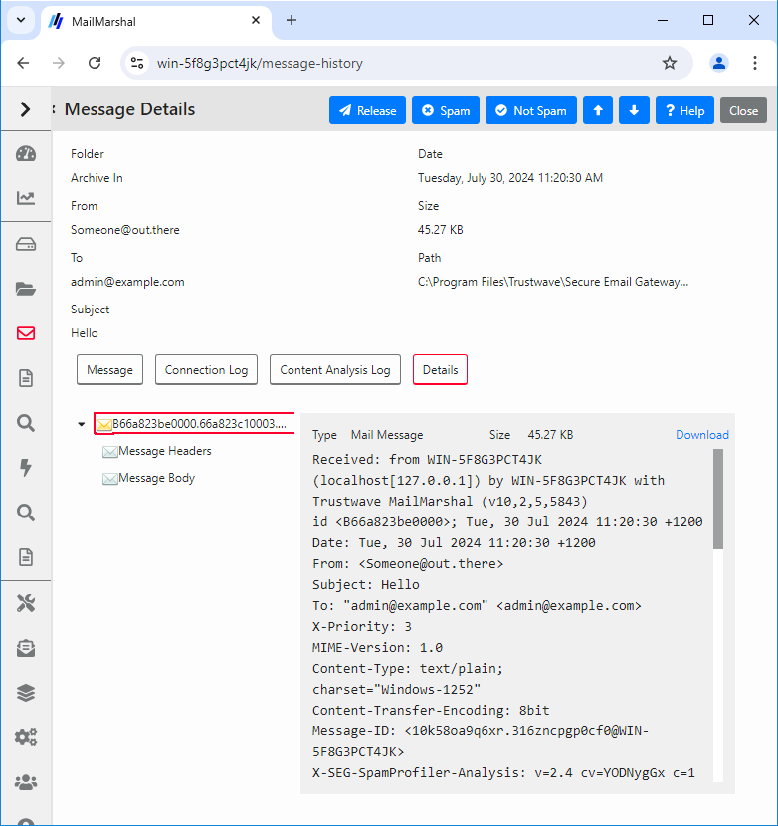
Releasing Messages
Releasing a message queues it for action by other MailMarshal services. To release a message, select one or more messages, and then click Release.Note: You can also release messages using a specially formatted email message. See Using the Message Release External Command.You can add “fingerprints” of attached files into a list that MailMarshal can use in Rules. For more information, see Knowledgebase article Q10543.
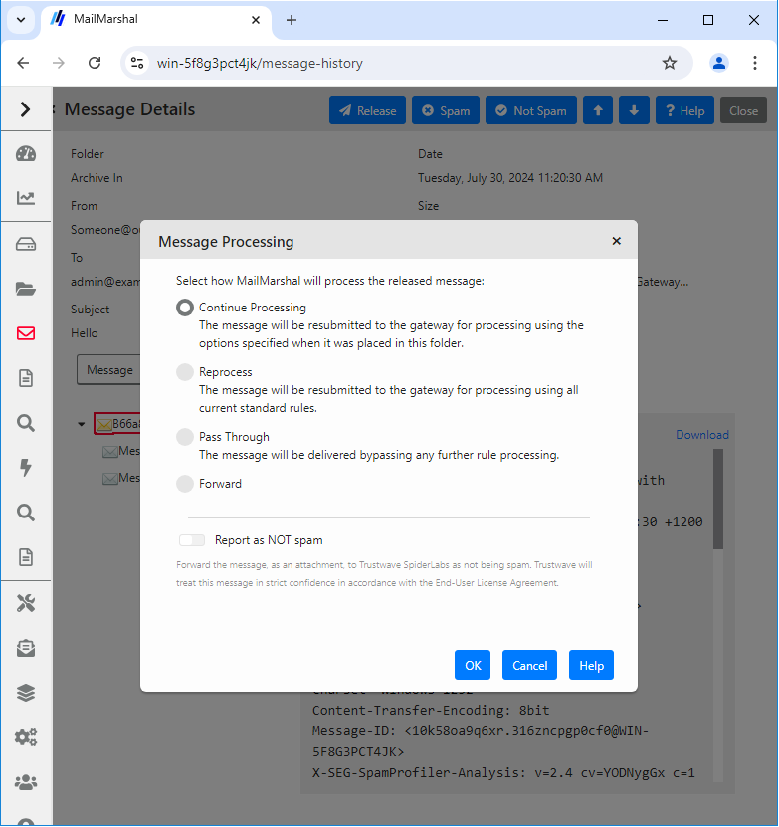
Note: If rules change after the message is placed in the folder, MailMarshal may not be able to perform the requested action. For more details, see Help for this window.
Viewing Email History
The Email History view shows each action taken on each message. Actions can include message classifications, moving to folders, delivery, and delivery failure among others. MailMarshal usually creates more than one history record for a specific message. If a history record records a move or copy to a folder and the message is present in the folder, you can use it to process the message exactly as you could from the folders view. Availability of items and actions in Email History depends on the security permissions for the folder where the item is found (see Working with Folders). By default no more than 250 items will be retrieved per screen. You can view the next or previous screen using the Page Up and Page Down keys. You can adjust the number of items retrieved with the Rows menu at the bottom of the pane. You can select, order, and resize the columns in the list and save the column view, using controls on the page. You can sort the items on the screen by clicking column headers.Note: The column sorting function only sorts the items that have been retrieved. If there is more than one screen of history, sorting does not sort over multiple screens. Use the user filter at the top of the listing, or the search function, to retrieve a limited number of items.
Searching Folders and Email History
You can limit the items displayed in the folders or email history using the Filter For field at the top of the listing. Search the email history by choosing Search from the top right of the listing. You can choose from a large number of search criteria including dates, subject, classification, and email addresses. If you want to see only items that can be viewed and processed, search only for items in specific folders. You can search using any combination of the following options: Classification Allows you to select a classification name, or “all classifications” to search all classifications. Classifications include both user classifications and system classifications such as “Delivered successfully”. Folder Allows you to select a folder name, or “all messages” to search in all folders. Message Name Allows you to enter a unique name MailMarshal has assigned to this message. MailMarshal includes this information in the headers of each message. You can enter the name alone (13 characters), or the name and edition (13.12 characters) to identify a specific edition of the message. You can add the server ID (13.12.4 characters). You cannot combine this option with any other option. Date Allows you to select the time and date when an action was logged. You can choose from pre-configured date ranges, or select Custom to define a range of dates. For instance, you can use this option to search for messages that were sent on a specific day. What is the email address Allows you to enter the address the message was sent to, from, or both. You can use wildcard characters. For more information about wildcard character syntax, see Wildcard Characters. Subject Allows you to find messages containing certain text in the subject line. You can use wildcard characters. For more information about wildcard character syntax, see Wildcard Characters. To search for messages with a blank subject, select (toggle on) Search for blank subject. Size Allows you to search for messages of a specific size or range of sizes. If you do not want to limit the search by size, select Any Size (default value). With size ranges you can choose to search for messages inside the size range that you enter (between) or outside the size range (not between) Search history items Enable (toggle on) this option to return message history records including classifications, system actions, and messages that have been quarantined within the database retention time. Disable (toggle off) the option to return only messages currently in folders.Searching Rejected Messages
The Rejected Messages view allows you to review attempted connections that were rejected due to server policy or Connection Rule action. Search the email history by choosing Search from the top right of the listing. You can choose to search by dates, email addresses, and IP addresses of the attempted connection. See Help for details. You can limit the items displayed in the results using the Filter For field at the top of the listing. You can navigate through multiple screens of results using the controls at the bottom of the list. To see more details of a specific rejected message, double-click the item in the results.Auditing Quarantine Actions
You can review actions taken on messages in quarantine, such as releasing or deleting a message. To view and search quarantine audit records, select Quarantine Audit in the left pane of the Management Console. Quarantine Audit covers actions taken from the Management Console, SQM, Digests, and Message Release external command.Viewing Alert History
MailMarshal generates alerts for specific events of interest. Some of the events included are services starting, stopping, or remaining idle for a longer than expected time. To view a historical list of service alerts, select Alert History in the left pane of the Management Console.Viewing Event History
Each component of MailMarshal writes messages to the Windows application log. Each event type is given a unique Event ID number. You can review these events using the Management Console or the Windows Event Viewer. You can also use these events to trigger automatic actions such as pager notifications, service restarts, or popup notifications via third-party products. To review the event logs in the Management Console, select Event History in the left pane. When this node is selected, the right pane shows a filtered view of the Windows event logs for MailMarshal on the array manager and all email processing servers in the installation.Note: You can view information about a specific email processing server by expanding its entry under Mail Servers and selecting the sub-item Event History.
Finding Events
The MailMarshal Event Log view allows you to filter the records you retrieve, or search for specific records.Event Log Filter
To filter the event history, enter text in the Filter For field at the top of the panel, and then click Go. To clear the filter, clear the field and then click Go.Event Log Search
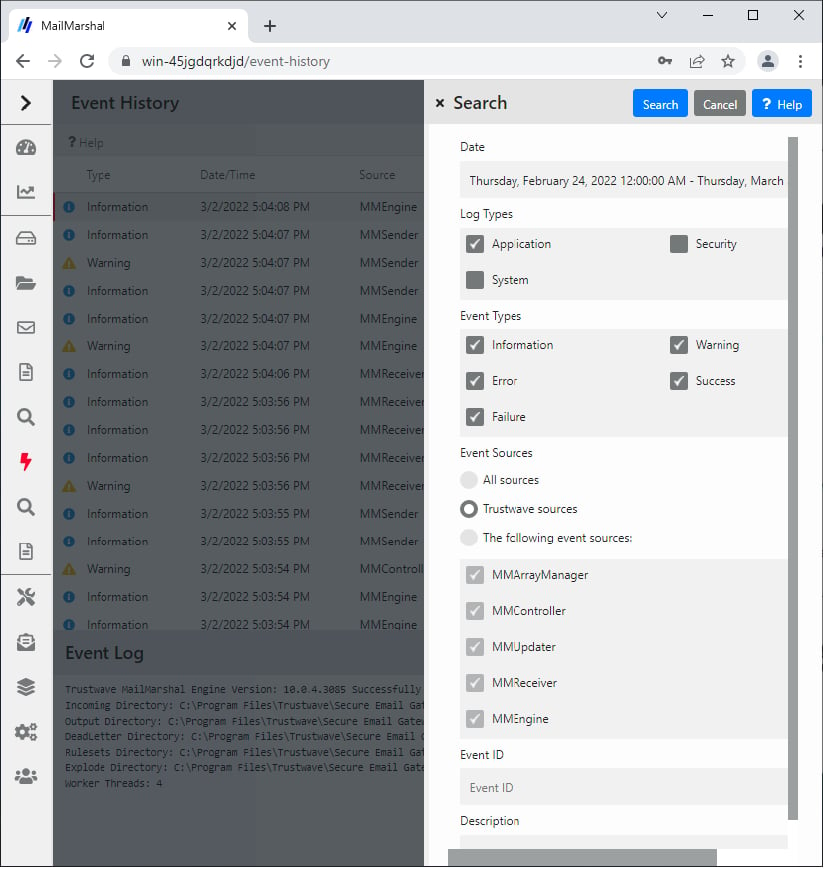
This panel allows you to search for specific events in the MailMarshal event log. To access the search panel, click Search at the top of the Event History panel.