

prod-usm-saas-tractorbeam.alienvault.cloud or prod-gov-usm-saas-tractorbeam.gov.alienvault.us (for LevelBlue TDR for Gov). If the ports are open and you still have no connectivity, check for any other physical problem on your side. If none are found, contact LevelBlue Technical Support to find out if their server is temporarily down.
To check the network connectivity for the sensor
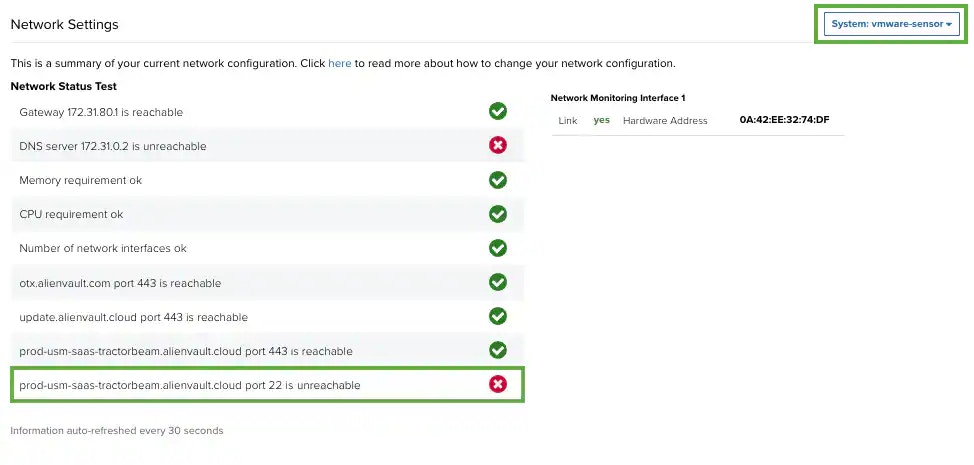
- While logged in to USM Anywhere, check your networking status by going to Settings > System.
-
If you have more than one deployed sensor, select the one that you want to verify.
If the page reports that this endpoint is unreachable, you may have a problem.
- Open your virtualization management console and connect to the USM Anywhere Sensor virtual machine (VM).
-
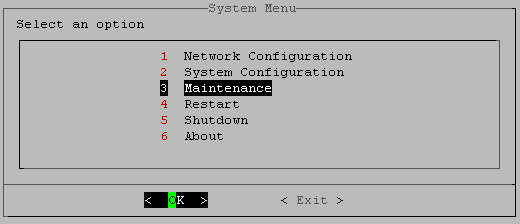
From the USM Anywhere Sensor console System Menu, select Maintenance and press Enter.
-
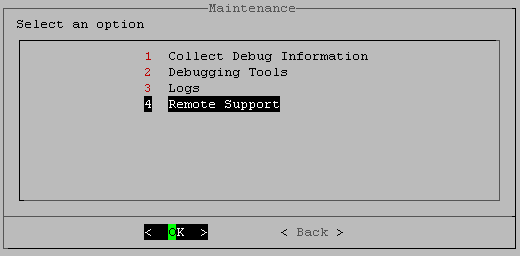
From the Maintenance menu, select Remote Support and press Enter.
-
From the Remote Support menu, select Show Remote Support Status, press the arrow-down (↓) key, and then Enter.
The system displays an alert message that the check is in progress.
When the check is complete with a connection, you see a success alert. If there’s no connection, the system displays an alert message that the remote server is unreachable.
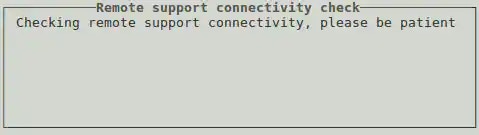
 Note: If the system does make a connection, you see a success prompt.
 - Press Enter.