Role AvailabilityRead-OnlyInvestigatorAnalystManager
To deploy the Tenable sensor in GCP
  1. Log into the Google Cloud Platform (GCP) console.
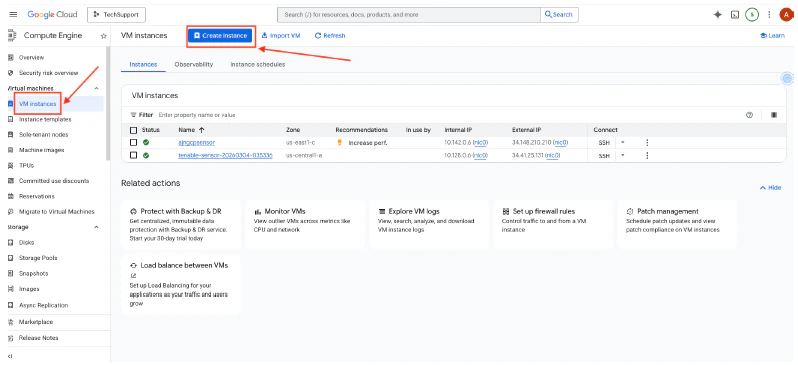
  2. Go to Compu
  3. Filter by Scanner, and then select LevelBlue Vulnerability Scanner Powered by Tenable.
  4. On the My Apps tab, click the Tenable Scanner Image link. This directs you to the Tenable Nessus page.
    Hyper V Tenable Link
  5. Under Download and Install Nessus, expand the Virtual Machines section, and select the View Tenable Core + Nessus Virtual Appliance option.
    V Mware DLVM
  6. Download the OVA file for VMware (as shown on the screenshot below).
    V Mware DLOVA
  7. Log into vSphere.
  8. Click on the Actions menu, and select Deploy OVF Template.
    V Mware Deploy OVF
  9. Select Local file for the OVF template.
  10. Click Upload Files, and then select the file you have downloaded earlier.
  11. Once done, click Next.
    V Mware Upload File
  12. Specify a Virtual machine name for the sensor, and the location of the VM. Then, click Next.
    V Mware Name Loc
  13. Select the resources, and then click Next.
    V Mware Resource
  14. Review the deployment details, and then click Next.
    V Mware Rev Deploy
  15. Select the Storage for the configuration and disk files, and then click Next.
    V Mware Storage
  16. Select the Destination Network from the dropdown list, and then click Next.
    V Mware Network
  17. The template properties are validated. If everything is valid, a confirmation message appears on the page.
  18. Click Next.
    V Mware Valid Values
  19. Review the deployment details, and then click Finish.
    V Mware Deploy VM
  20. Start the Tenable Nessus VM.
    Hyper V Web Console
  21. Log into the Tenable sensor web console using the default credentials: username: wizard / password: admin
    Hyper V Console Login
    Reboot the sensor if you cannot log in and the following error appears: “Logins have been disabled as no administrator account was created within the required time. Reboot the system to access the initial user creation wizard.”
    Hyper V Console Reboot
  22. When prompted to configure a Tenable sensor IP (static address), type y.
    Hyper V Console IP Config
  23. Select the Wired connection option, and then click Edit.
    V Mware Ethernet Connect
  24. Go to the IPv4 configuration, and change the Automatic option to Manual.
    V Mware I Pv4auto
    V Mware Manual
  25. Assign the IP Address, Gateway, and DNS Servers.
  26. Once done, click OK.
    V Mware Assign IP
  27. Verify all of the data, and then click OK.
    V Mware Check Data
  28. Click Quit.
    V Mware Quit
  29. Return to the web console, and when prompted to create an administrator account, type y.
    Hyper V Create Admin Acct
  30. Type a Username and Password for the admin account.
  31. Confirm the password.
    Hyper V Admin Login
  32. Check that the new admin account can log into the Tenable web console.
  33. Using the configured IP, use your web browser to connect to Tenable sensor to port 8000.
  34. Log in using the admin account credentials.
    V Mware Tenable Core Login
  35. Once you are logged in, you can see the name of the Tenable Sensor. Click Turn on administrative access.
    V Mware Tenable Dashboard
  36. Click Authenticate.
    Hyper V Authenticate Admin
  37. Check the License of the sensor, and verify that there is no license linking the sensor to the cloud tenant.
    V Mware Tenable License
  38. Connect to the Tenable sensor using your web browser on port 8834, and then click Continue.
    Hyper V Tenable Login
  39. Select the Managed Sensor option, and then click Continue.
    V Mware Managed Scanner
  40. Select the Tenable Vulnerability Management option to manage your linked scanner.
  41. Enter the Linking Key. (See Obtain Linking Key section below for details.)
    Hyper V Managed Scanner
    You may get the Linking Key from Tenable cloud:
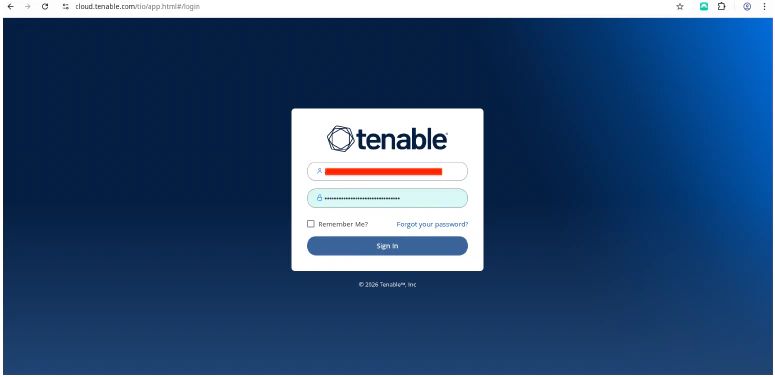
    • Log into cloud.tenable.com 
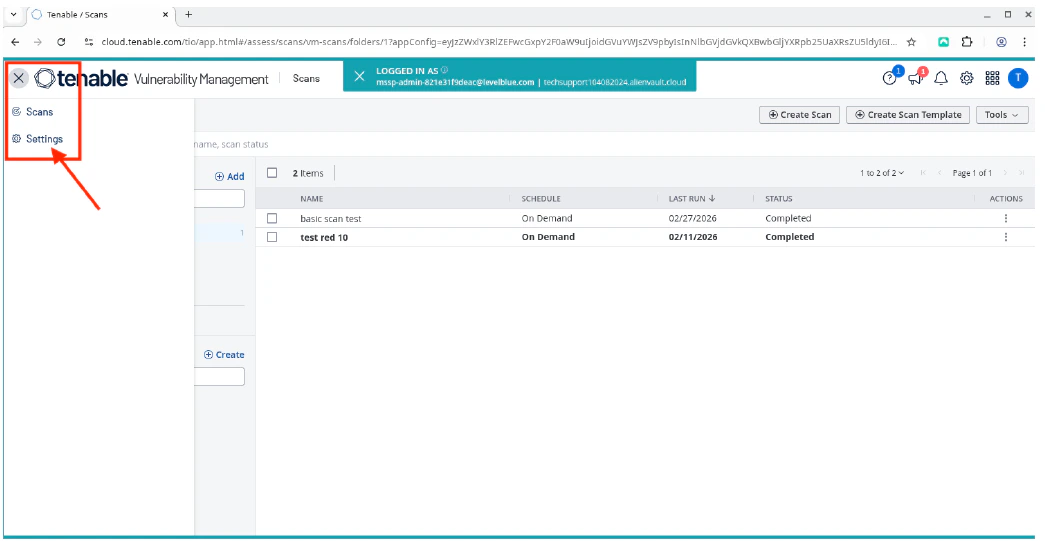
    • Click the burger menu, and then select Settings.

      Hyper V Tenable Cloud
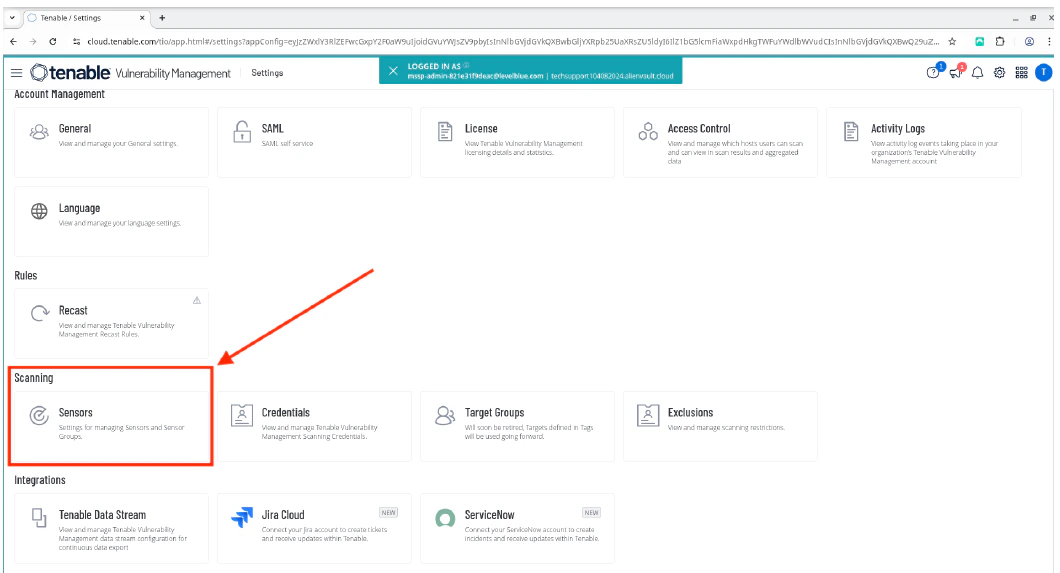
    • Select Sensors.
      Hyper V Tenable Cloud Sensors
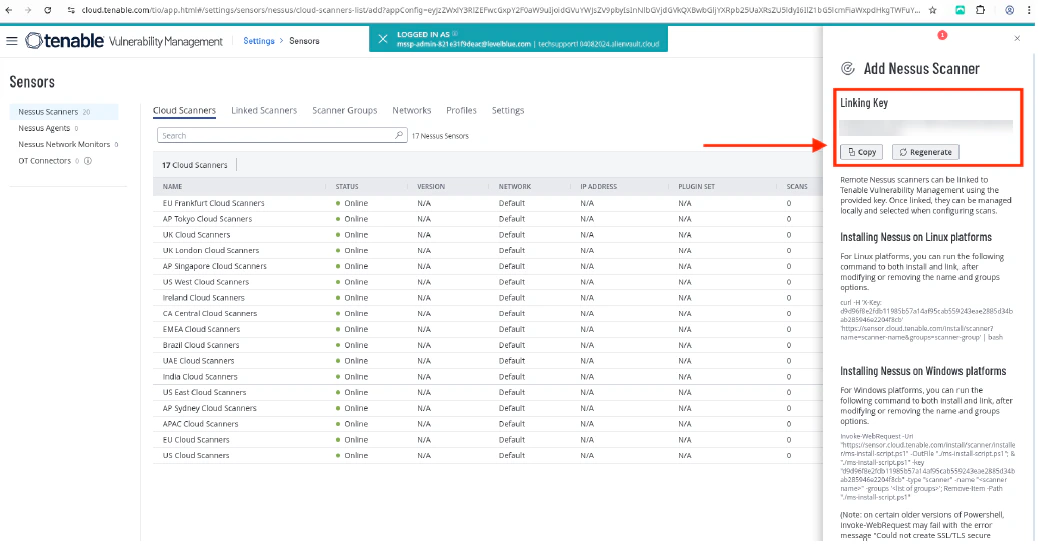
    • Click Add Nessus Scanner to view the Linking Key.
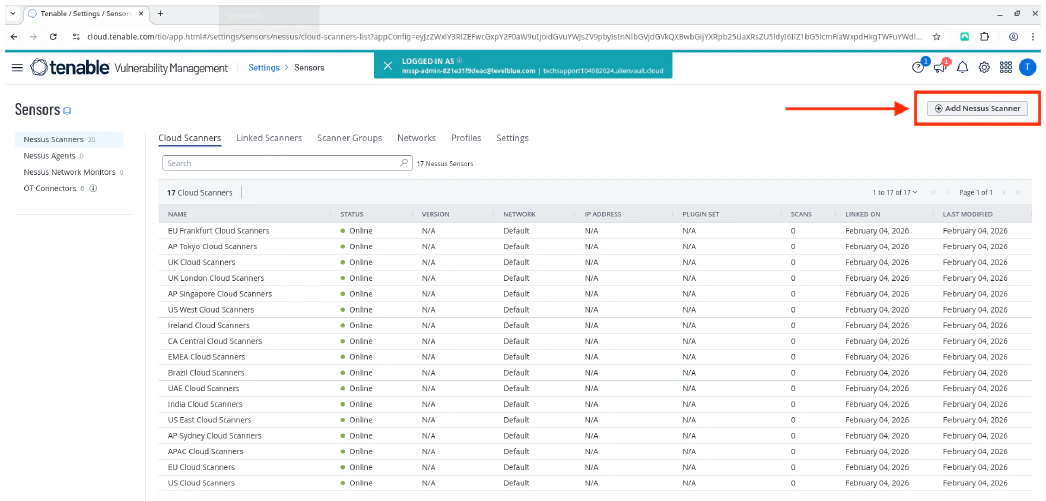
      Hyper V Add Nessus Scanner
    • Copy the Linking Key.
      Hyper V Copy Linking Key
  42. Once you have entered the Linking Key, click Continue.
  43. Enter a Username and Password to create a Nessus administrator user account.
    Hyper V Nessus User Acct
  44. Click Submit. The sensor’s My Scans page opens.
    Hyper V My Scans
  45. Return to the Tenable cloud page, and verify that the Tenable sensor is linked correctly and is in Online status.
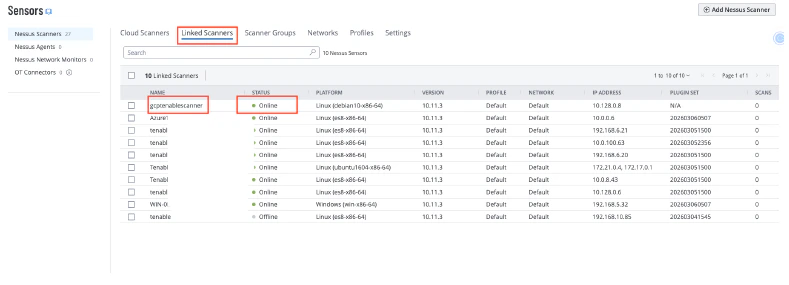
    Hyper V Tenabled Linked Sensor