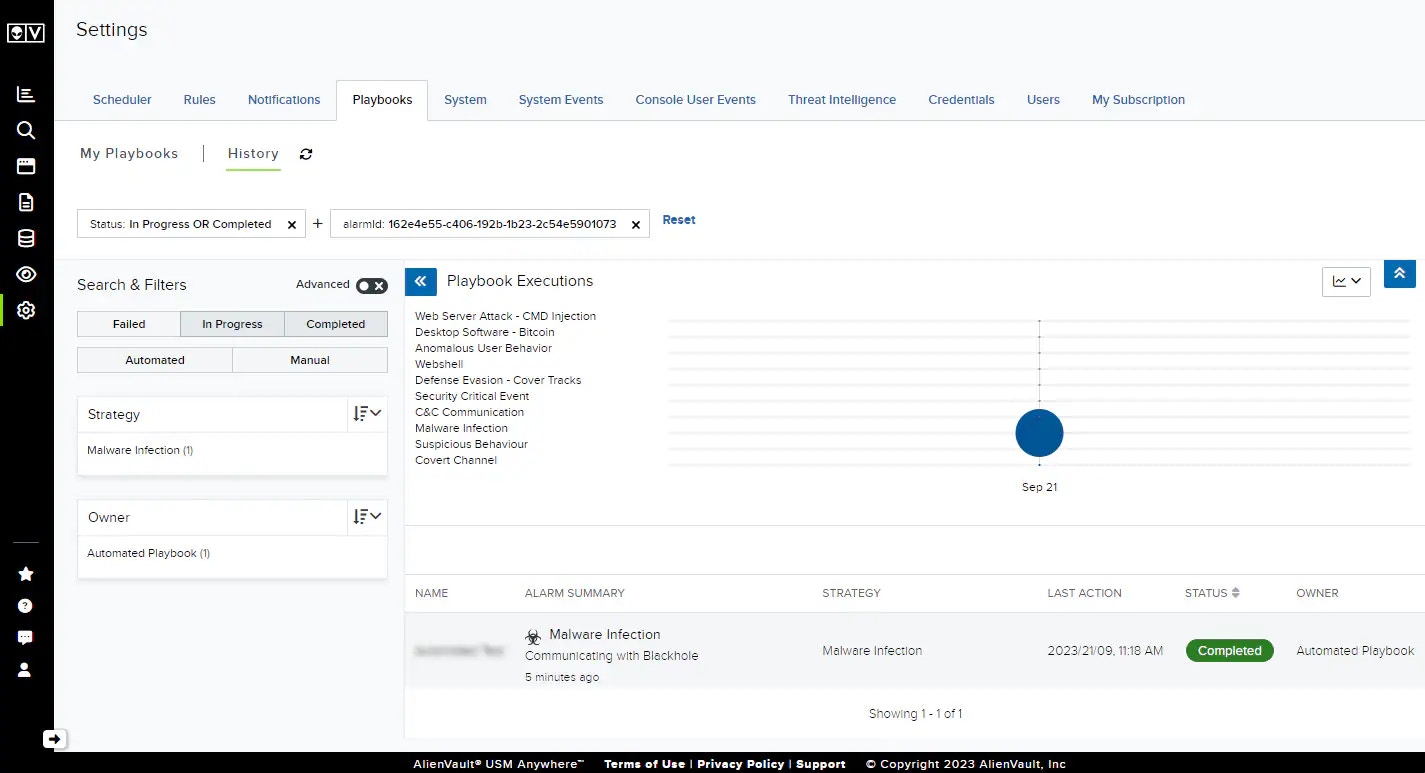
USM Anywhere enables you to create and manage playbooks. Playbooks provide you the ability to choose a set of steps that should be taken to respond to alarms generated from either a correlation rule or a custom orchestration rule.
Playbooks Page Overview
You can view your USM Anywhere playbooks on the Playbooks homepage at Settings > Playbooks. The Playbooks homepage includes the following two tabs:- My Playbooks: This tab displays all of the playbooks that have been created in your instance and includes the Create Playbook button, with which you can create a new playbook. From the My Playbooks tab you can also edit, delete, archive, and clone playbooks.
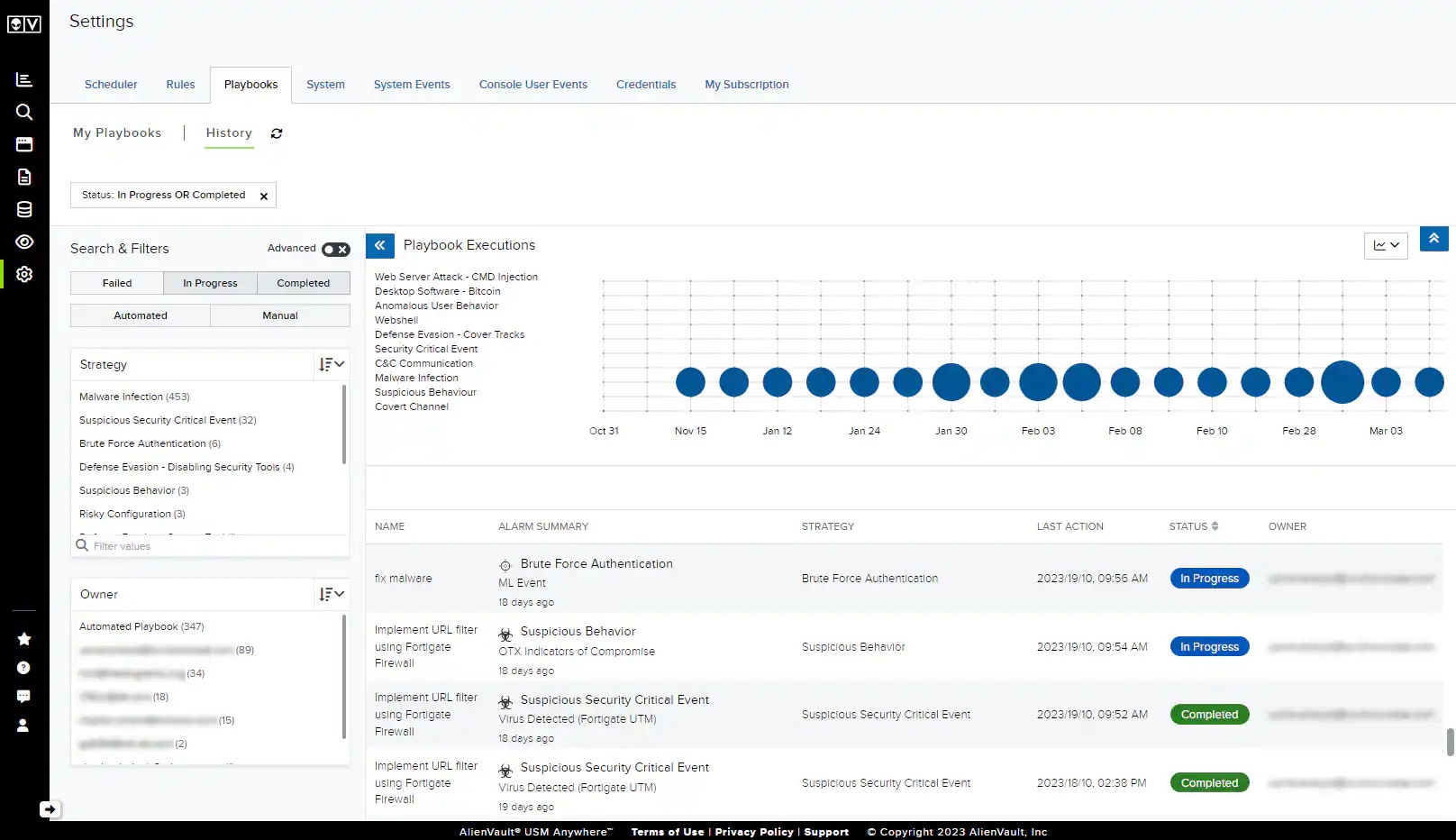
- History: This tab lists all of the playbooks that have been run in your environment. This view also lists the status and owner of each playbook that has been run.
My Playbooks Tab
The My Playbooks tab shows a complete list of playbooks that have been created in your instance. On this tab you can filter for automated, manual, active, and archived playbooks. Active playbooks are displayed by default, and archived playbooks can only be viewed if the Archived filter is selected. See Archiving Your Playbooks for more information. Users in the Manager role can also create and manage playbooks from the My Playbooks tab. See Creating a Playbook for complete instructions to guide you through creating a new playbook.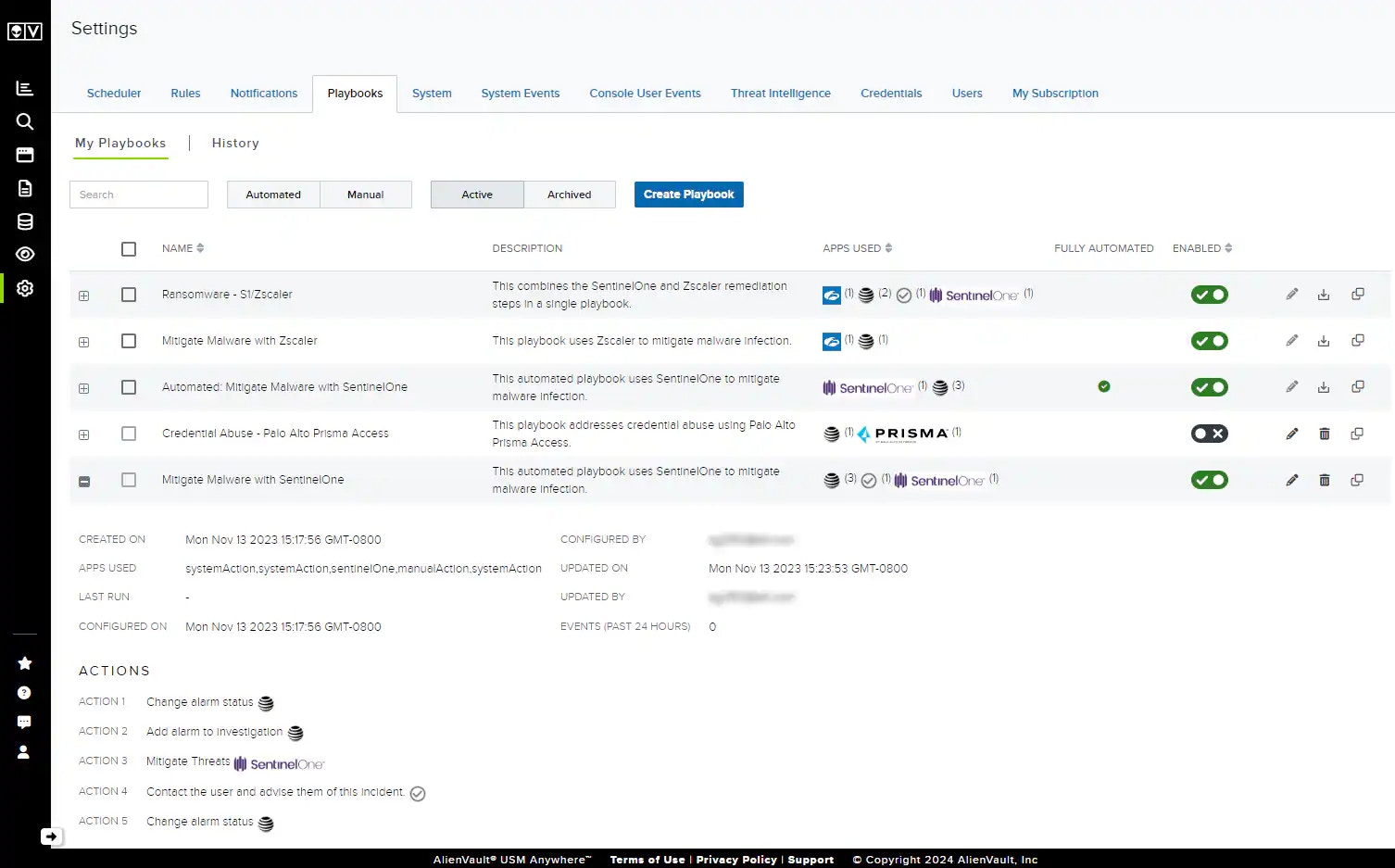
| Column | Description |
|---|---|
| Name | Name of the playbook |
| Description | Description of the playbook |
| Apps Used | AlienApps that are associated with actions in the playbook |
| Fully Automated | Indicates whether all actions in the playbook are automated |
| Enabled | Toggle button that enables or disables the playbook |
    | Buttons to edit, delete, archive, and clone the playbook |
- Created On: The timestamp from when the playbook was created
- Configured By: The user who created the playbook
- Apps Used: All apps referenced by actions in the playbook
- Updated On: The timestamp from when the playbook was last updated
- Last Run: The timestamp from when the playbook was last executed
- Updated By: The user who last updated the playbook
- Configured On: The timestamp from when the playbook was configured
- Events (Past 24 Hours): The number of events related to the playbook from the past 24 hours
- Actions: A list of each of the playbook’s actions in the order they will be executed
History Tab
The History tab shows a list of the playbooks that have been run in your instance along with some attendant information, like the current status and owner of each playbook. To refresh your list of playbook execution history, click the icon.
icon.
You can also filter your playbook history by specific alarms that have been triggered.
To view playbooks execution history by alarm
-
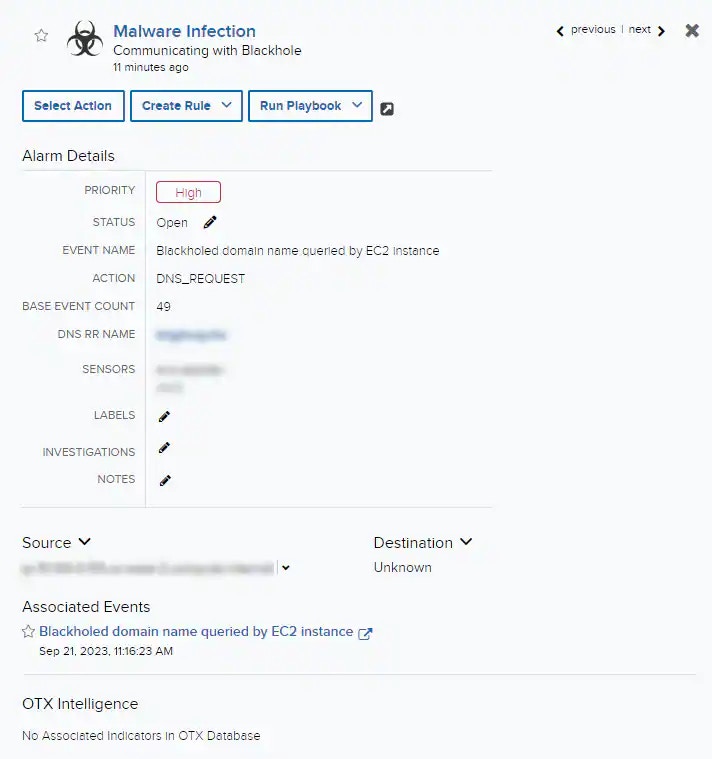
Go to Activity > Alarms, and then click an alarm.
The Alarm Details page opens.
-
Click the
 icon to open the playbooks History tab.
This displays playbooks filtered by the selected alarm’s ID.
icon to open the playbooks History tab.
This displays playbooks filtered by the selected alarm’s ID.